Audience: anyone who works for more than one organisation in Delekit, such as an agency. Applies to: all plans.
In Delekit, each organisation you run events for is a client (the menu calls it the Customer). If you've been given access to more than one, you switch between them from the menu. Each client has its own events, settings and users, and its own web address, so you can keep several open in different tabs.
Before you start
- You need access to each client. Someone at that organisation (a client administrator) adds you as a user, with one sign-in for all of them. See Invite and manage users.
- With one client, there's nothing to switch. The Customer row then only shows its name, and Delekit always opens that client's events.
- Your role can differ between clients: for example, client administrator for one and project administrator for another. See Roles and permissions: client admins and event admins.
Switch client
In the menu, look at Customer: it names the client you're working in.
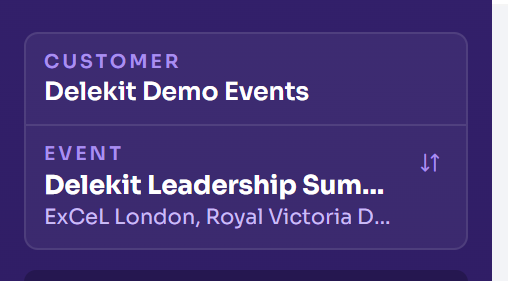
Select Customer. A list of your clients opens, with your role in each.
To find one in a long list, type part of its name in Search customers.
Select the client. Its events list opens.
What happens next
You're now working in that client: its events list, its Admin menu (if you're one of its client administrators) and its settings. The event you had open belongs to the other client, so choose one of this client's events.
The tab you switched in moves to the new client. Any other tabs stay on the client they had open, because the client is part of each page's web address.
Check it works
The menu's Customer shows the client you chose, and the events list shows its events.
If something isn't right
- A client you work for isn't listed. You haven't been given access to it, or you were given it after you signed in. Sign out and sign in again; if it's still missing, ask that organisation's client administrator to add you.
- "Select a client" opens instead of your events. Choose the client to work in: each one opens in its own address.
Related articles
Still stuck? Contact Delekit support.
Was this article helpful?
That’s Great!
Thank you for your feedback
Sorry! We couldn't be helpful
Thank you for your feedback
Feedback sent
We appreciate your effort and will try to fix the article