Audience: client administrators and event administrators. Applies to: all plans.
All events lists every event you can work on for your organisation, with its code, dates, whether it's coming up or over, and its status. Search it or filter it by status to find an event, then open it. When you're inside an event, Switch event in the menu takes you straight to another one.
Before you start
- Client administrators see all of their organisation's events. Everyone else sees only the events a client administrator has given them. If an event you need is missing, ask a client administrator for access: see Give people access to an event.
- Working for more than one organisation? Choose the right one from Customer in the menu first. The list shows one organisation's events at a time.
- Archived events stay in the list. Deleted events don't.
Find an event in All events
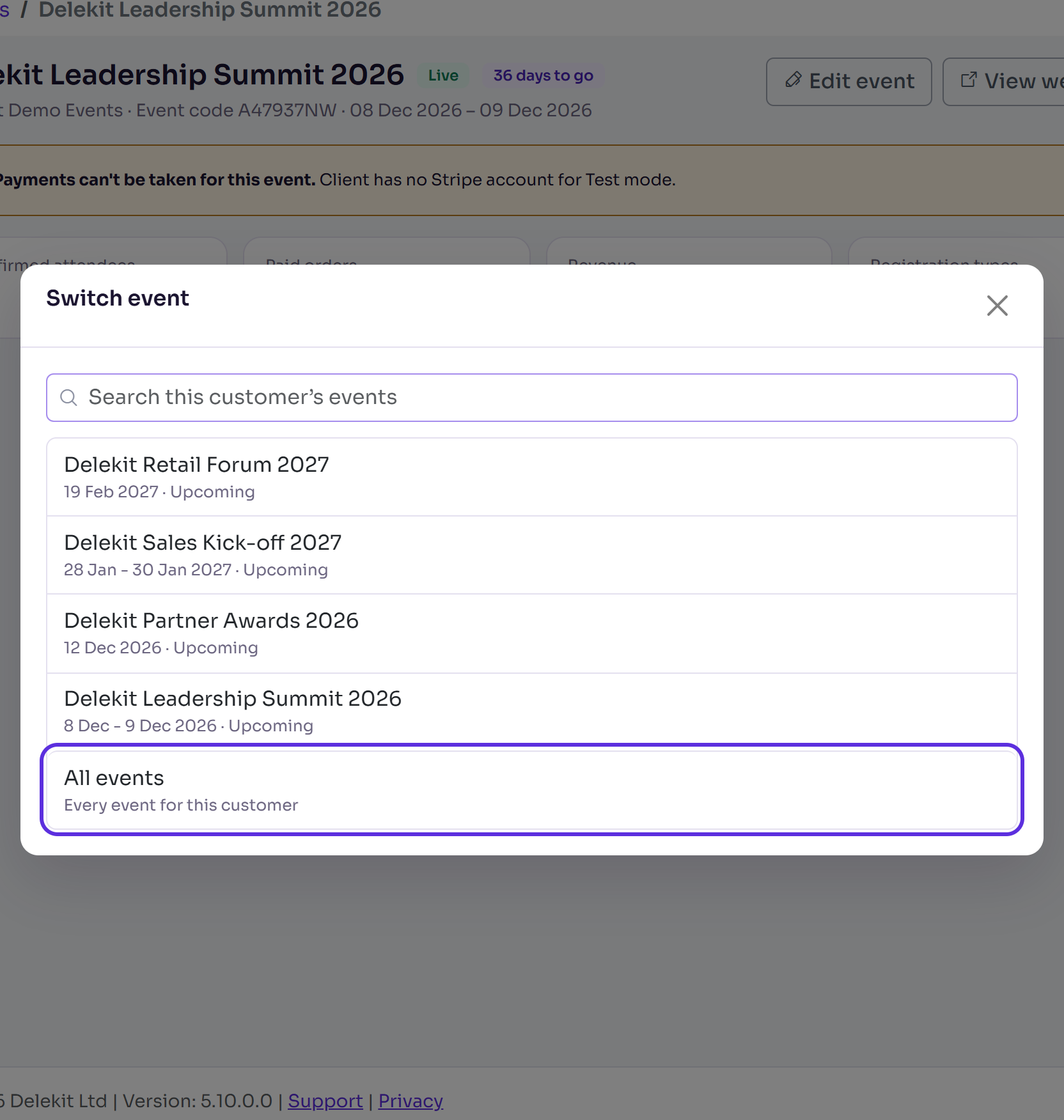
In the menu, select All events. If you're inside an event, select Switch event (the two arrows next to the event's name), then All events at the end of the list.
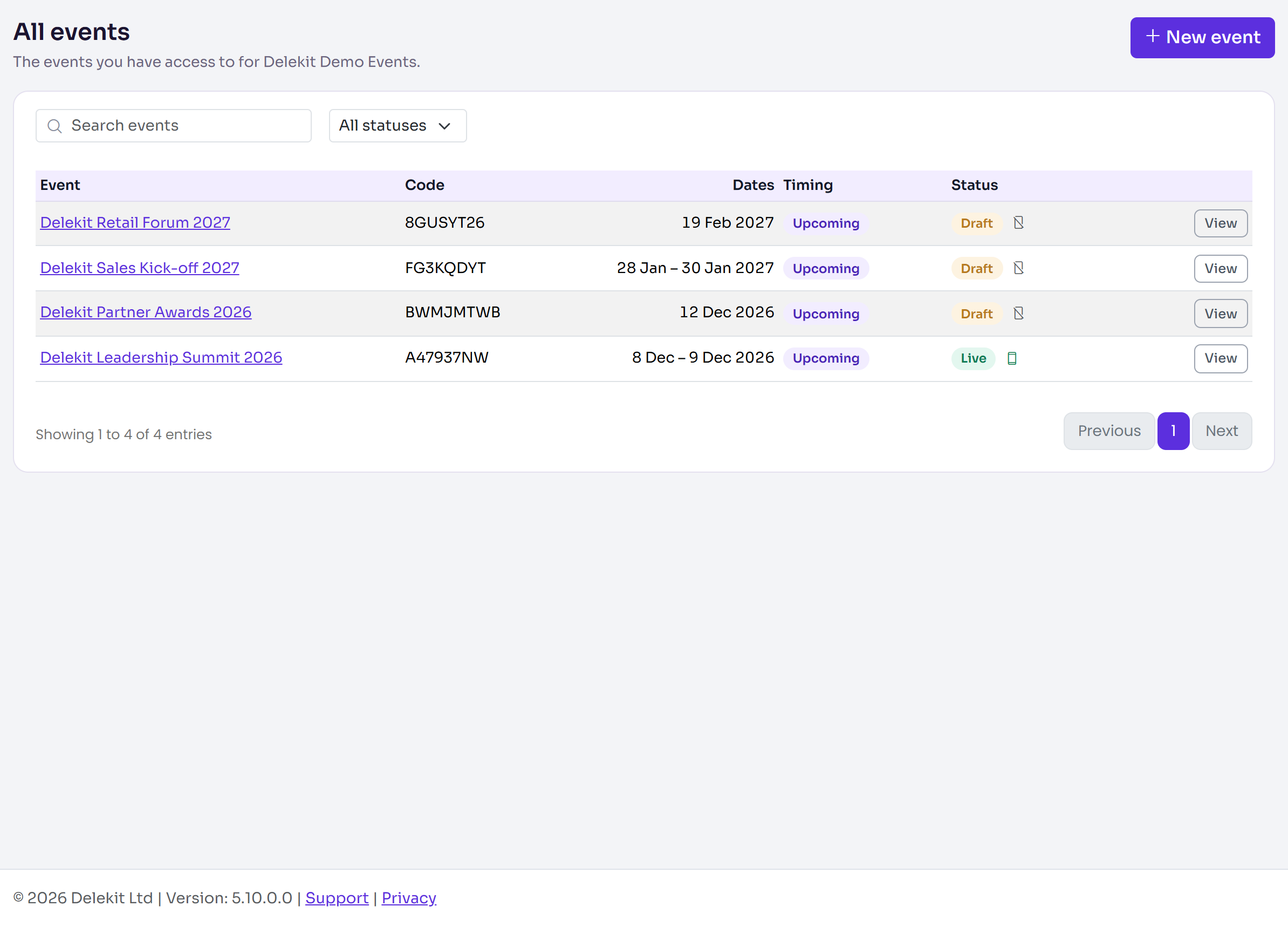
Enter part of the event's name, or its code, in Search events.
To narrow the list, choose Draft, Live or Archived in the status filter. Choose All statuses to see every event again.
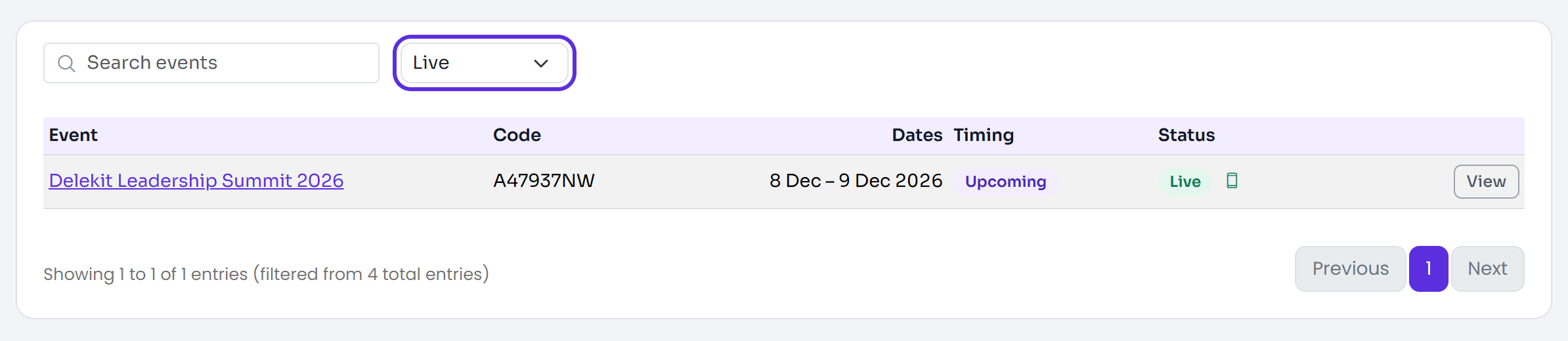
Select the event's name, or View, to open the event's Overview.
What the list shows
| Column | What it shows |
|---|---|
| Event | The event's name. Select it to open the event. |
| Code | The event's code, which Delekit made when the event was created. It never changes, and it's part of the web address of the event's pages in Delekit. |
| Dates | The first and last day of the event. |
| Timing | Upcoming before the event starts, In progress while it's on, and Finished once its last day has passed. |
| Status | Draft, Live or Archived (see Go live with your event), and a phone icon that says whether the event is visible in the check-in app. Hover over it for Visible in check-in app or Hidden from check-in app. |
| Sync | Only when one of your events syncs attendees and sessions from RainFocus: Awaiting first sync, or when it last synced. |
Events are in date order, latest first. Select a column's heading to sort by it instead.
Switch to another event
You don't need to go back to the list to move between events.
In the menu, select Switch event: the two arrows next to the event's name.
Start typing the event's name in Search this customer's events.
Select the event. Its Overview opens.
Search or jump to… in the menu finds events by name too, as well as pages and settings.
If something isn't right
- An event isn't listed: you haven't been given access to it, it belongs to another organisation (check Customer in the menu), or it was deleted. A client administrator can bring back a deleted event for a while: see Delete an event.
- The list says "You don't have any events yet.": your organisation has no events, or none has been shared with you yet.
- The list says "No events match your search or filter.": clear Search events and choose All statuses.
- There's no New event button: only client administrators can create events. See Create an event.
Related articles
- The event overview
- Create an event
- Go live with your event
- Give people access to an event
- Switch between organisations (clients)
Still stuck? Contact Delekit support.
Was this article helpful?
That’s Great!
Thank you for your feedback
Sorry! We couldn't be helpful
Thank you for your feedback
Feedback sent
We appreciate your effort and will try to fix the article