Audience: client administrators. Applies to: all plans. Your organisation must have set how long deleted events are kept.
Delete an event you created by mistake, or one you no longer need, from Edit event. It leaves your events list straight away, and after the period your organisation chose, the personal data of everyone in it is erased. Until then a client administrator can restore it. The event's figures (registrations, tickets sold, revenue) stay in your reports.
Before you start
- Your organisation must have set Keep deleted events. Until a client administrator sets it in Admin › Data retention, the Delete event section says Not available yet instead of offering the button. See Set your data retention periods.
- Only a client administrator can delete or restore an event. Event administrators don't see Delete event, and Delekit refuses it with Only a client admin can delete an event.
- Finished with an event you want to keep? Set its Status to Archived instead. It stays in your events list with all its data. See Go live with your event.
- Want to clear test bookings only? Delete those attendees instead. See Delete and erase personal data.
Delete the event
Open the event, then in the menu select Event, then Edit event.
Go to the end of the page. Delete event says what happens and how many days the event is kept before its personal data is erased.

Select Delete event. Delekit asks whether to delete the event, and what goes with it.
Enter the event's name exactly as it's shown, to confirm.
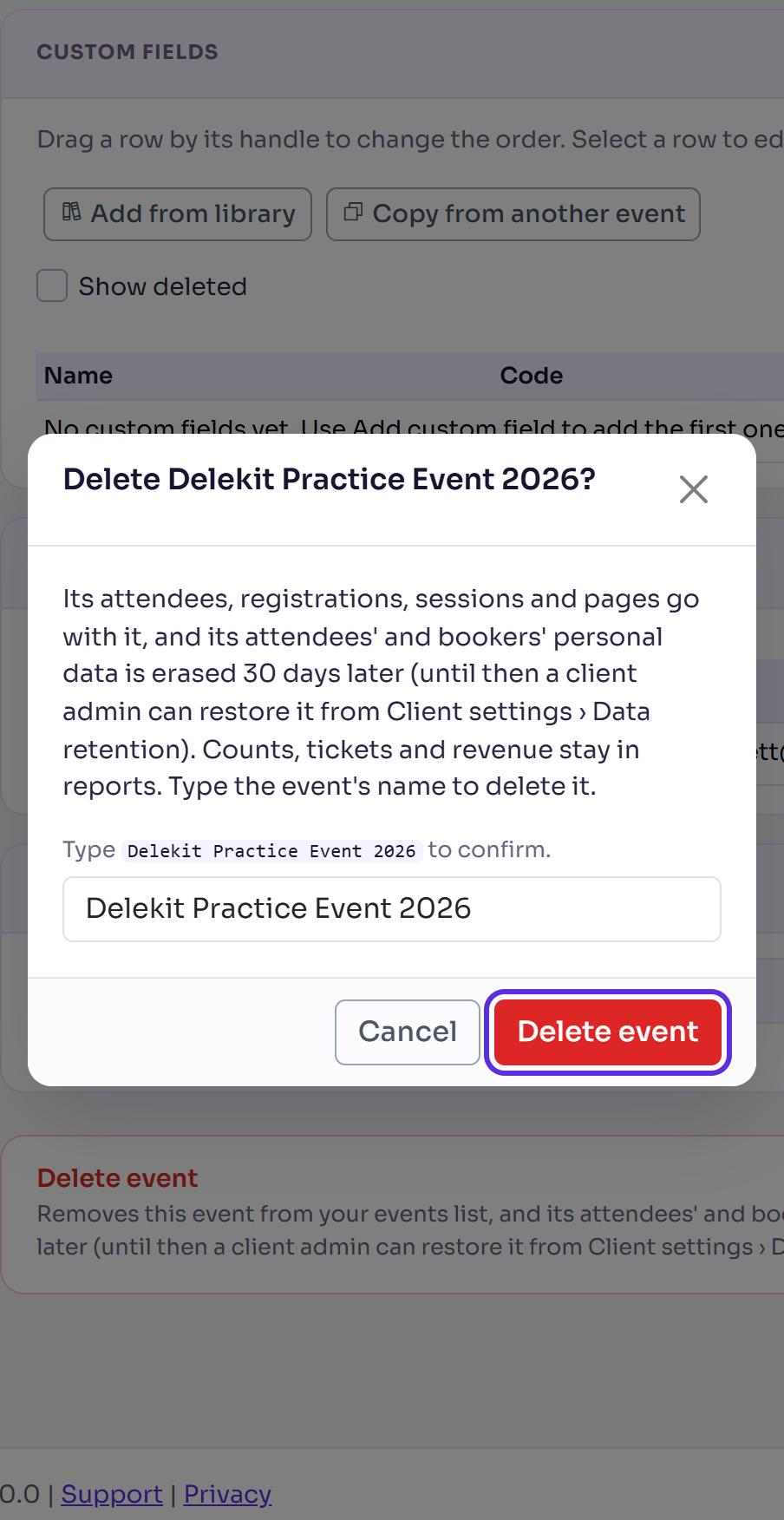
Select Delete event.
You're taken to All events, with a message that says the date its personal data will be erased.
What happens next
- The event leaves your events list and the Switch event list, and everyone's access to it is removed. Its attendees, registrations, sessions and pages go with it.
- Emails waiting to go to its people are cancelled. Nothing more is sent for the event.
- After the period your organisation chose, the personal data of its attendees, bookers, speakers' and sponsors' teams is erased, with the emails sent to them and their files. If Keep deleted events is 0 days, this happens within minutes and can't be undone.
- The event's figures stay in your reports, without anything that identifies a person.
- Client settings › Data retention lists the deletion under Erasures, with the date it erases.
Restore a deleted event
Client administrators can bring an event back until the date its personal data is erased.
In the menu, select Admin, then Data retention.
In Erasures, find the row Every attendee of and the event's name, with Event deleted.

Select Restore event, then Restore event again to confirm.
A message says the event is restored and stays unpublished until you publish it again. It's back in your events list with the people who had access when it was deleted, and its personal data isn't erased. Emails cancelled when it was deleted aren't sent again: resend any that are still needed.
If something isn't right
- Delete event says "Not available yet": your organisation hasn't set Keep deleted events. A client administrator can select Set up data retention to set it.
- You can't select Delete event in the pop-up: the name you entered doesn't match the event's name. Check the spelling and capitals.
- There's no Restore event on the row: the erasure has started or finished, so the event can't be restored. Only a client administrator sees Data retention.
Related articles
- Set your data retention periods
- Delete and erase personal data
- Go live with your event
- Find your events
Still stuck? Contact Delekit support.
Was this article helpful?
That’s Great!
Thank you for your feedback
Sorry! We couldn't be helpful
Thank you for your feedback
Feedback sent
We appreciate your effort and will try to fix the article