Audience: event administrators and client administrators. Applies to: plans that include the registration form builder. If Email templates shows a padlock in the menu, it isn't in your plan.
Every time you save a change to an email template, Delekit keeps it as a new version. Only the published version is ever sent. History lists every version, who made and published it and why, and lets you go back to an earlier one by reverting to it.
How versions work
- Save draft keeps your changes as a new version that isn't live. The editor shows Draft: not live, and Live: with the version people still get, for example Live: v2.
- Publish changes makes the version you're editing the live one, with an optional note saying what changed. Every other version is archived, and the editor shows Published.
- Emails already sent don't change. Emails sent from then on use the published version.
| Status in History | What it means |
|---|---|
| Published | The version people get now. |
| Draft | Saved, but not live. |
| Archived | An earlier version, kept so you can revert to it. |
Before you start
- Reverting doesn't change what's sent until you publish. It makes a new draft from the version you pick.
- Nothing is deleted. Every earlier version stays in History.
Revert to an earlier version
In the menu, select Registration, then Email templates, and select the email.
In the editor, select History.
Find the version you want. Each row shows its Version, Status, when it was Created and Published, by whom, and its Change notes.
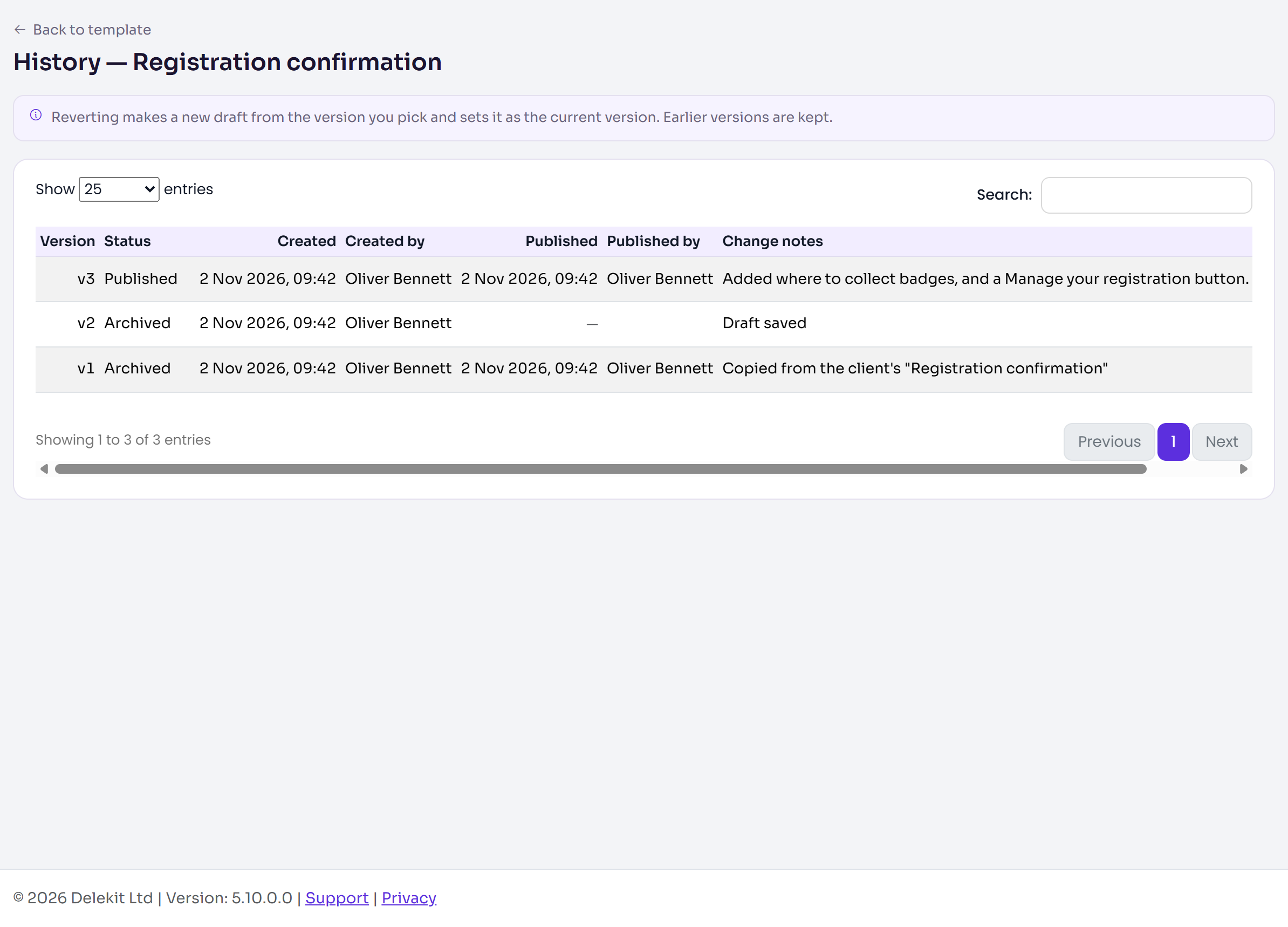
Select Revert on that version.
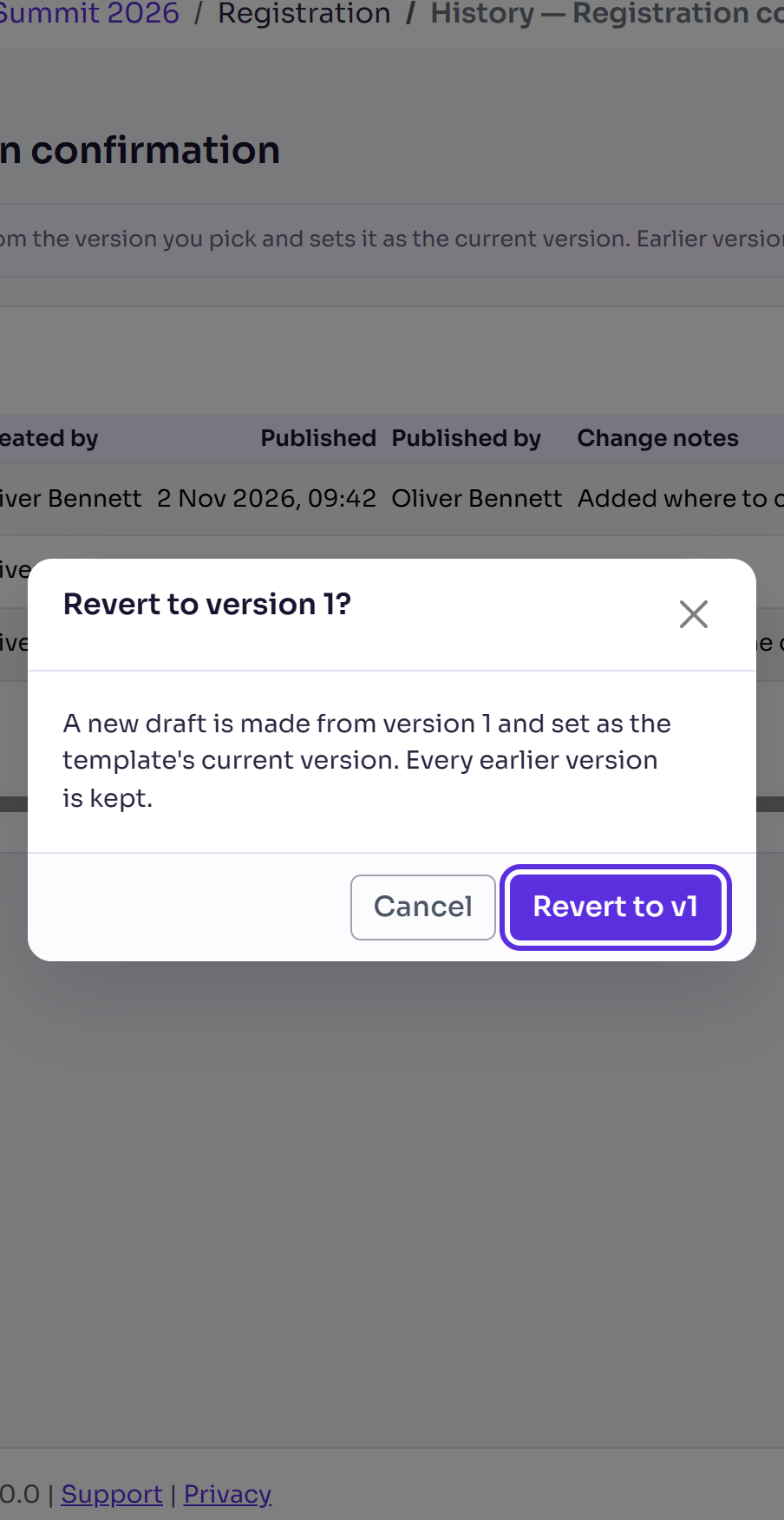
In the pop-up, select Revert to followed by the version, for example Revert to v1.
The editor opens on the new draft, with the earlier version's subject, preview text, wording and layout. Check it in Preview.

Select Publish changes, add a Note (optional), then select Publish changes in the pop-up.
What happens next
- After reverting you'll see Version reverted, new draft created. The new draft's change note says which version it came from, for example "Reverted from v1".
- After publishing you'll see Template published. Emails sent from now on use it.
- If you leave without publishing, people keep getting the version that was live.
Stop using a template for now
To take a template out of use without deleting it, select More actions (⋯) in the editor's bar, then Unpublish, then Unpublish template. It stops being used until you publish it again, and emails that need it won't send in the meantime. Choose Keep published to leave it as it is.
If something isn't right
- "That version no longer exists." Reload History and choose another version.
- People still get the old wording after a revert: the reverted version is a draft. Open the email and select Publish changes.
- You reverted the wrong version: revert again to the one you want. Nothing is lost.
Related articles
- Change the wording of an email
- Set up your event's email templates
- Which emails Delekit sends, and when
Still stuck? Contact Delekit support.
Was this article helpful?
That’s Great!
Thank you for your feedback
Sorry! We couldn't be helpful
Thank you for your feedback
Feedback sent
We appreciate your effort and will try to fix the article