Audience: client administrators and event administrators. Applies to: plans that include the registration form builder. If the Website items show a padlock in the menu, they aren't in your plan.
Choose how your event website shows in search results and when someone shares a link to it on LinkedIn, Teams or Slack: the site's name, a short description and a share image. You can also ask search engines not to list the site until you announce the event.
Before you start
- Every setting has a default. Left empty, search engines and link previews get your event's name, its dates and venue, and the page's first section image. You only need to fill in what you want to change.
- Search engines update in their own time. A change can take days or weeks to show in their results.
- Share images come from the site's images. Upload the picture first, or use Upload image when you choose it. See The asset library: images and files.
Set the site's search details
In the menu, select Website, then Settings, and go to SEO.
Enter a Site name if it should differ from your event's name. Search engines show it with the site's address.
Enter a Search description: a sentence or two about the event. Search engines show about 155 characters.
Under Share image, select Choose image and choose the picture a shared link shows. It looks best at 1200 × 630 pixels.
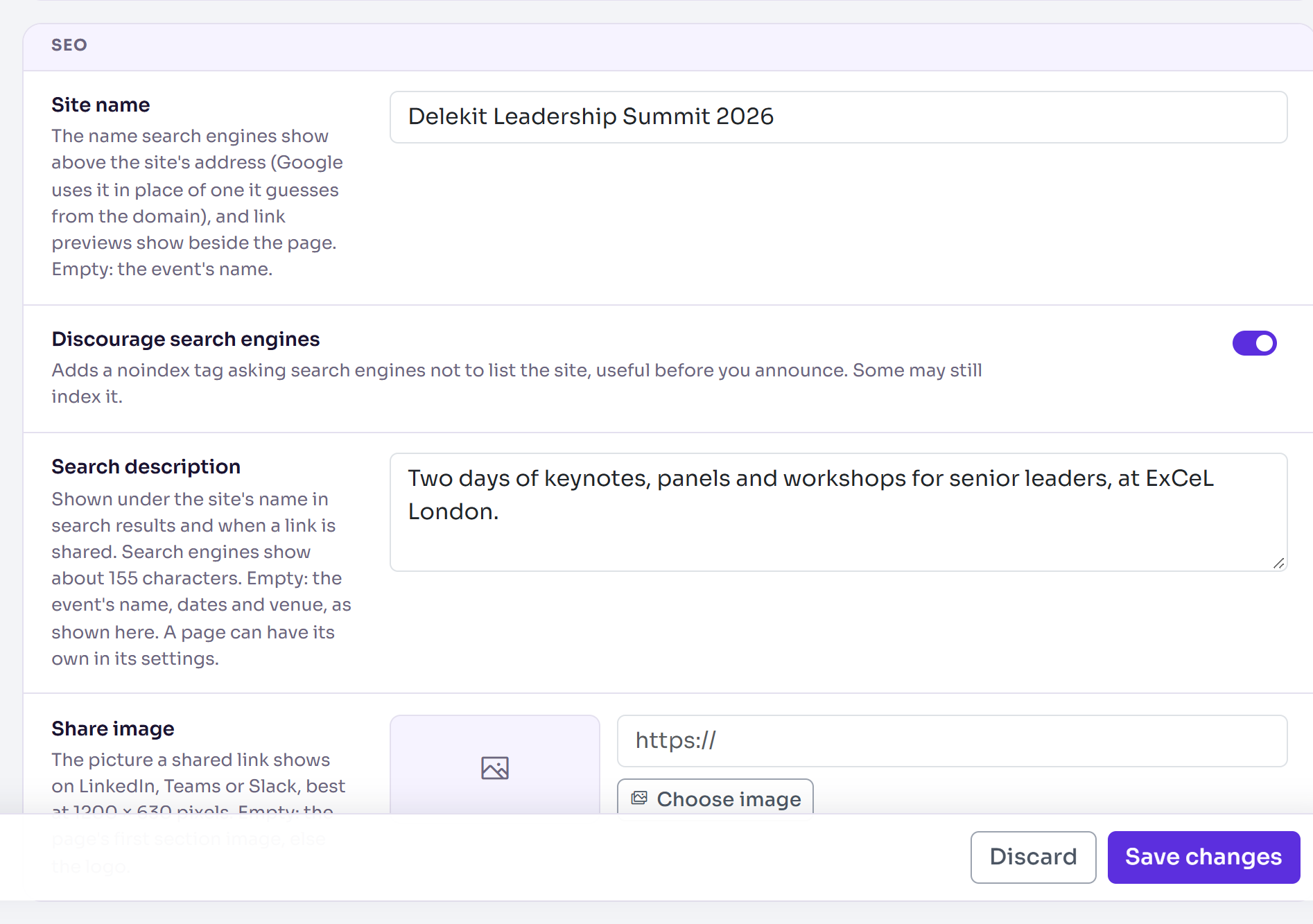
To keep the site out of search results for now, turn on Discourage search engines.
Select Save changes.
Give a page its own description
In Website › Pages, select Build on the page.
Select More actions (⋯), then Page settings.
Enter the page's Search description.
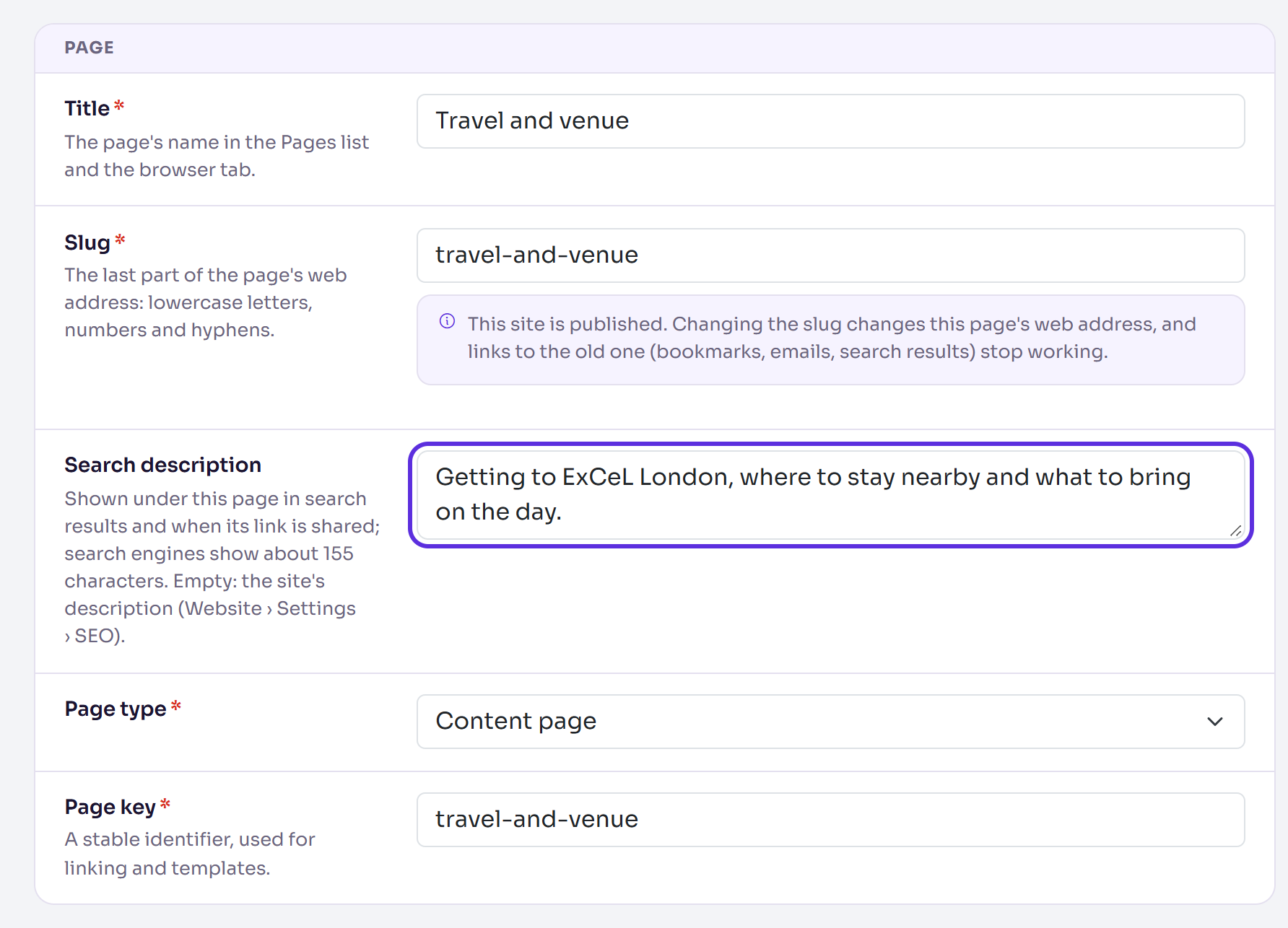
Select Save changes. You're back in the page builder, with Changes saved.
What happens next
- The settings apply straight away on a published site. There's nothing to publish.
- Each page uses its own search description if it has one, otherwise the site's, otherwise one Delekit writes from the event's name, dates and venue. In Site settings, the Search description box shows Delekit's as a hint while it's empty.
- A shared link shows the share image if you chose one, otherwise the first section image on the page, otherwise your logo.
- Discourage search engines asks search engines not to list the site. Most respect it, but some may still list it. It doesn't stop anyone visiting: to do that, see Password-protect your website.
- To go back to a default, clear the box or select Remove image, then select Save changes.
Check it works
Open a page of your site in a private browser window and view its page source: the
description you entered is in the description tag. To see a link preview, paste the page's
address into a LinkedIn post or a Teams chat without sending it.
If something isn't right
- "Keep the description to 300 characters. Search engines show about 155." Shorten the Search description.
- "Use the full address of an image, starting https://." Choose the image with Choose image, or enter a full address.
- A link preview still shows the old picture or text: LinkedIn, Teams and Slack remember a link's preview for a while. Try again later.
- The site still shows in search results after you turned on Discourage search engines: search engines remove it when they next visit it, which can take some time.
Related articles
- Preview and publish your website
- Your event website's address
- Set up Google Analytics and the cookie banner
- Password-protect your website
Still stuck? Contact Delekit support.
Was this article helpful?
That’s Great!
Thank you for your feedback
Sorry! We couldn't be helpful
Thank you for your feedback
Feedback sent
We appreciate your effort and will try to fix the article