Audience: client administrators and event administrators. Applies to: plans that include the registration form builder. If the Website items show a padlock in the menu, they aren't in your plan.
Ask for a password before anyone can see your event website or register, for example while a client reviews it before launch. Visitors enter the password once, then see the site as usual. Turn it off when you're ready to go public.
Before you start
- This protects the whole site: every page, and registration. To protect one page only, or make registration invite-only, see Make registration public, invite-only or password-protected.
- Publish the site first so there's something to see: see Preview and publish your website.
- Choose a password you can share with your reviewers, not one you use anywhere else.
Turn on the site password
In the menu, select Website, then Settings, and go to Access.
Turn on Require a password.
Enter the Password.
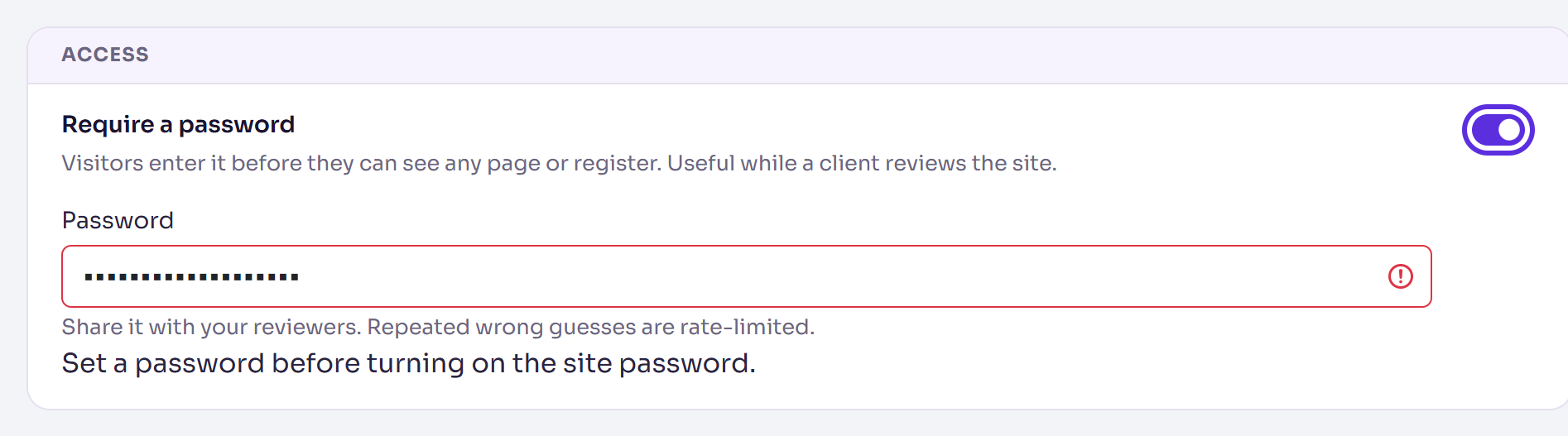
Select Save changes.
You'll see Changes saved. The password applies straight away: there's nothing to publish.
What visitors see
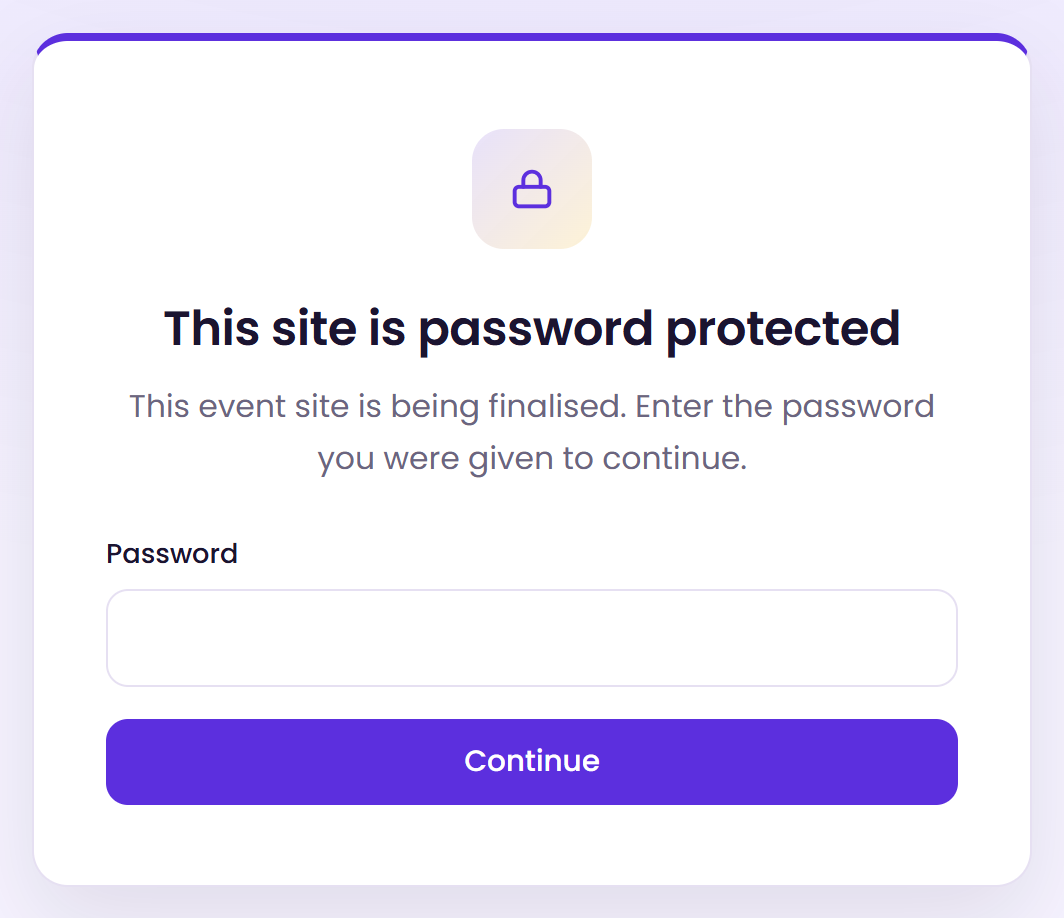
Anyone who opens the site sees This site is password protected, and a box for the password. They enter it and select Continue to go on to the page they asked for.
What happens next
- A browser stays unlocked for 12 hours once the right password is entered. After that, the visitor is asked again.
- Share the password with the people who should see the site. Repeated wrong guesses are rate-limited.
- To change the password, enter a new one in the Password box and select Save changes. Leave the box blank to keep the current one.
- To open the site to everyone, turn off Require a password and select Save changes. The password is kept, so you can turn it back on later without entering it again.
Check it works
Open your website's address in a private browser window. You should see the password page. Enter the password and select Continue: the site opens. If you're signed in to Delekit in the same browser, you may go straight in, so always test in a private window.
If something isn't right
- "Set a password before turning on the site password." You turned on Require a password without entering one. Enter a Password, then save again.
- "Incorrect password. Please try again." The visitor typed it wrongly. Check they have the password exactly as you set it.
- People can't register after launch: Require a password is still on. Turn it off and select Save changes.
Related articles
- Make registration public, invite-only or password-protected
- Preview and publish your website
- Search engine settings
Still stuck? Contact Delekit support.
Was this article helpful?
That’s Great!
Thank you for your feedback
Sorry! We couldn't be helpful
Thank you for your feedback
Feedback sent
We appreciate your effort and will try to fix the article