Audience: client administrators and event administrators. Applies to: plans that include the registration form builder. If the Website items show a padlock in the menu, they aren't in your plan.
Every event website has a Delekit address, such as https://events.delekit.com/summer-summit,
that works as soon as you publish the site. This article explains where to find it, how each
page's address is made, and how to change the part made from your event's name.
How the address is made
| Part | Example | Where it's set |
|---|---|---|
| Delekit address | https://events.delekit.com/ |
The same for every event. |
| Delekit slug | summer-summit |
Made from your event's name when the event is created. If another event already has it, a number is added. Change it in Website › Settings › Domain. |
| Page slug | /travel-and-venue |
Each page's Slug, in its page settings. The home page has none: it opens at the site's address. |
So a page's full address is the site's address, then / and the page's slug:
https://events.delekit.com/summer-summit/travel-and-venue.
Find your website's address
In the menu, select Website, then Settings.
Under Site and publishing, the Web address is where visitors reach the site. Select Copy to copy it.
Go to Domain. Under Address style, Delekit address shows In use, with the address.
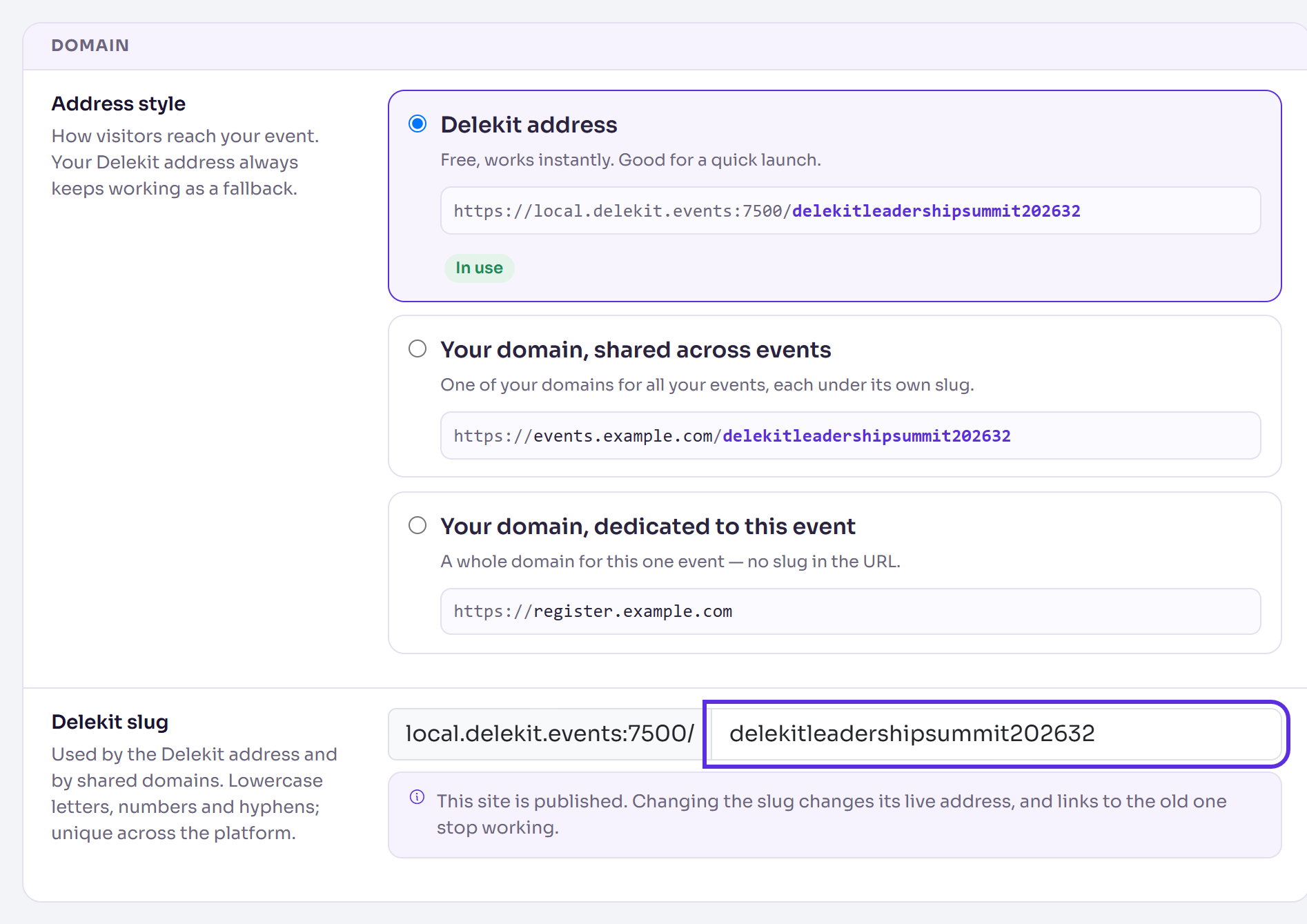
Until the site is published, the address doesn't open anything for visitors: see Preview and publish your website.
Change the Delekit slug
Change the slug before you publish and share links. Once the site is published, links to the old address stop working.
- In Website › Settings, go to Domain.
- Enter the new Delekit slug: lowercase letters, numbers and hyphens only.
- Select Save changes.
The page reloads with Changes saved, and the Web address shows the new address.
To change a page's slug, open the page in the page builder, select More actions (⋯), then Page settings, and change its Slug. See Add and manage pages.
What happens next
- Every link Delekit makes uses the new address, including Preview site and the page builder's View live.
- Links you shared before the change stop working, including bookmarks, emails and search results. Share the new address instead.
- Using your own domain? Your Delekit address always keeps working as a fallback. See Use your own domain for your event site.
Check it works
Select Preview site in Website › Settings, or open the Web address in a private browser window. Your home page opens.
If something isn't right
"Use only lowercase letters, numbers and hyphens (it becomes part of the web address)." Take out spaces and other characters. Capital letters are made lowercase for you.
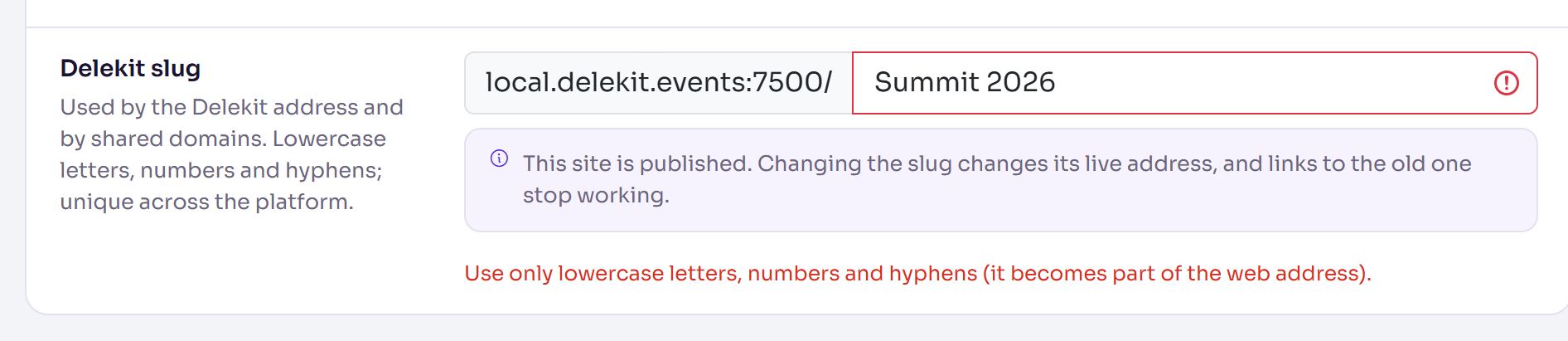
"That web address is already taken. Please choose another." Another event uses that slug. Add something, such as the year.
"That address is already used by a deleted site. Restore it or choose another." Choose another slug, or ask support about the deleted event.
"That address is reserved. Please choose another." Delekit uses that word itself. Choose another slug.
To undo a change you haven't saved, select Discard.
Related articles
- Preview and publish your website
- Use your own domain for your event site
- Add and manage pages
- Search engine settings
Still stuck? Contact Delekit support.
Was this article helpful?
That’s Great!
Thank you for your feedback
Sorry! We couldn't be helpful
Thank you for your feedback
Feedback sent
We appreciate your effort and will try to fix the article