Audience: client administrators and event administrators. Applies to: plans that include the registration form builder. If the Website items show a padlock in the menu, they aren't in your plan.
Add pages to your event website, such as a travel page or an FAQ, and manage them from the Pages list: publish or unpublish them, make a copy to start a new page from, and delete pages you no longer need. Deleted pages can be restored.
Before you start
- New pages start not live. Nobody sees a page until you publish it, and the site itself has to be published once: see Preview and publish your website.
- A site has one home page and one registration page. To add the home page, see Build a page with the page builder.
- The header and footer aren't in the list. Edit them with Edit header and Edit footer: see Edit the header, footer and navigation menu.
Add a page
In the menu, select Website, then Pages. The list shows each page's Slug, Type and Status.
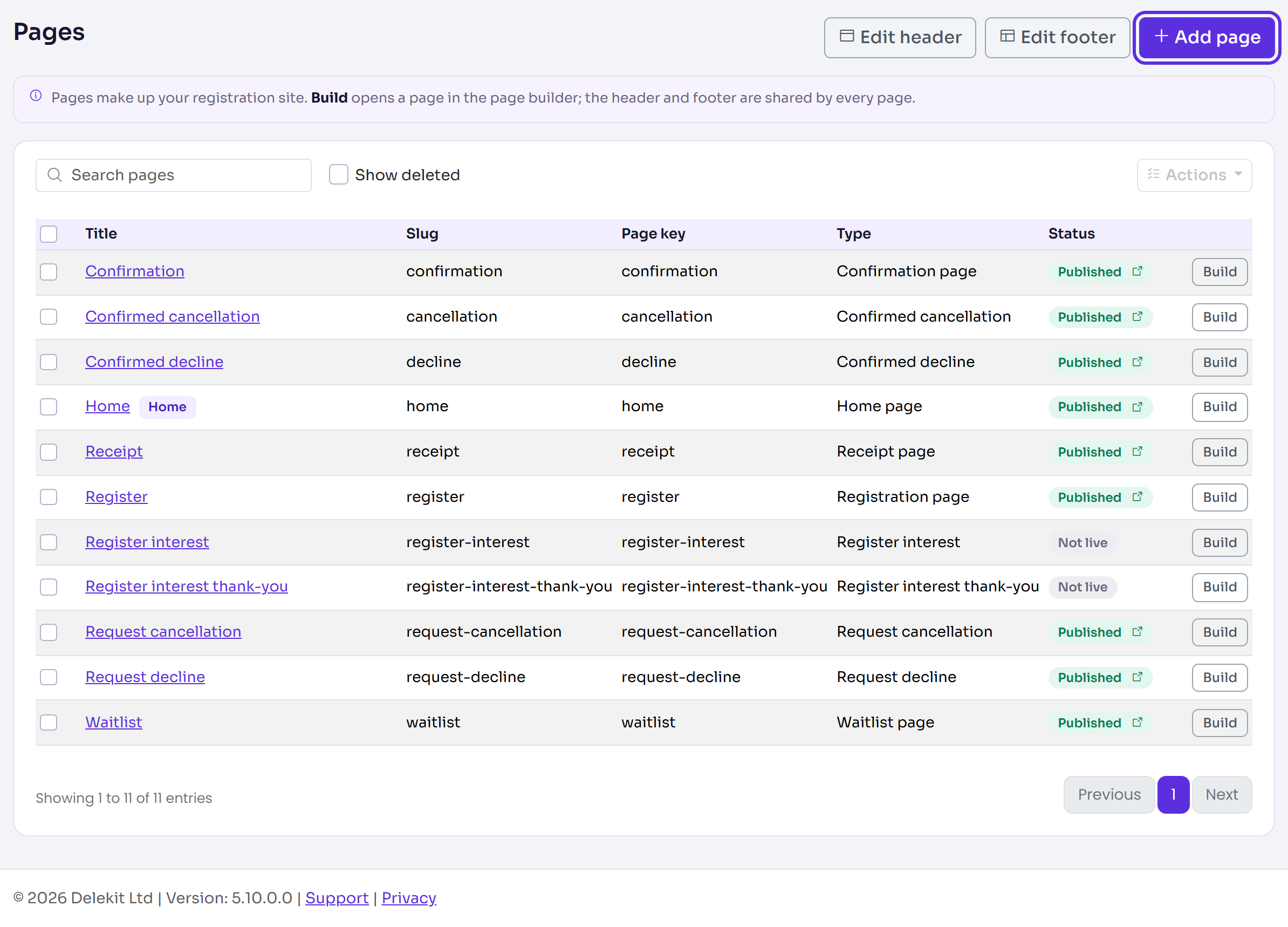
Select Add page.
Enter a Title. The Slug, the last part of the page's web address, and the Page key fill in as you type.
Leave Content page as the Page type.
Under Access, leave Public, or choose Password and enter a Password.
Under Start from, choose Blank page or a ready-made example such as Simple info page.
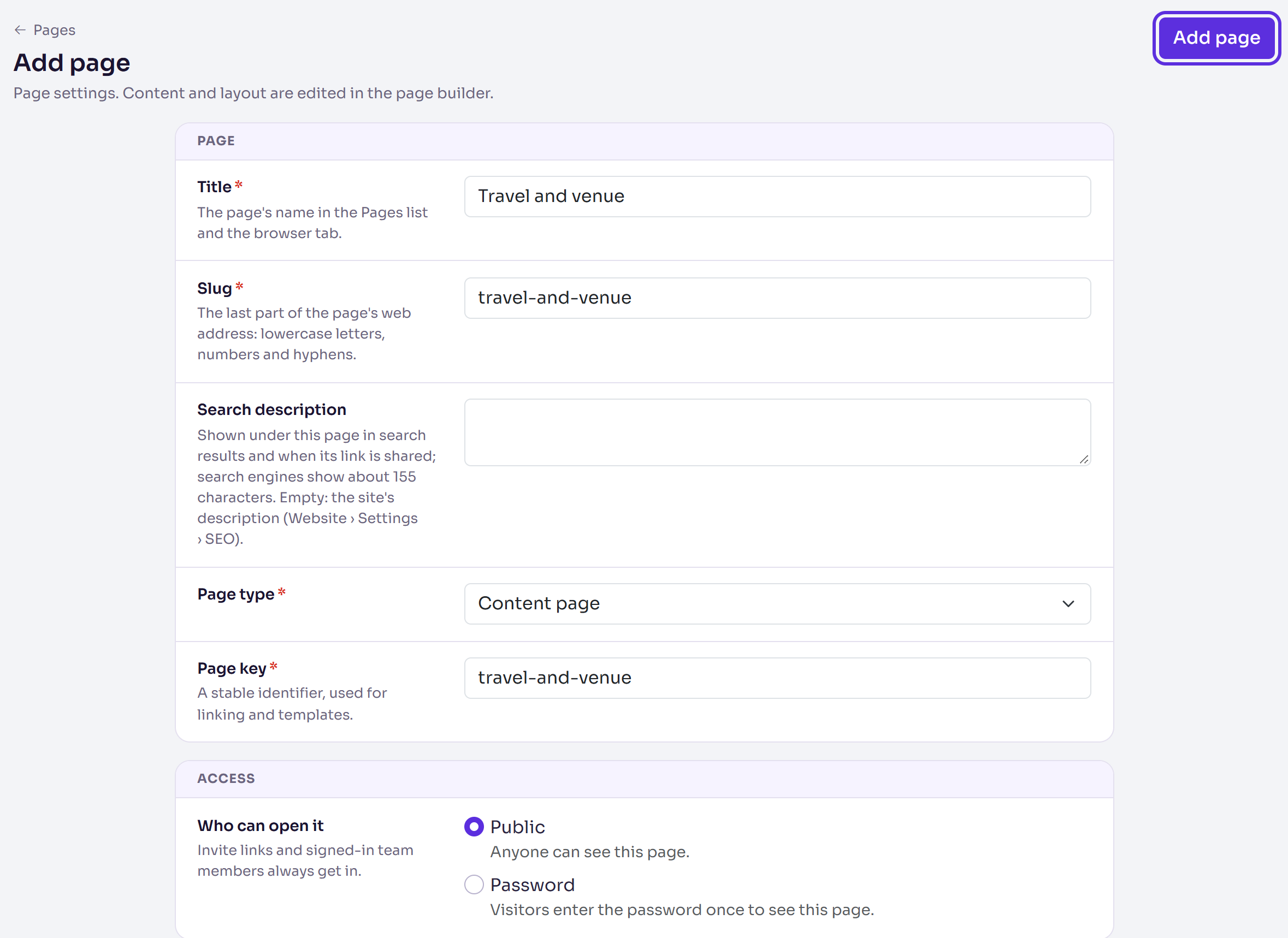
Select Add page. The page opens in the page builder, with Changes saved.
Build the page, then select Publish page. See Build a page with the page builder.
Publish, copy or delete pages
In Website › Pages, tick the pages you want. Search for a page by its title if the list is long.
Select Actions, then one of:
- Publish: puts the pages and their latest changes on the live site.
- Unpublish: takes the pages off the live site. The home page can't be unpublished.
- Copy: makes a copy of each page, named "(copy)" and not live.
- Delete: takes the pages off the website.
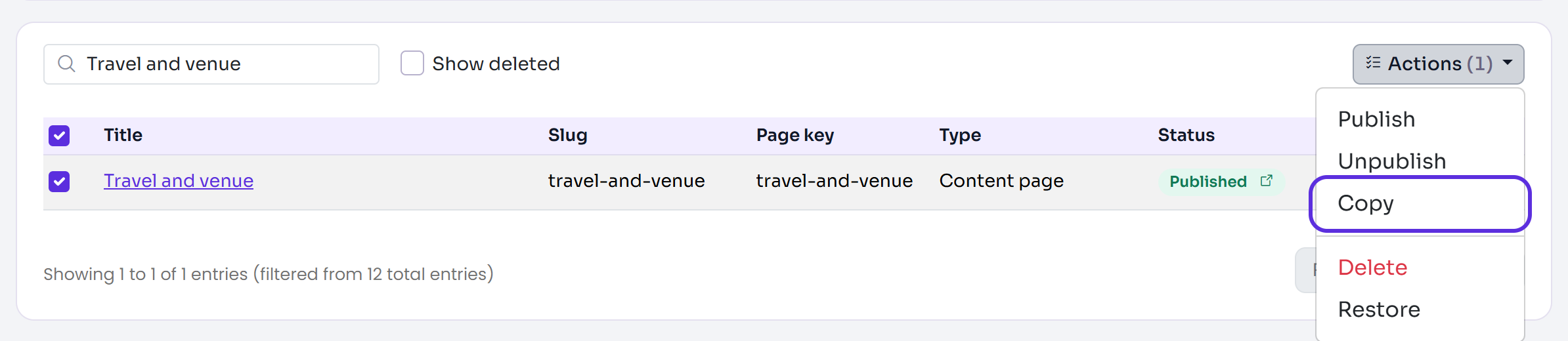
For Copy or Delete, confirm with Copy 1 page or Delete 1 page (the number is how many you ticked).
You'll see one message for them all, such as 1 copied.
Restore a deleted page
In Website › Pages, tick Show deleted. Deleted pages are greyed out and tagged Deleted.
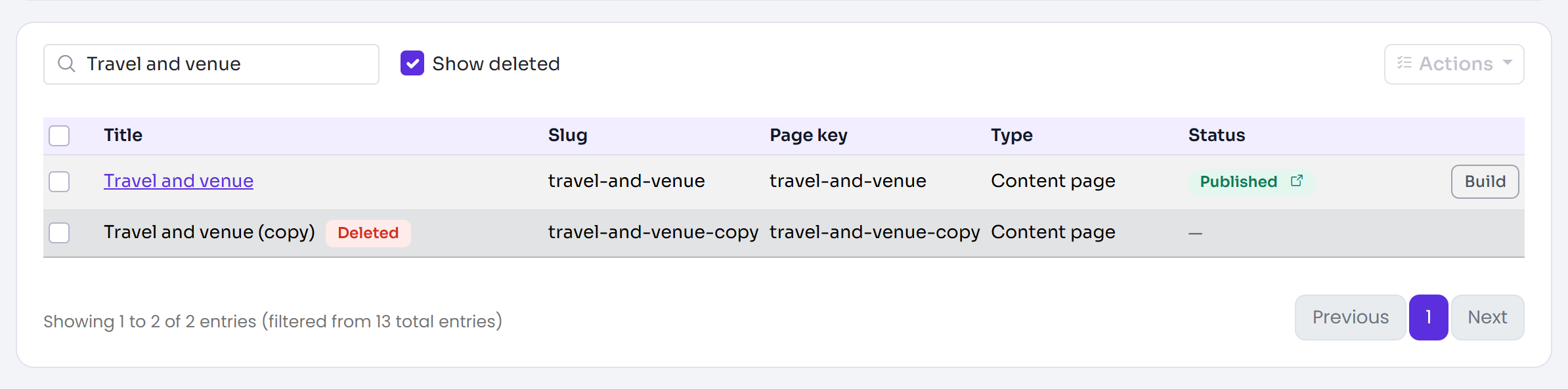
Tick the page, then select Actions, then Restore.
What happens next
- The Status column says Published or Not live. Draft changes means the page has saved changes that aren't live yet. On a published page, select Published to open it on the live site.
- A copy gets "-copy" added to its slug. A copy of the home page becomes a content page. The copy has the page as the builder shows it: its published blocks, with its Draft changes kept as the copy's draft. A copy of a page that was never published has all its content as a draft.
- A restored page comes back as it was. If it was published before you deleted it, it's on the live site again.
- Unpublished and deleted pages aren't shown on the live site.
- Unpublishing a registration page (Register, Confirmation, a decline or cancellation page, Waitlist or Receipt) stops invitations going out until it's published again. Anyone who reaches that step sees Delekit's standard wording, in your site's header, footer and theme.
Check it works
Open the page's web address in a private browser window: your site's address followed by
/ and the page's slug. A published page opens; an unpublished or deleted one doesn't.
If something isn't right
- "That slug is already used by another page." Another page has that address. Change the Slug.
- "That page key is already used by another page." Change the Page key.
- "That slug is already used by a deleted page. Restore it or choose another slug." Restore the deleted page, or change the Slug.
- "This site already has a home page. Only one page can be the home page." Choose Content page as the Page type.
- "The home page can't be unpublished, and deleted pages are already offline." You ticked only the home page, or pages that are already deleted. The home page is always on a published site.
Related articles
- Your event website: an overview
- Build a page with the page builder
- Page blocks reference
- Restore an earlier version of your website
- Your event website's address
Still stuck? Contact Delekit support.
Was this article helpful?
That’s Great!
Thank you for your feedback
Sorry! We couldn't be helpful
Thank you for your feedback
Feedback sent
We appreciate your effort and will try to fix the article