Audience: client administrators and event administrators. Applies to: plans that include the registration form builder. If the Website items show a padlock in the menu, they aren't in your plan.
Build your website's pages in the page builder: add blocks such as a hero, text, the event's details and its tickets, fill them in, and check how the page looks on a phone. Your changes save as you work, as a draft that nobody sees until you publish the page.
Before you start
- Your website was made with the event. It has a Register page, a header, a footer and the pages people see after registering, but no home page. Add one first.
- Set up your registration types and tickets first if the page will list them: the Ticket types block shows them, with their prices, as they are set up.
- The Form block, which holds the registration form, only goes on the Register page and the other form pages Delekit makes.
Add a home page
In the menu, select Website, then Pages.
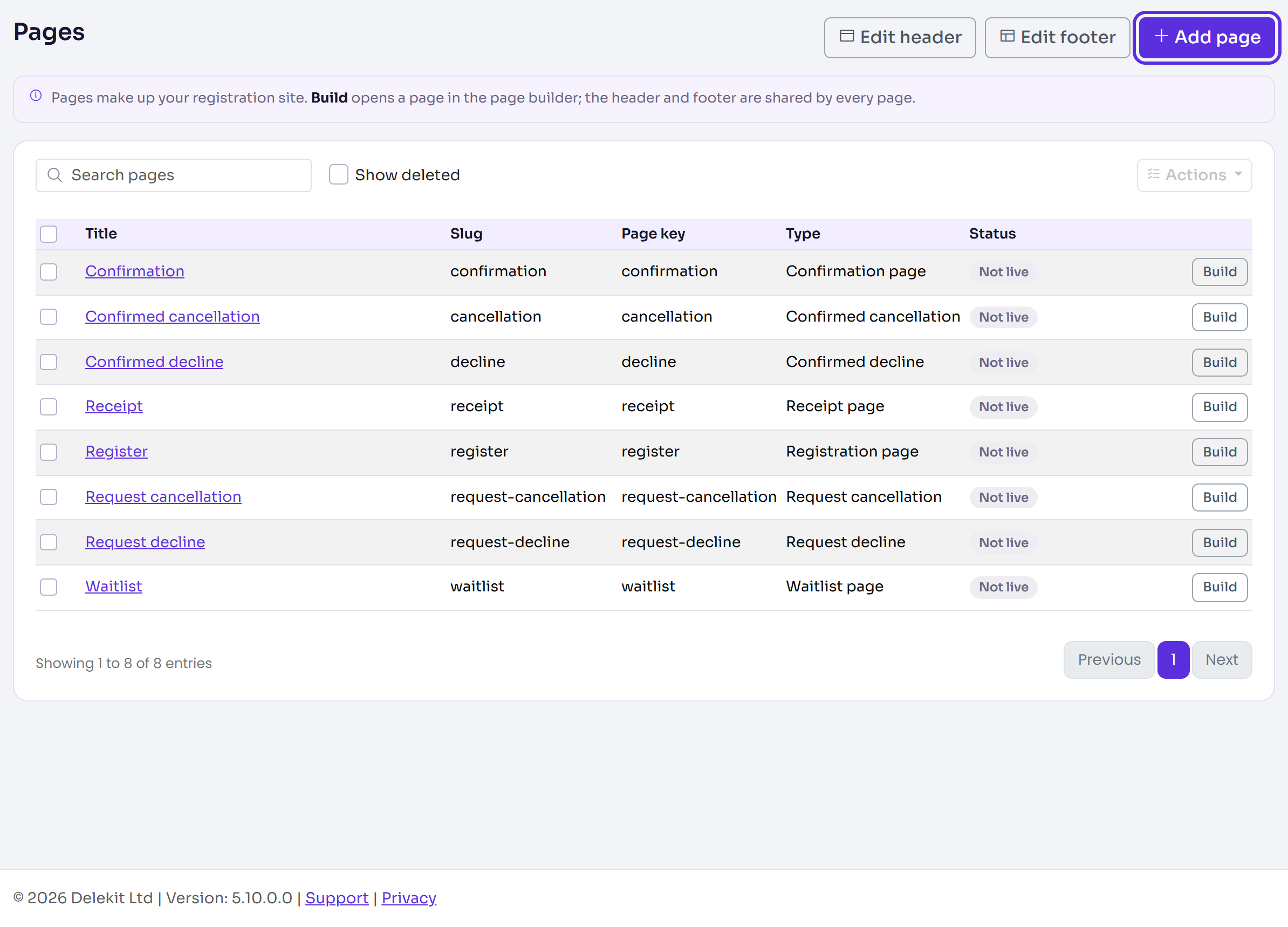
Select Add page.
Enter a Title, such as Home. The Slug (the page's web address) and Page key fill in as you type.
Choose Home page as the Page type.
Under Start from, leave Blank page chosen, or choose Home page example for a ready-made page to edit.
Select Add page. The new page opens in the page builder.
Build the page
On the Blocks tab, select Hero to add it, or drag it onto the page.
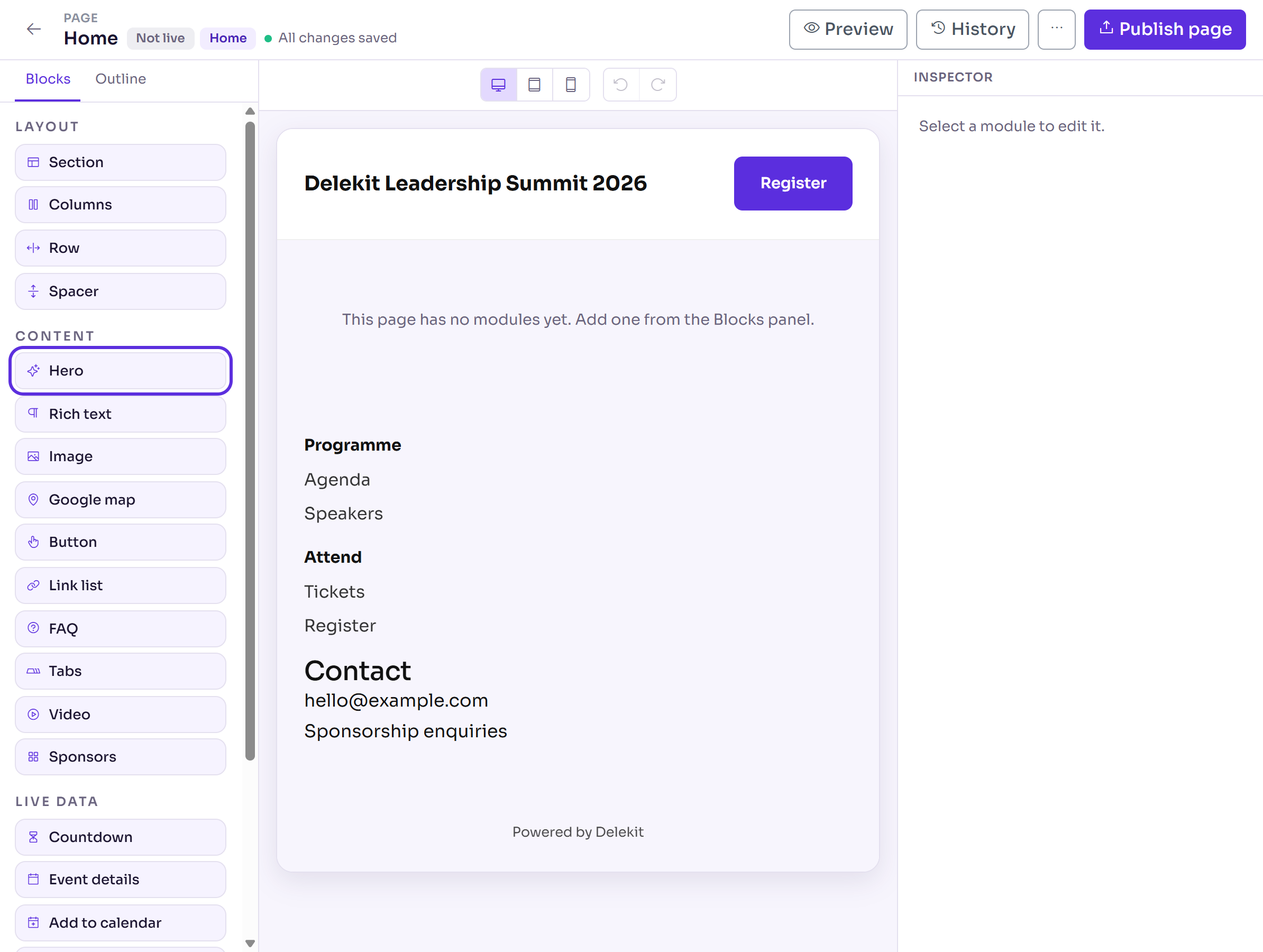
In the Inspector, enter a Headline and a Subheading. Background images and colours are on the Style tab.
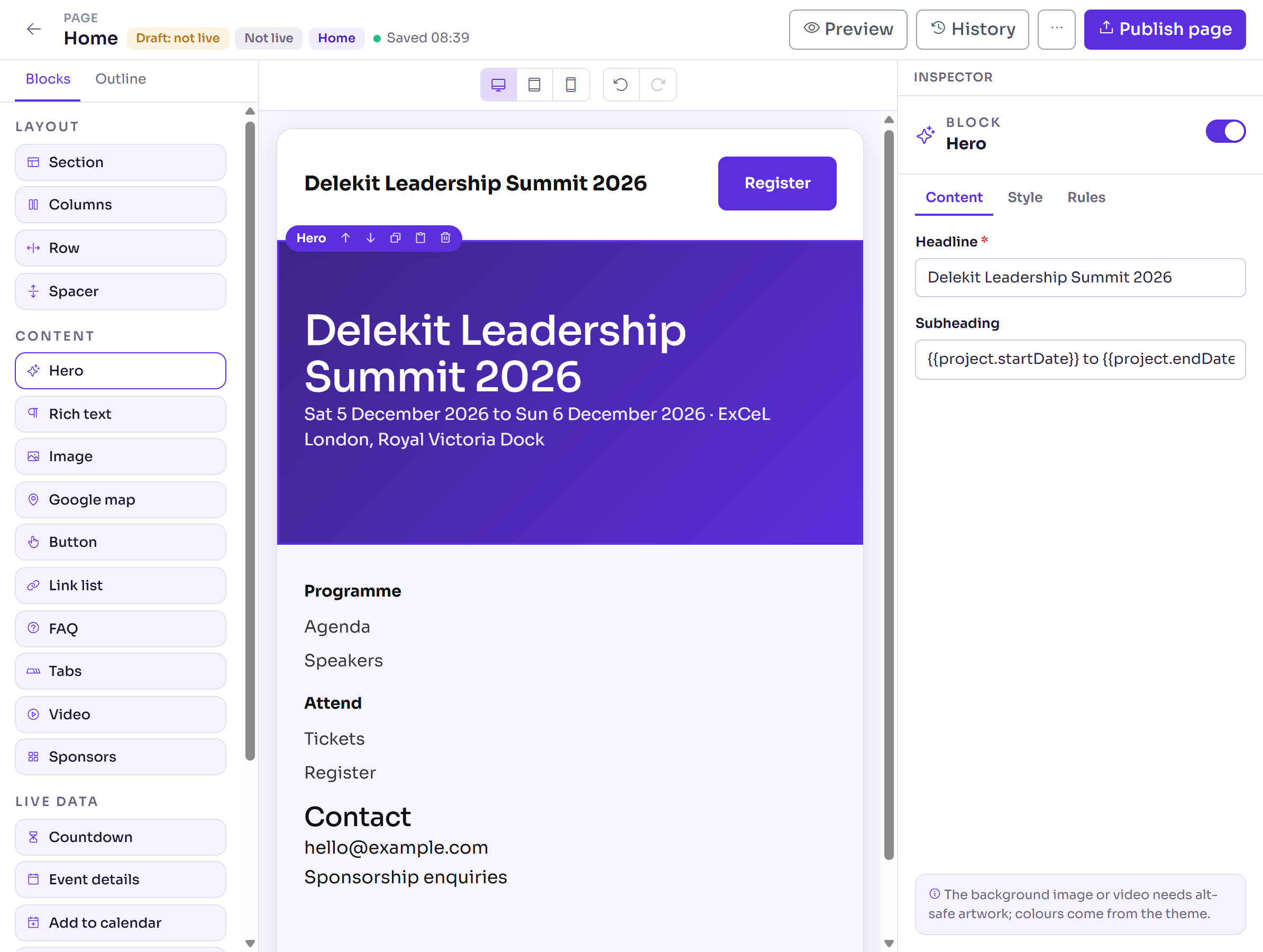
Add the other blocks the page needs, in order. Each new block goes after the one selected, and content blocks such as Rich text go into a Section for you.
Select each block to fill it in. For a Button, enter the Button text, then under Link choose A page on this site and the page, such as Register.
To change the order, select the Outline tab and drag a block by its grip.
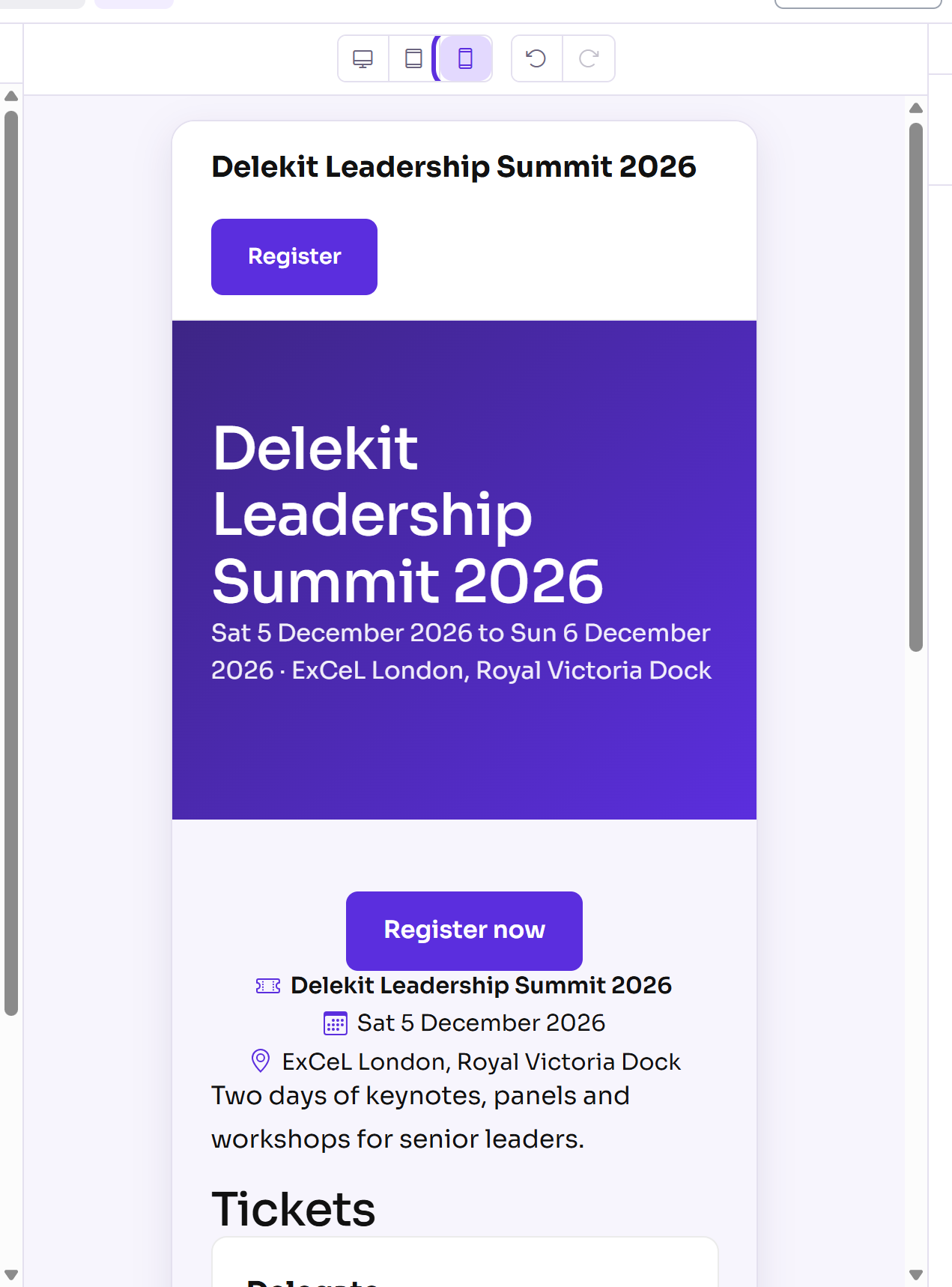
On the page's toolbar, select Phone to see the page as it shows on a phone, then Desktop to go back.
Select Publish page, then Publish page again to confirm.
Blocks that suit an event's home page:
| Block | What it shows |
|---|---|
| Hero | A large headline and subheading, over a background image or video if you add one. |
| Event details | The event's name, date and location, from the event's settings. |
| Rich text | Your own words, with headings, lists and links. |
| Ticket types | Your registration types and their prices, kept up to date for you. |
| Add to calendar | Links to add the event to Google, Outlook or another calendar. |
Text in a hero, a button or a rich text block can include data tags, such as
{{project.startDate}} for the event's start date. In a Rich text block, type @ to
choose one; More actions (⋯) › Data tags lists them all.
What happens next
- Your changes save as you go. The bar with the page's name says Saved with the time. They're the page's draft, shown by the Draft: not live badge.
- Publish page puts this page's changes live. Until the site itself is published you'll see "Page published. The site isn't live yet: publish the site to put it online." See Preview and publish your website.
- Leaving with changes that aren't live asks first: Stay on this page, Keep as draft, or Publish changes.
- History shows earlier versions of the page and restores one. Discard draft, in More actions (⋯), throws away the changes that aren't live; they're kept in History.
Check it works
Select Preview. The page opens in a new tab with your latest changes, as visitors will see it. Once the site is live, More actions (⋯) › View live opens the published page.
If something isn't right
- "Not saved. Retrying when you next change something." Check your connection, then make another change.
- The Ticket types block shows nothing: the event has no registration types or tickets to show yet. See Add tickets to a registration type.
- A block says "Form pages only": the Form block can't go on this page.
- "This site already has a home page." A site can have only one. Choose Content page as the Page type instead.
Related articles
- Your event website: an overview
- Edit the header, footer and navigation menu
- Brand your website with a theme
- Preview and publish your website
Still stuck? Contact Delekit support.
Was this article helpful?
That’s Great!
Thank you for your feedback
Sorry! We couldn't be helpful
Thank you for your feedback
Feedback sent
We appreciate your effort and will try to fix the article