Audience: client administrators and event administrators. Applies to: plans that include the registration form builder. If the Website items show a padlock in the menu, they aren't in your plan.
Delekit keeps earlier versions of each page of your event website. If a change went wrong, restore the page as it was, from its History in the page builder, then publish it. You can also throw away changes that aren't live yet with Discard draft.
Before you start
- History is kept page by page, including the header and footer. There's no single button that puts the whole site back: restore each page that changed.
- History holds a page's content (its blocks). A page's settings, such as its title, address and access, and the navigation menu save straight to the live site and aren't kept in History.
- A version is kept each time the page is published with Publish page, Publish site or Actions › Publish on the Pages list, before each editing session, before a restore and before a draft is discarded.
- The theme has its own history: in Website › Theme, select History. See Brand your website with a theme.
Restore a page
In the menu, select Website, then Pages, and select Build on the page.
Select History. Page history lists the earlier versions, newest first, each with when it was kept, why (Published, Before changes or Before a restore), who by and how many modules it has.
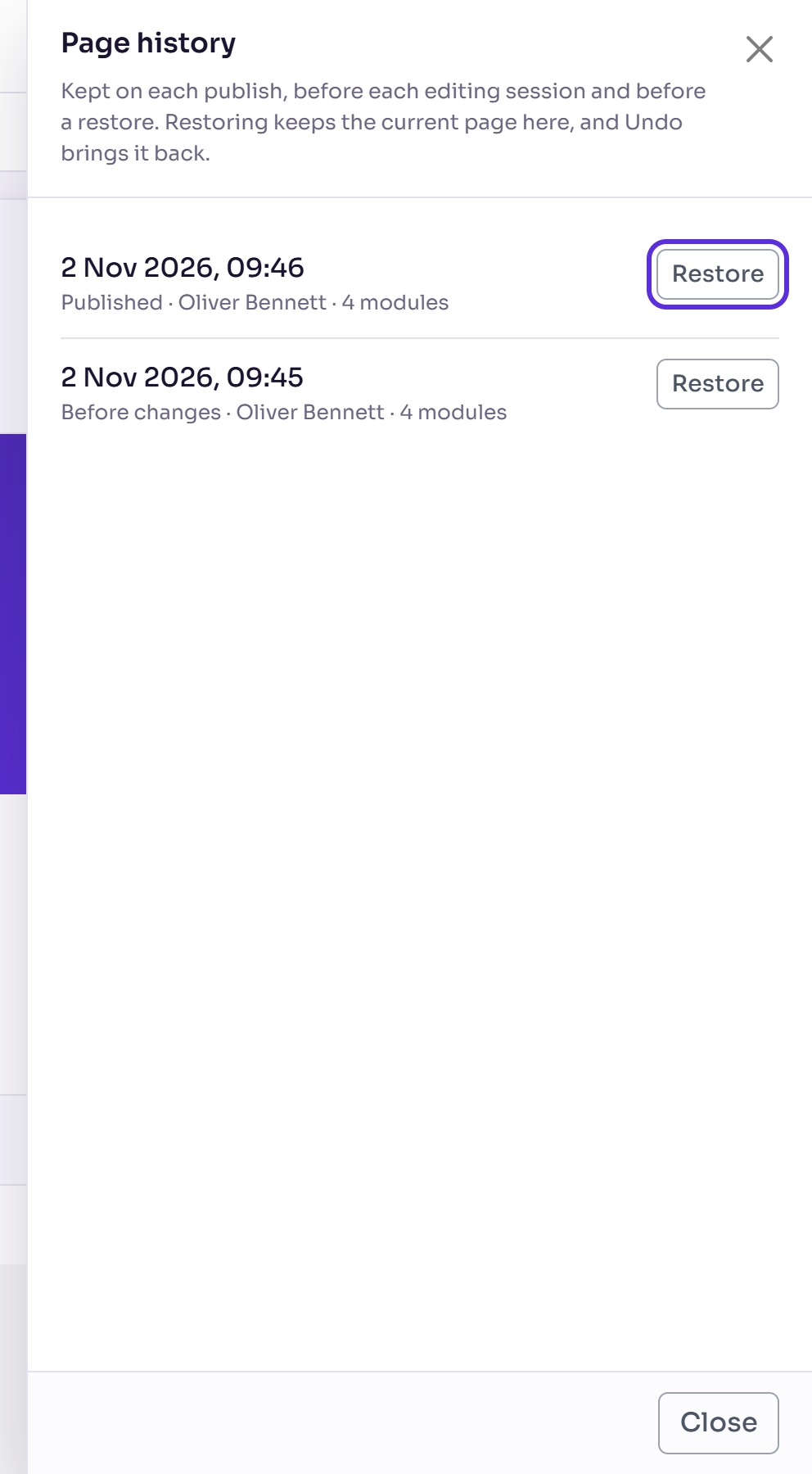
Select Restore on the version you want.
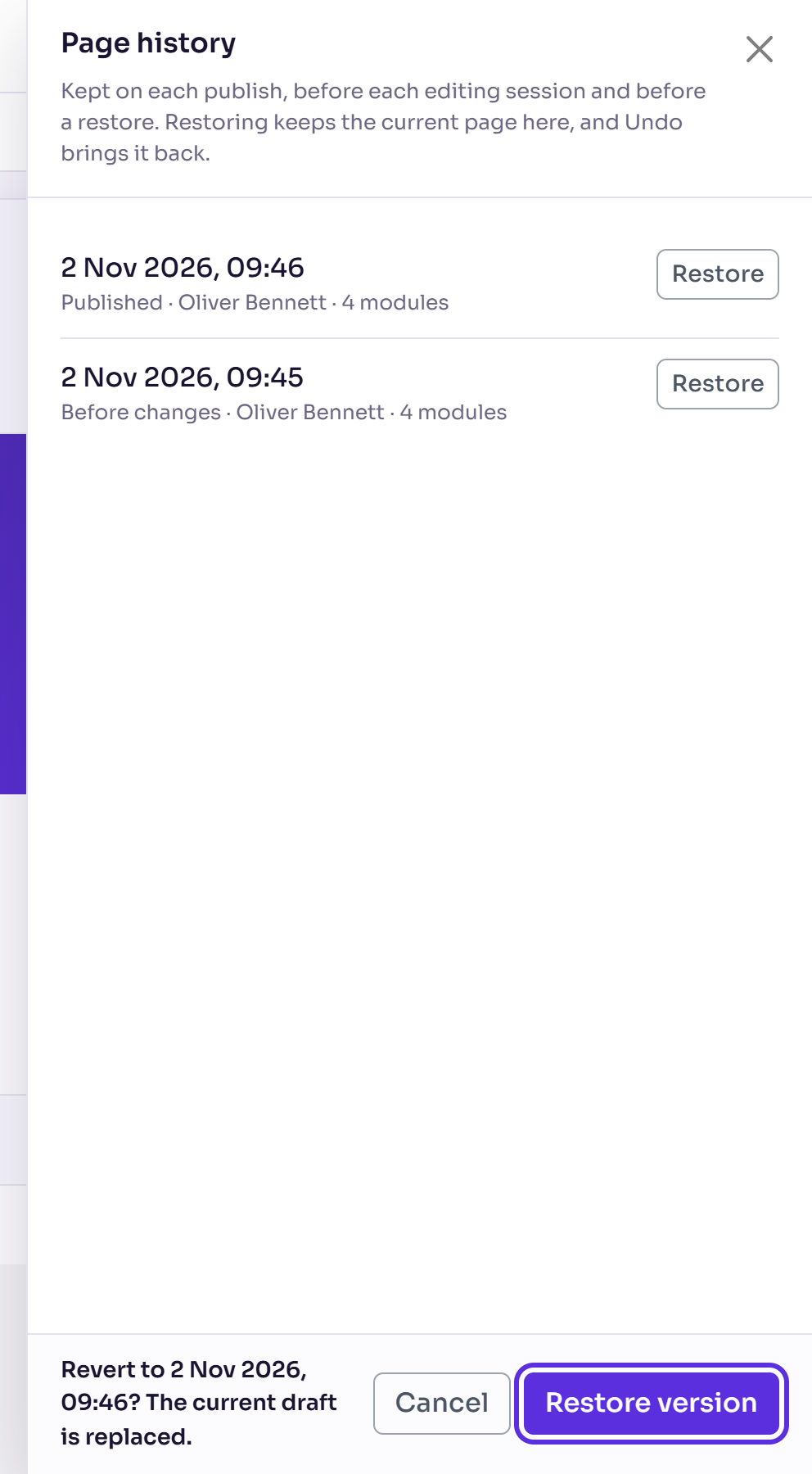
Select Restore version to confirm.
Check the page, then select Publish page, and Publish page again to confirm.
You'll see "Restored the version from", with the date. The restored version is the page's draft until you publish it.
Throw away changes that aren't live
- In the page builder, select More actions (⋯), then Discard draft. It's only there while the page shows Draft: not live.
- Select Discard changes to confirm.
The page reloads with what's live, and you'll see Draft discarded. The page shows what's live. Your discarded changes are kept in History, as Before a restore, so you can restore them.
What happens next
Nothing changes on the live site until you publish the page. Publishing the whole site (Publish site) puts every page's draft live, so check your other pages first.
What was there before the restore is kept in History as Before a restore, so a restore can be undone. Undo in the page builder also brings it back.
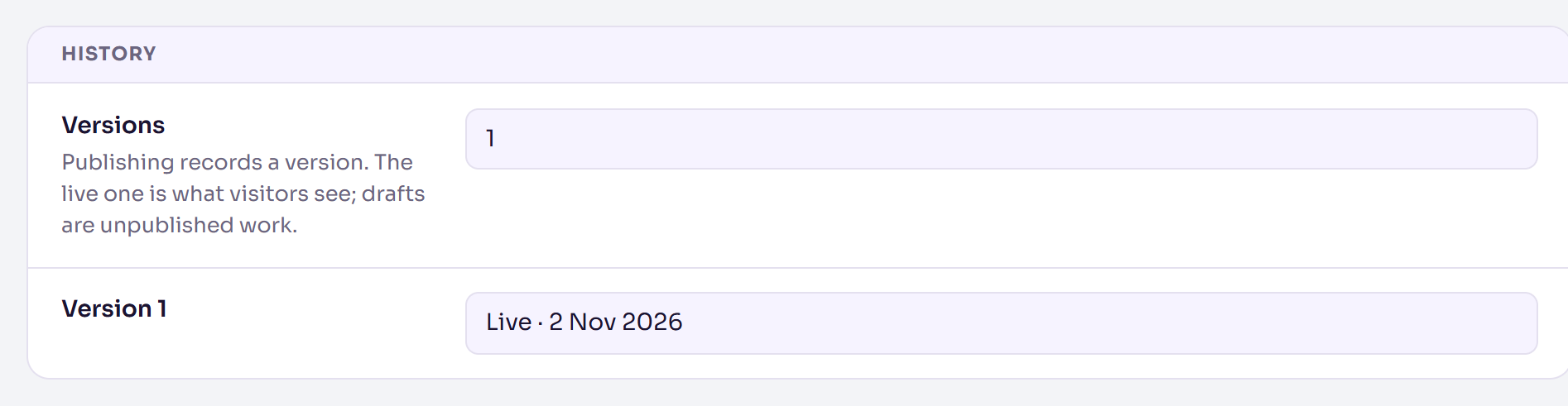
Site settings › History lists the site's versions and which one is Live. It's a record only: you can't restore from there.
Check it works
Select Preview in the page builder: the page opens in a new tab as you've restored it. Once you've published it, More actions (⋯) › View live opens the live page.
If something isn't right
- "No earlier versions yet." The page hasn't been published or edited in an earlier session yet. A version is kept the next time it is.
- "That version couldn't be restored. Please try again." Check your connection, then try again.
- The version you want isn't listed: History shows the 50 newest versions of a page.
- You can't see Discard draft: the page has no changes that aren't live.
Related articles
- Build a page with the page builder
- Add and manage pages
- Preview and publish your website
- Brand your website with a theme
Still stuck? Contact Delekit support.
Was this article helpful?
That’s Great!
Thank you for your feedback
Sorry! We couldn't be helpful
Thank you for your feedback
Feedback sent
We appreciate your effort and will try to fix the article