Audience: client administrators and event administrators. Applies to: plans that include the registration form builder. If the Website items show a padlock in the menu, they aren't in your plan.
Connect your event website to your Google Analytics account to see how many people visit it and where they come from. When you add your Google Analytics ID, visitors see a cookie banner, and analytics only runs for the people who accept it.
Before you start
- You need a Google Analytics ID from your own Google account: a G-… measurement ID, a GTM-… container ID or an older UA-… ID. Ask whoever runs your Google Analytics.
- There's no cookie banner without an ID. Without analytics the website only uses the cookies it needs to work, so it doesn't need to ask.
- You can't change the banner's wording or its Cookie Policy link.
Add your Google Analytics ID
In the menu, select Website, then Settings, and go to Analytics and cookies.
Enter your Google Analytics ID, for example
G-XXXXXXXXXX.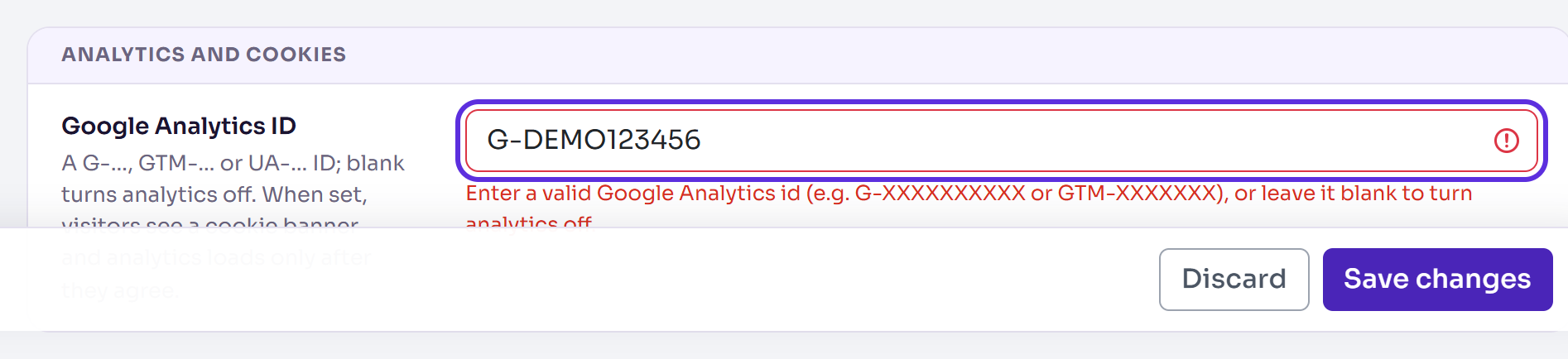
Select Save changes.
You'll see Changes saved. It applies straight away on a published site: there's nothing to publish.
What visitors see
The first time someone opens your website, a banner says that the site uses essential cookies and, with their consent, analytics cookies, with a link to the Cookie Policy. They choose Accept or Reject.
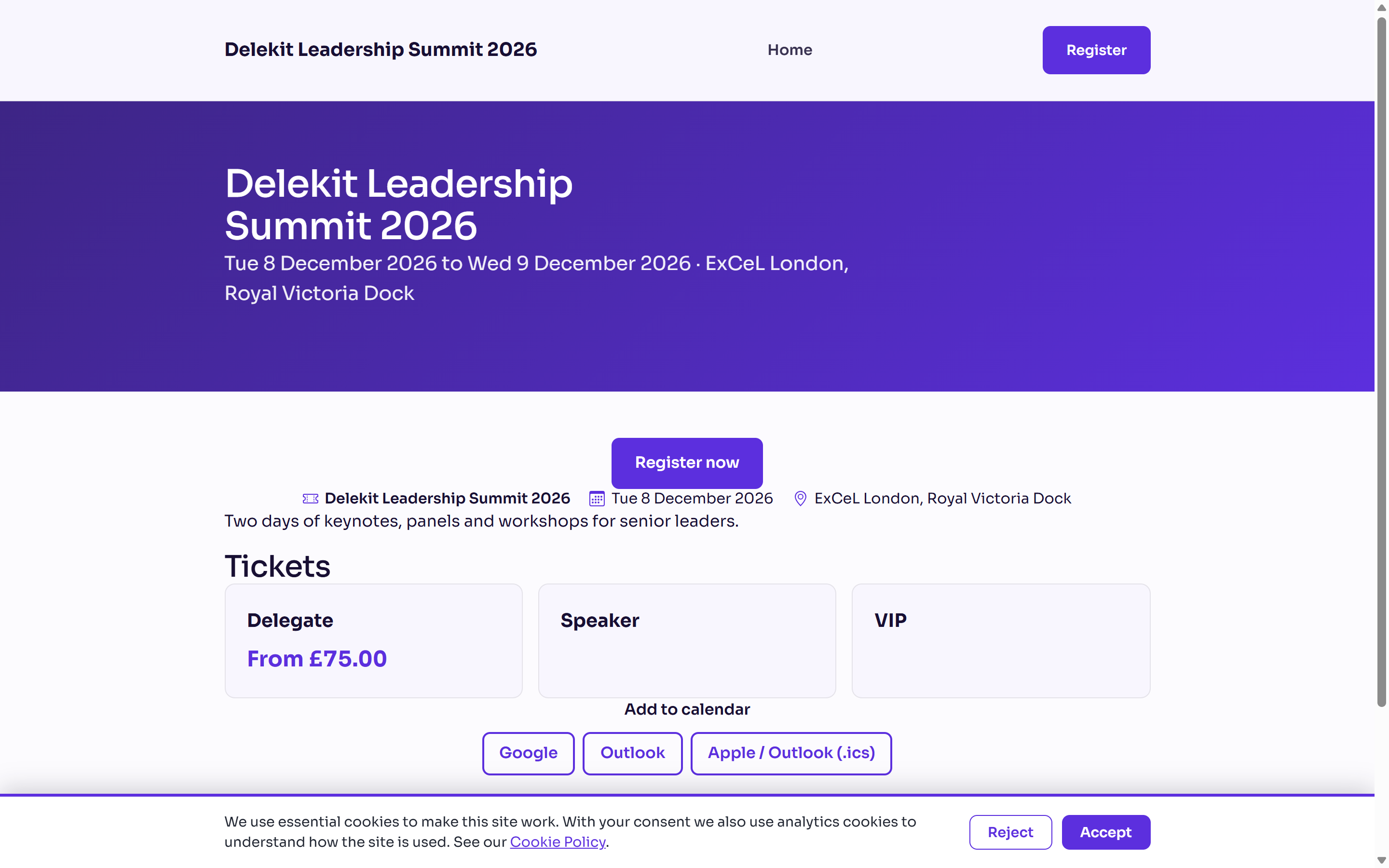
- Accept: Google Analytics starts for that visitor. With a GTM-… ID, your Google Tag Manager container loads, and the tags in it run.
- Reject: Google Analytics never loads for them, and no analytics cookies are set.
- Either way, the banner closes and Cookie preferences stays on the page, so they can change their mind.
Their choice is remembered in that browser for 12 months. The banner shows on your website's pages and the registration pages.
What happens next
- Visits show in your Google Analytics account, for the visitors who accepted.
- Personal links are cleaned first. The codes in invite links and confirmation pages are taken out of the page addresses sent to Google, so they never reach your reports.
- To turn analytics off, clear the Google Analytics ID and select Save changes. The banner goes too.
Check it works
- Open your website in a private browser window. The cookie banner shows.
- Select Accept.
- In Google Analytics, open the real-time report. Your visit shows there.
If you select Reject instead, nothing is sent to Google.
If something isn't right
- "Enter a valid Google Analytics id (e.g. G-XXXXXXXXXX or GTM-XXXXXXX), or leave it blank
to turn analytics off." Check the ID against your Google Analytics account. It starts with
G-,GTM-orUA-, with no spaces. - No banner shows: the site isn't published yet, or you already chose in that browser. Try a new private window. See Preview and publish your website.
- Your real-time report stays empty: check that you selected Accept, and that the ID is the one for the property you're looking at.
Related articles
Still stuck? Contact Delekit support.
Was this article helpful?
That’s Great!
Thank you for your feedback
Sorry! We couldn't be helpful
Thank you for your feedback
Feedback sent
We appreciate your effort and will try to fix the article