Audience: event administrators and client administrators. Applies to: all plans.
Rooms are the named places your sessions happen in, such as Main Hall or Breakout Room 1. Add each room once for the event, then choose it on each session. The room shows with the session on the attendee app agenda and on the Sessions list.
Before you start
- You need to be a client administrator, or an event administrator on the event.
- Rooms belong to one event. Each room's name can be used once in the event.
- A room is optional: a session without one shows no room.
Add a room
In the menu, select Sessions, then Rooms. You can also select Manage rooms on the Sessions list.
Select Add room.
Enter a Name, such as Main Hall.
Optionally, enter a Subtitle, such as the floor and the number of seats. It's shown under the room's name on the agenda.
Optionally, choose an Accent colour for the agenda. Leave it blank and one is picked for you.
Enter a Sort order. Rooms with lower numbers appear first on the agenda.
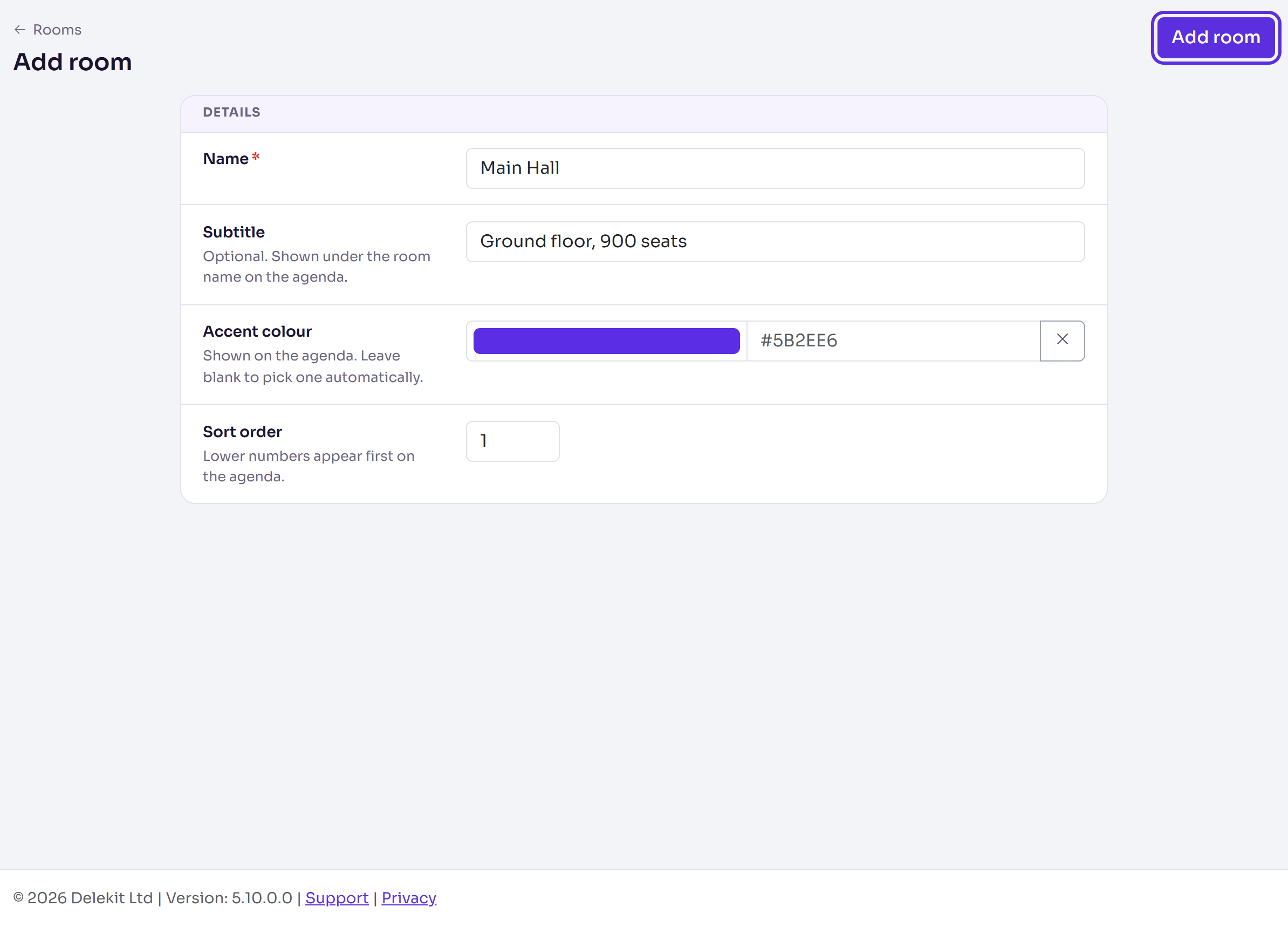
Select Add room.
What happens next
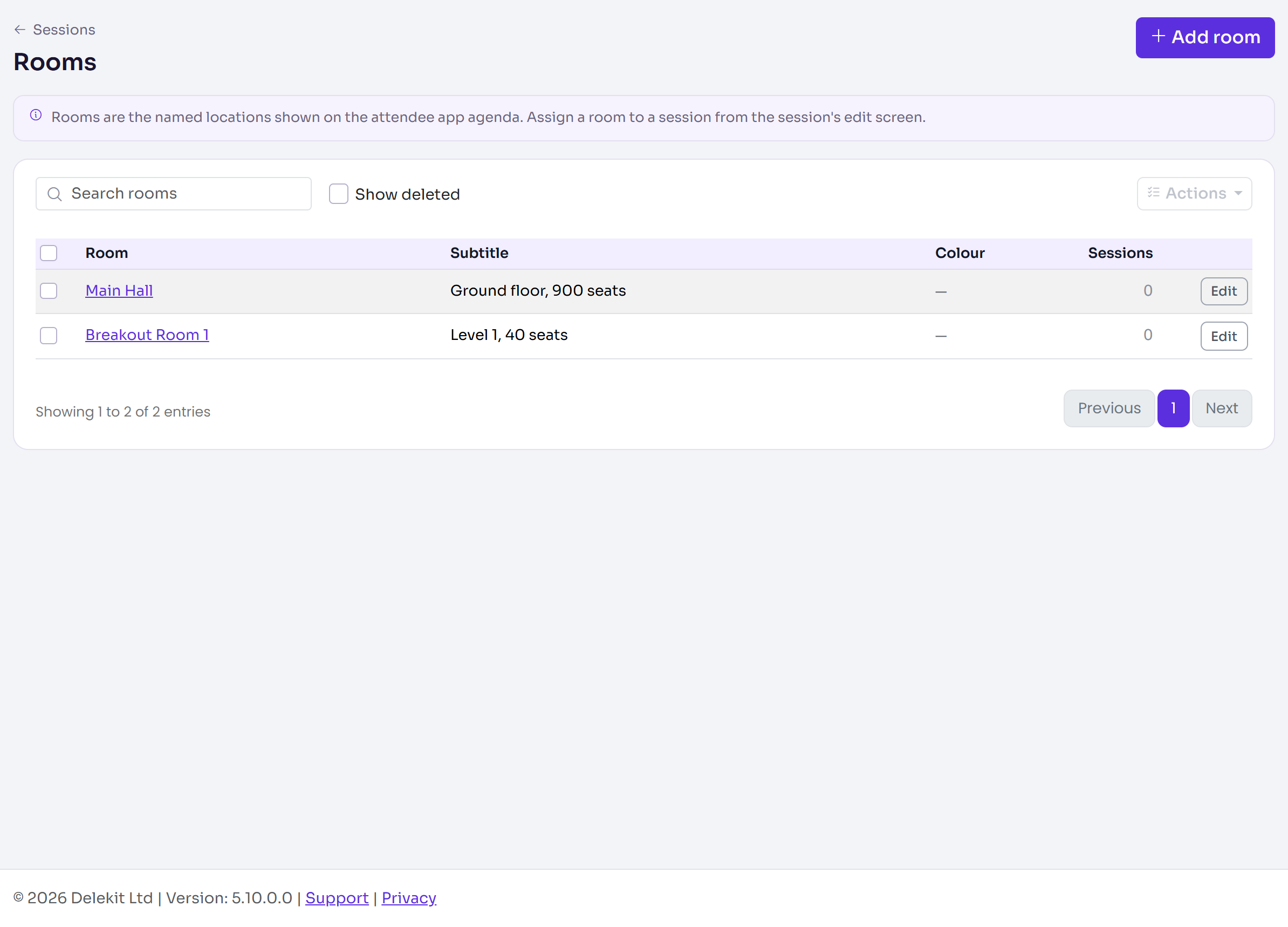
You're back on Rooms, with "Changes saved". The list shows each room's Subtitle, Colour and the number of Sessions in it.
Put a session in a room
- Open the session's settings: on the Sessions list, select the session, then Edit session.
- In When and where, select the Room.
- Select Save changes.
When you add a session, choose its Room in the same place before you select Add session. See Create a session.
Change or delete a room
- Change it: on Rooms, select the room's name or Edit. Make your changes, then select Save changes. Usage shows the number of Sessions in this room.
- Delete it: on the room's page, select Delete room, then Delete room again in the pop-up. The pop-up says how many sessions use it. To delete several, tick them on Rooms and select Actions, then Delete. A deleted room stops appearing on the attendee app agenda, the Sessions list, the website's agenda and the speaker portal: its sessions show no room. You can't choose it for sessions, but saving one of its sessions keeps the link.
- Bring it back: on Rooms, turn on Show deleted, tick the room, then select Actions, then Restore. Its sessions keep their link to it, so it shows with them again.
Check it works
On the Sessions list, the Room column shows each session's room. On the room's page, Sessions in this room counts them.
If something isn't right
- "A room with this name already exists in the event." Choose another name, or use the room that's already there.
- "Colour must be a hex value, for example #5B2EE6." Choose the colour with the colour picker, or enter it as # and six letters or numbers.
- "Cannot restore because another room already uses this name." Rename the other room first.
- A room is missing from a session's Room list: it's deleted. Restore it first. If you save a session while its room is deleted, the session is saved with no room.
Related articles
Still stuck? Contact Delekit support.
Was this article helpful?
That’s Great!
Thank you for your feedback
Sorry! We couldn't be helpful
Thank you for your feedback
Feedback sent
We appreciate your effort and will try to fix the article