Audience: event organisers and on-site check-in staff. Applies to: events using the Delekit check-in app.
An event shows in My Events only when it's visible in the check-in app and you have access to it, and a session shows only when it isn't hidden. If My Events keeps showing Downloading published events..., or a session isn't in the list, check these causes.
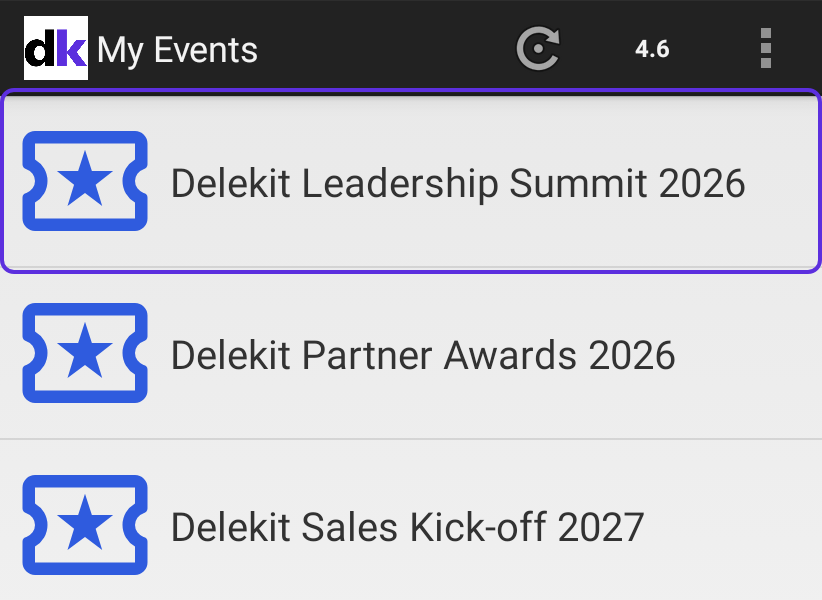
An event is missing
| Cause | What to do |
|---|---|
| Visible in check-in app is off | In Edit event › Check-in app, turn on Visible in check-in app and select Save changes. See Set up an event for the check-in app. |
| You don't have access to the event | A client administrator turns on Can manage for the event on your user. See Give staff access to the check-in app. |
| The event is archived | Client administrators see only events that aren't archived. Set it back to Draft or Live if you still check people in to it. See Go live with your event. |
| The device hasn't fetched it yet | In My Events, select the refresh icon. It downloads all your events again. |
| You're signed in with another account | Sign out and sign in with the account that has access. See Sign out of the check-in app. |
A session is missing
| Cause | What to do |
|---|---|
| It's hidden from the agenda | Hidden sessions aren't in the app either. On the web, edit the session, turn off Hidden from the agenda and save it. |
| It's been deleted | On the web, in Sessions, turn on Show deleted, tick the session and select Restore in Actions. |
| The device hasn't fetched it yet | In the sessions list, select the refresh icon. |
Sessions are listed in start-time order, with times in the event's time zone. Agenda items, such as lunch, are listed too, but aren't for scanning.
If nothing else works
- Check the device is online.
- In My Events, open the menu and select Refresh all data. The app removes the downloaded events and downloads them again. Scans that haven't been sent are kept.
- Wait for your events to show again.
If My Events still shows Downloading published events... after someone else used the device, scans of theirs may be waiting to be sent: see Sign out of the check-in app.
Related articles
- Set up an event for the check-in app
- Give staff access to the check-in app
- Sign in to the check-in app
Still stuck? Contact Delekit support.
Was this article helpful?
That’s Great!
Thank you for your feedback
Sorry! We couldn't be helpful
Thank you for your feedback
Feedback sent
We appreciate your effort and will try to fix the article