Audience: on-site check-in staff. Applies to: events using the Delekit check-in app.
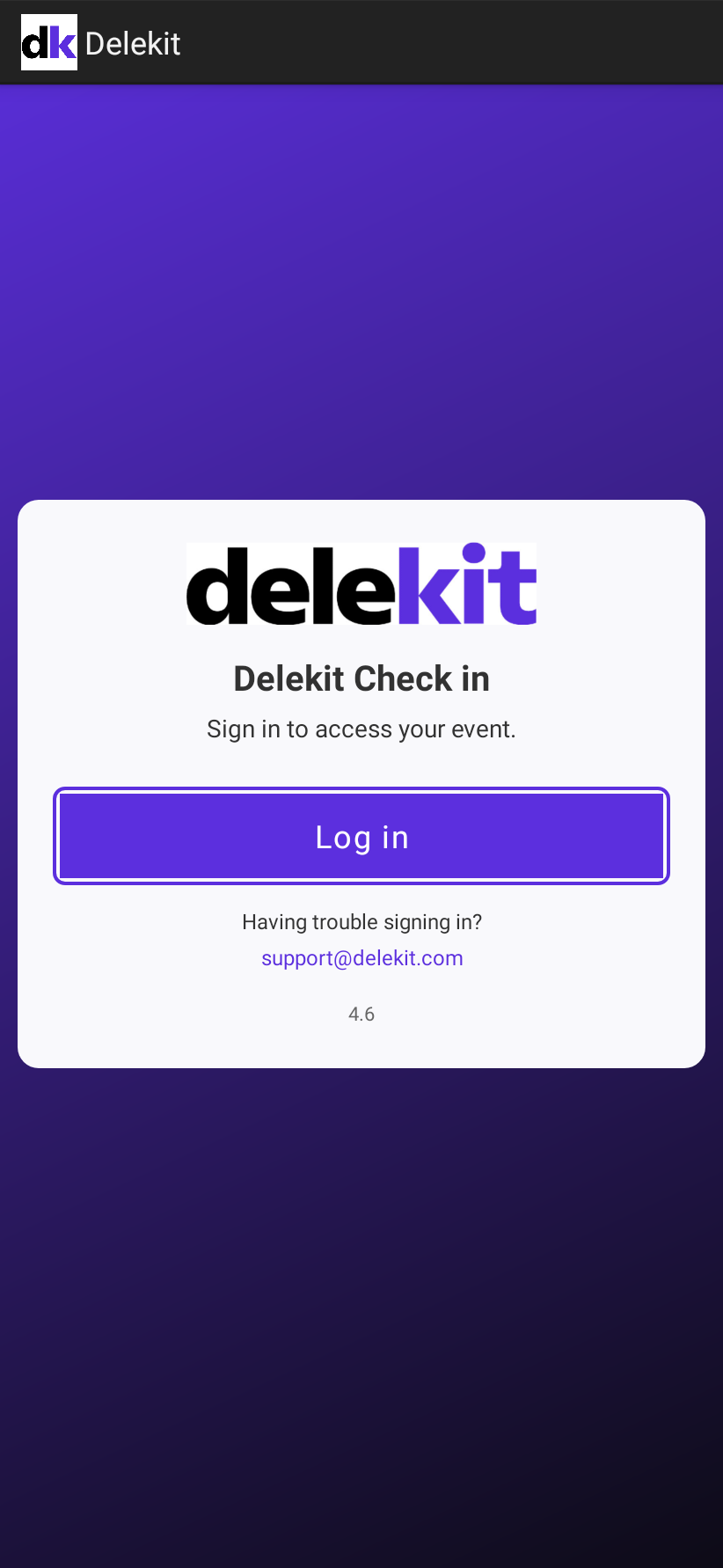
The check-in app keeps you signed in by renewing your sign-in in the background. When it can't renew it, it goes back to its sign-in screen. Your downloaded events and any scans not yet sent stay on the device: sign in again with the same account to carry on.
When it happens
- The app hasn't been used for about a month. Your sign-in needs renewing about once a week, and can only be renewed for 30 days. After that, you sign in again.
- The connection was poor when your sign-in needed renewing. If the app can't reach Delekit to renew it, for example on venue Wi-Fi that's waiting for its sign-in page, it may ask you to sign in again.
- Delekit refused to renew it. Sign in again to get a new one.
How to fix it
- Check the device is online.
- Select Log in, and sign in with the same email address and password as before. See Sign in to the check-in app.
- Open your event and select the refresh icon. Any scans waiting on the device are sent.
Avoid it on the day
- Sign in on every device the day before the event, while you have a good connection, and open each event once.
- Keep the devices online during the event where you can. See The check-in app shows Offline.
If something isn't right
- You can't sign in: in the app, Having trouble signing in? shows the support email address. You can also reset your password from the Sign in page.
- Your events are missing after signing in: see An event or session is missing from the app.
- You were removed from the event or the client: ask a client administrator for access. See Give staff access to the check-in app.
Related articles
Still stuck? Contact Delekit support.
Was this article helpful?
That’s Great!
Thank you for your feedback
Sorry! We couldn't be helpful
Thank you for your feedback
Feedback sent
We appreciate your effort and will try to fix the article