Audience: on-site check-in staff. Applies to: events using the Delekit check-in app.
Sign out of the check-in app when you've finished with a device, or before handing it to someone who'll sign in with their own account. Signing out removes the event's data from the device, so check your scans have reached Delekit first.
Before you start
- You need an internet connection to send your last scans.
- You can't sign out from inside an event. Go back to My Events first.
Send your last scans
- Open each session you scanned in.
- On the toolbar, select the refresh icon and wait for it to stop turning.
- Open the menu. It should say Updated just now.
Sign out
Go back to My Events.
Open the menu and select Log out.
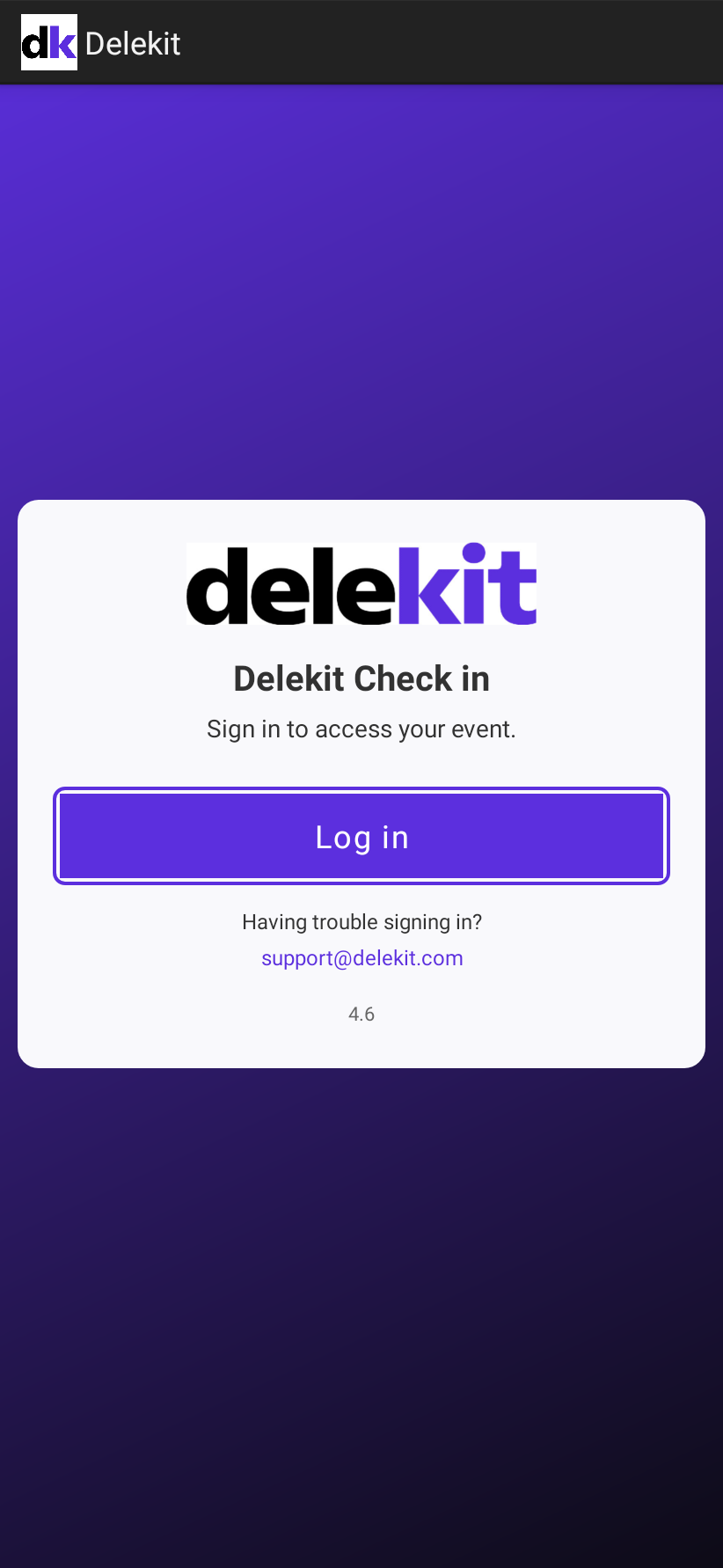
Your browser opens for a moment to sign you out of Delekit, then the app shows its sign-in screen.
What happens next
- The events, sessions, attendees and the scans already sent are removed from the device.
- Scans that hadn't been sent stay on the device. They're sent the next time someone with access to that event signs in on it.
- Your Settings stay on the device for the next time you sign in on it.
- The next person selects Log in and signs in with their own account. See Sign in to the check-in app.
If something isn't right
- Scans from the previous person are still waiting: the new person's events download as usual, and the scans for events they can use are sent. Scans for an event they can't access stay on the device. To send those, the previous person signs in on the device again and selects the refresh icon in My Events.
- You signed out while the device was offline: you're still signed out of the app. If the browser shows an error, close it and go back to the app.
- You were signed out without choosing Log out: see The check-in app signs you out.
Related articles
Still stuck? Contact Delekit support.
Was this article helpful?
That’s Great!
Thank you for your feedback
Sorry! We couldn't be helpful
Thank you for your feedback
Feedback sent
We appreciate your effort and will try to fix the article