Audience: event administrators and client administrators. Applies to: all plans.
Make a copy of a session when you need another one like it, such as a workshop that runs twice. Duplicate copies the session's settings exactly and books nobody. For a Bookable session, Duplicate with expected attendees also copies everyone booked on it or on its waitlist.
Before you start
- You need to be a client administrator, or an event administrator on the event.
- A deleted session can't be copied. Restore it first: see Create a session.
- Duplicate with expected attendees works on one Bookable session at a time. Open to all sessions and agenda items have no bookings, so use Duplicate for them.
- Copying never emails anyone.
Duplicate a session
In the menu, select Sessions, then View all.
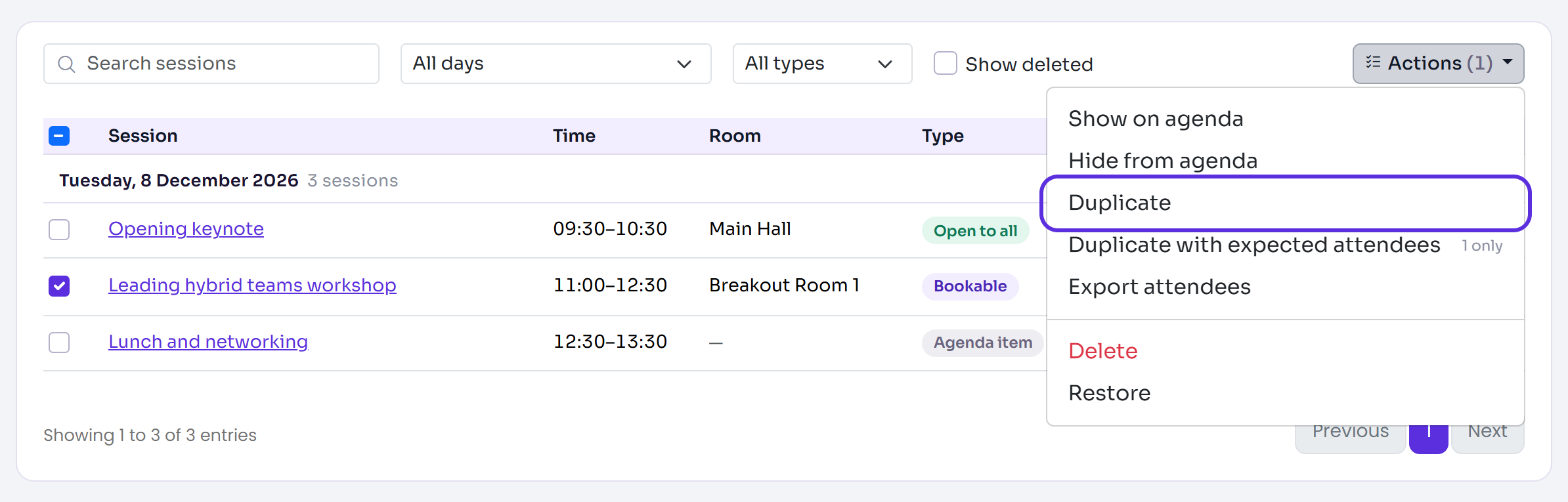
Tick the sessions you want to copy.
Select Actions, then Duplicate.
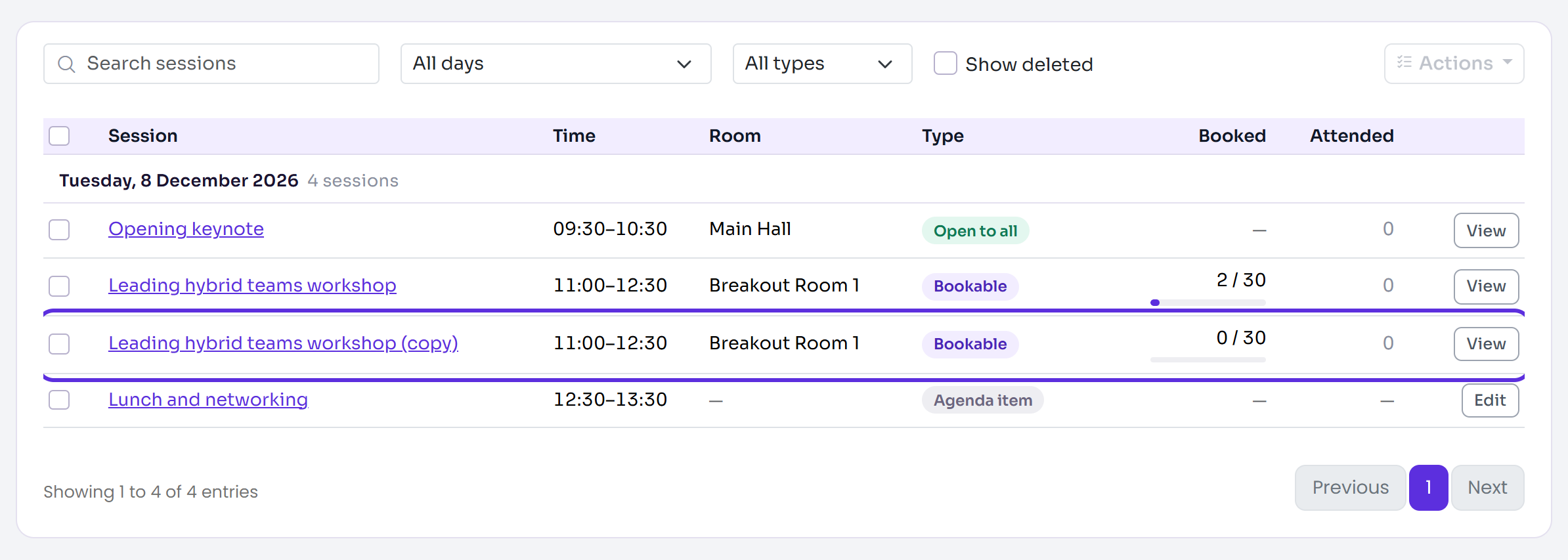
You'll see, for example, "1 duplicated", and each copy is on the list under its day.
You can also copy one session from its settings page: select More actions (⋯), then Duplicate. You're taken to the Sessions list, with "Session duplicated as" and the copy's name.
Duplicate a session with its expected attendees
- On the Sessions list, tick one Bookable session, then select Actions, then Duplicate with expected attendees. On its settings page, it's More actions (⋯), then Duplicate with expected attendees.
- Delekit asks whether to duplicate the session with its expected attendees. Select Duplicate session.
Everyone booked on the original is booked on the copy, and everyone on its waitlist is on the copy's waitlist, in the same order. From the settings page you'll see "Session duplicated as", the copy's name and how many people were booked.
To book the people who were scanned in instead, use the check-in app: see Duplicate a session with the people who attended.
What's copied
| Copied | Not copied |
|---|---|
| The name, with (copy) after it | Scans: nobody is scanned into the copy |
| Description, Type and Hidden from the agenda | Bookings, unless you chose Duplicate with expected attendees |
| The times, Room and speakers | |
| Capacity, Waitlist and Who can book | |
| The Check-in settings | |
| Auto enrolment rules, switched off |
What happens next
- The copy is a new session of its own. Changing it doesn't change the original.
- A copy of a hidden session is hidden too. Show it with Actions, then Show on agenda.
- Auto enrolment rules come across switched off, marked Inactive, so the copy never books anyone by itself. Turn each one on in the copy's Auto enrolment section when you want it.
- People copied by Duplicate with expected attendees take places on the copy as if you'd added them yourself. Their registrations don't change.
Check it works
On the Sessions list, search for (copy). Check the copy's time, room and type, then select its name and Edit session to rename it or change its times.
If something isn't right
- "… is deleted. Restore it first." Turn on Show deleted, tick it, then select Actions, then Restore. Then copy it.
- "Only Bookable sessions have expected attendees. Use Duplicate instead." Choose Duplicate.
- Someone is missing from a copy with expected attendees: people whose registration is cancelled or declined, and deleted attendees, aren't copied. Book them yourself: see Manage session attendance.
Related articles
- Create a session
- Session types: bookable, open to all and agenda items
- Manage session attendance
- Duplicate a session with the people who attended
Still stuck? Contact Delekit support.
Was this article helpful?
That’s Great!
Thank you for your feedback
Sorry! We couldn't be helpful
Thank you for your feedback
Feedback sent
We appreciate your effort and will try to fix the article