Audience: on-site check-in staff. Applies to: events that give attendees NFC wristbands, badges or cards.
When an attendee loses their wristband, badge or card, find them by name in the check-in app and assign them a new one. The lost wristband stops working straight away, so nobody else can use it, and the attendee keeps every scan they already have.
Before you start
- Have a blank or rewritable NFC wristband ready.
- Check who they are before you replace it, for example with photo ID. Their profile in the app shows their photo if they have one.
Give them a new wristband
In the sessions list, open the menu and select Attendees.
In Search Attendee, enter part of their name.
Select Profile next to their name. Tag Assigned is ticked, because they had a wristband.
Select Assign Tag.
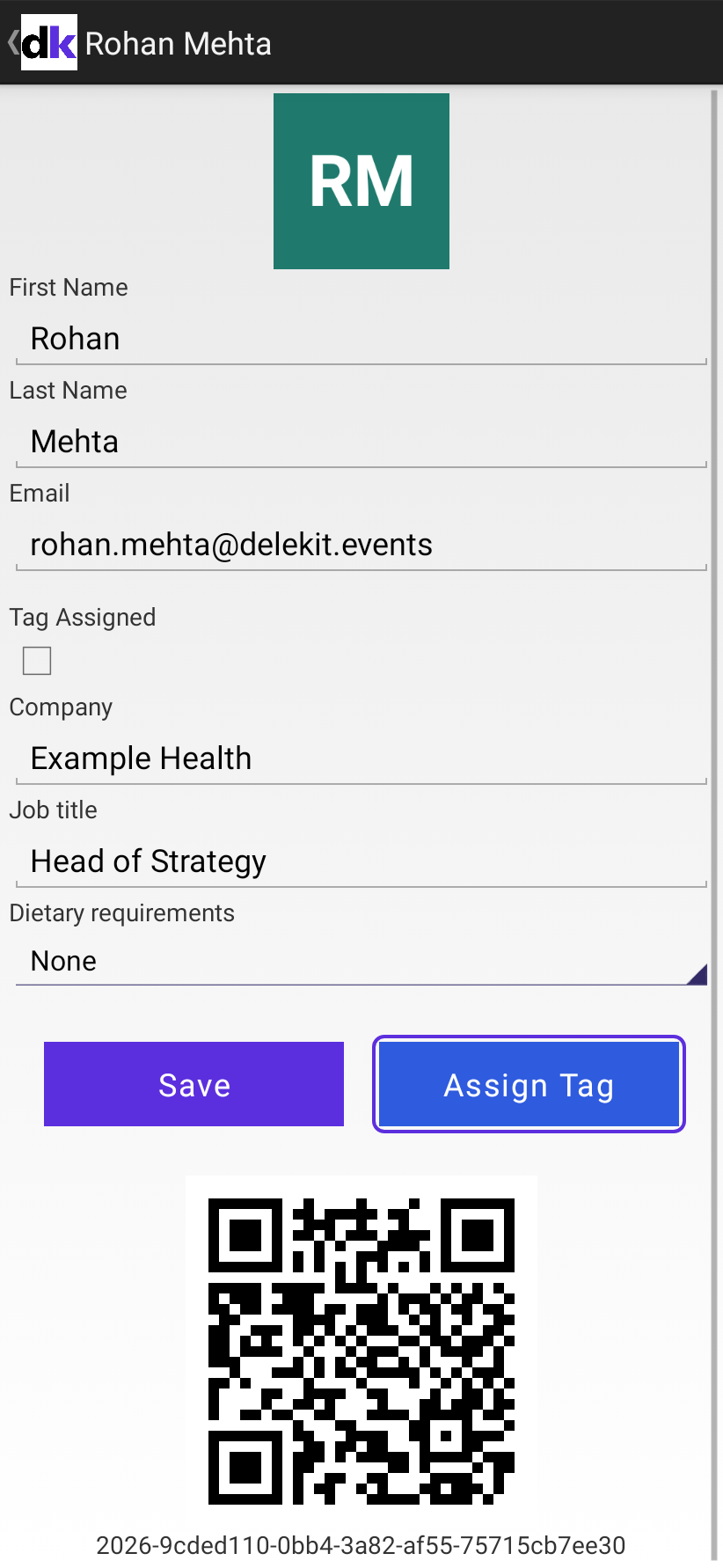
When Tap to assign: Name appears, hold the new wristband flat against the back of the device.
Wait for Tag assigned to Name.
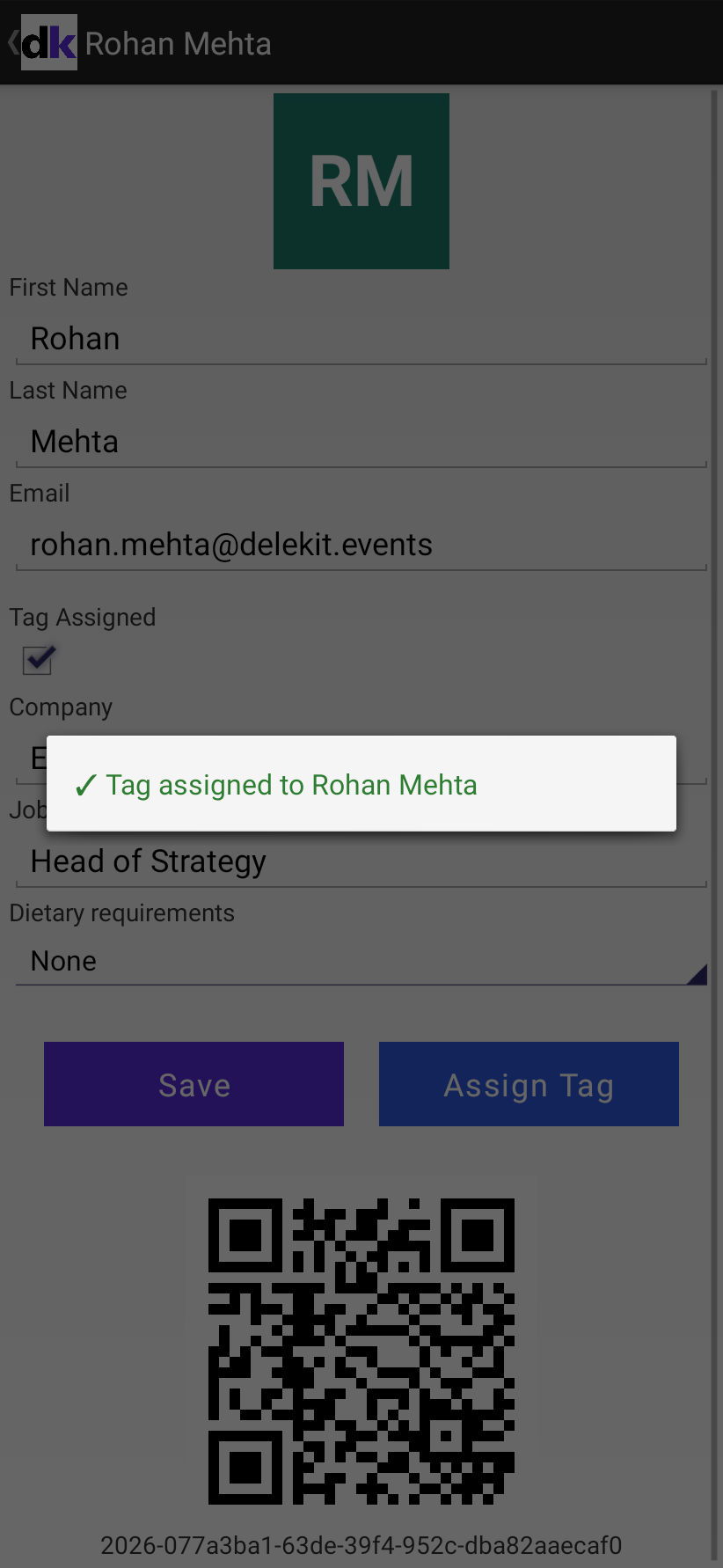
What happens next
- The new wristband gets a new ID, and the lost one's ID no longer belongs to anyone. Scanning the lost wristband shows Ticket not found.
- Their scans move to the new ID, so their check-ins and counts don't change.
- The new ID is sent to Delekit straight away, or at the next sync if the device is offline. On the web, the lost wristband's ID moves to the attendee's Tag history.
- Their emailed QR code still doesn't work: it stopped working when they got their first wristband.
- Use Profile, not the Assign Tag button in the list: from the list, the app moves on to the next person after each wristband.
Check it works
Open a session, select Scan Tag and scan the new wristband. The result should show their name.
If something isn't right
- The lost wristband turns up: it can't be used by its owner any more. If it isn't locked, you can assign it to someone else: the app writes a new ID over the old one.
- The new wristband won't write: see A wristband won't write.
- Other devices still accept the lost wristband: they check with Delekit while they're online. A device that's offline goes by its own copy until it syncs, so select the refresh icon on each device.
Related articles
Still stuck? Contact Delekit support.
Was this article helpful?
That’s Great!
Thank you for your feedback
Sorry! We couldn't be helpful
Thank you for your feedback
Feedback sent
We appreciate your effort and will try to fix the article