Audience: event organisers and on-site check-in staff. Applies to: events that give attendees NFC wristbands, badges or cards.
Prepare wristbands, badges or cards for a whole list of attendees before the doors open. Start with the first person on the check-in app's Attendees screen, and after each wristband the app moves straight on to the next person, so you only hold up one wristband after another.
Before you start
- Use blank or rewritable NFC wristbands, and check the app's Settings first: with Write additional NFC records on, each wristband also holds the event's code and the attendee's name. See Check-in app settings.
- Assigning a wristband replaces the ID in the attendee's e-ticket, so their emailed QR code stops working. Tag only people who'll be given their wristband.
- Label or bag each wristband as you go: it's written for one person only.
Tag the list
In the sessions list, open the menu and select Attendees.
Tick Show only un-tagged attendees to skip people who already have one.
To tag a group, such as one company, enter a name or value in Search Attendee.
Select Assign Tag on the first person.
When Tap to assign: Name appears, hold a wristband flat against the back of the device.
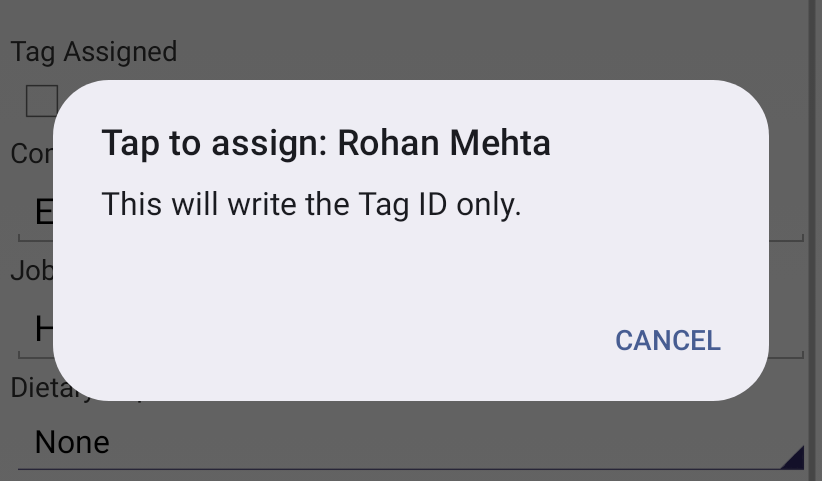
Wait for Tag assigned to Name. The prompt then opens for the next person.
Hold the next wristband against the device, and carry on.
What happens next
- Each person's row changes from Tag Not Assigned to Tag Assigned, with their new ID.
- When there's no one left, All tags assigned. appears.
- Each new ID is sent to Delekit straight away, or at the next sync if the device is offline. On the web, the attendee's record shows Tag assigned as Yes.
- The app moves on in the list's order. To change it, open the menu and select Order By Surname, Order By Forename or Order By Custom SortOrder before you start.
Check it works
Open a session, select Scan Tag and scan a few of the wristbands. Valid Scan should show the right name each time.
If something isn't right
- You want to stop: select Cancel on the prompt.
- An error appears, such as Tag is read only: the prompt stays open for the same person. Try a different wristband. See A wristband won't write.
- The app skipped people: with Show only un-tagged attendees ticked, it skips anyone already tagged. People hidden by your search are skipped too.
- The wrong person got a wristband: select Assign Tag on each person again with a new wristband. The old one stops working.
Related articles
Still stuck? Contact Delekit support.
Was this article helpful?
That’s Great!
Thank you for your feedback
Sorry! We couldn't be helpful
Thank you for your feedback
Feedback sent
We appreciate your effort and will try to fix the article