Audience: event organisers and client administrators. Applies to: all plans.
Every attendee has their own page: everything Delekit holds about them for this event, in one place. Open it by selecting their name in Attendees. This article explains what each part of the page shows and where to change it. Changes to their details, sessions and tags are saved with Save changes in the bar that appears once you change something.
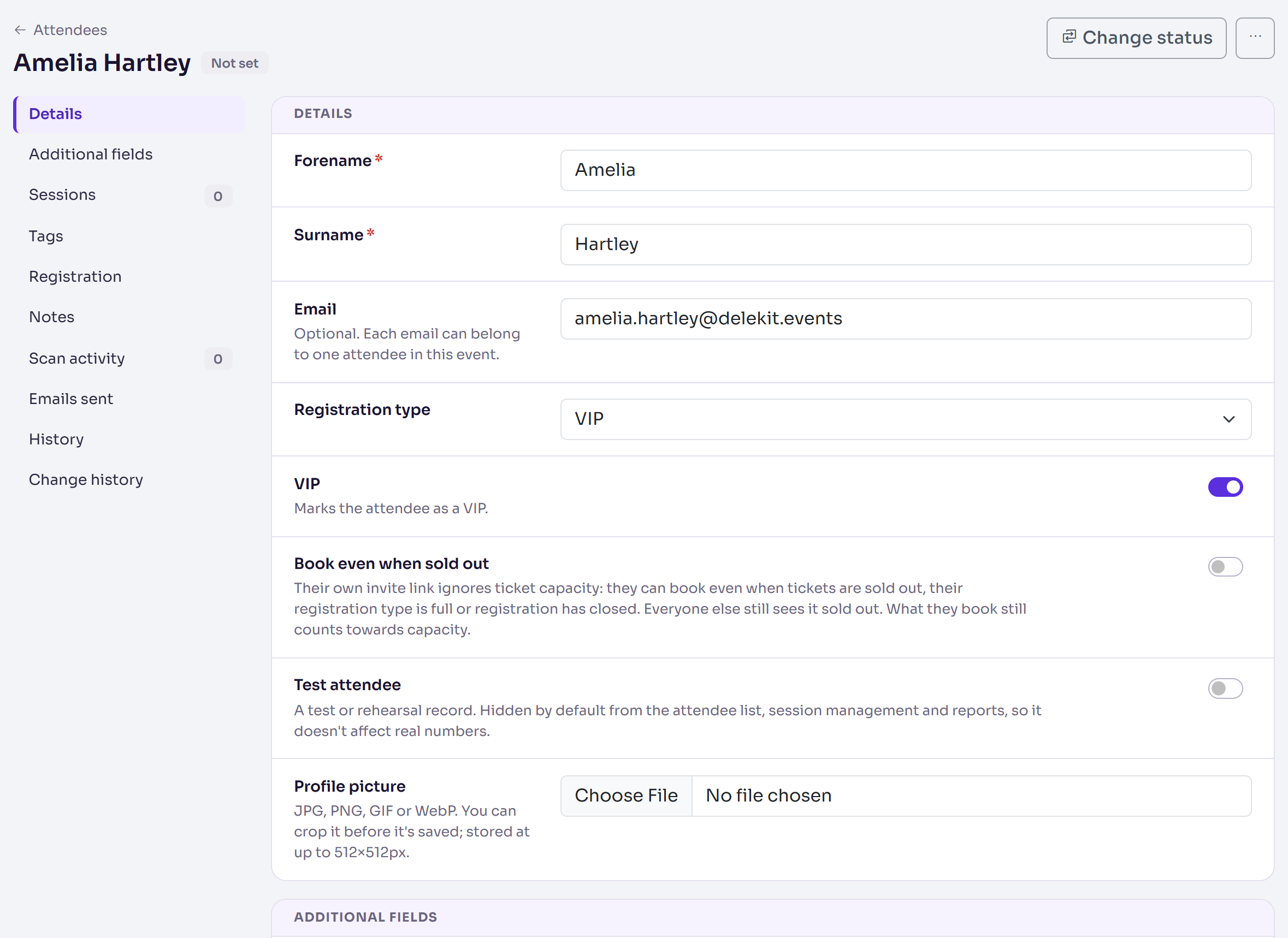
The title row
- Their name and status, such as Confirmed or Not set for someone with no status yet. Other tags warn you: a bounced email, a spam complaint, an unsubscribe, Deleted, or Erasure scheduled. Hover over a tag for what it means.
- Change status: moves them to another status, with or without an email. See Attendee statuses explained.
- Resend and the status's email, such as Resend confirmation or Resend invite: sends that email to them again, after showing it to you first.
- More actions: Send email (any of the event's published email templates), copy their personal link (for example Copy invite link), and Add attendee.
A deleted attendee's page is read-only and shows Restore attendee instead.
The sections
Select a section in the list to go straight to it. Some only show when there's something in them.
| Section | What it holds |
|---|---|
| Details | Forename, Surname, Email, Registration type, VIP, Book even when sold out, Test attendee and their Profile picture. |
| Additional fields | Their answers to your custom fields, as the registration form asks them. |
| Sessions | The sessions they're booked on, under In. Pick sessions in Available and use Add selected to add them; Remove selected takes them off. |
| Tags | Their External ID (from imports and integrations), Tag ID and its Tag QR code, for check-in. Use Edit IDs to change them. |
| Registration | Their status, whether and when they checked in (Mark as checked in or Undo check-in), who booked for them, Linked attendees, and their links to copy, such as their Invite link or Manage registration link. |
| Notes | Notes your team writes about them. Select Add note, type it and select Save note. |
| Orders | Their payments: one block per order. |
| Scan activity | The sessions they were scanned into, with expected and attended counts. |
| Emails sent | Every email sent to them. |
| History | When the record was Created and where from (Source), when it was Last updated, and every tag they've had. |
| Change history | Every change to the record. |
At the end of the page are Delete attendee and Erase personal data. See Delete and erase personal data.
Orders: what they paid
Each order shows its reference, its status (such as Awaiting invoice payment), the Total, any discount and refund, how it was paid, and a line per ticket or product with who it's for, the quantity, the amount paid and any refund. View receipt opens the receipt.
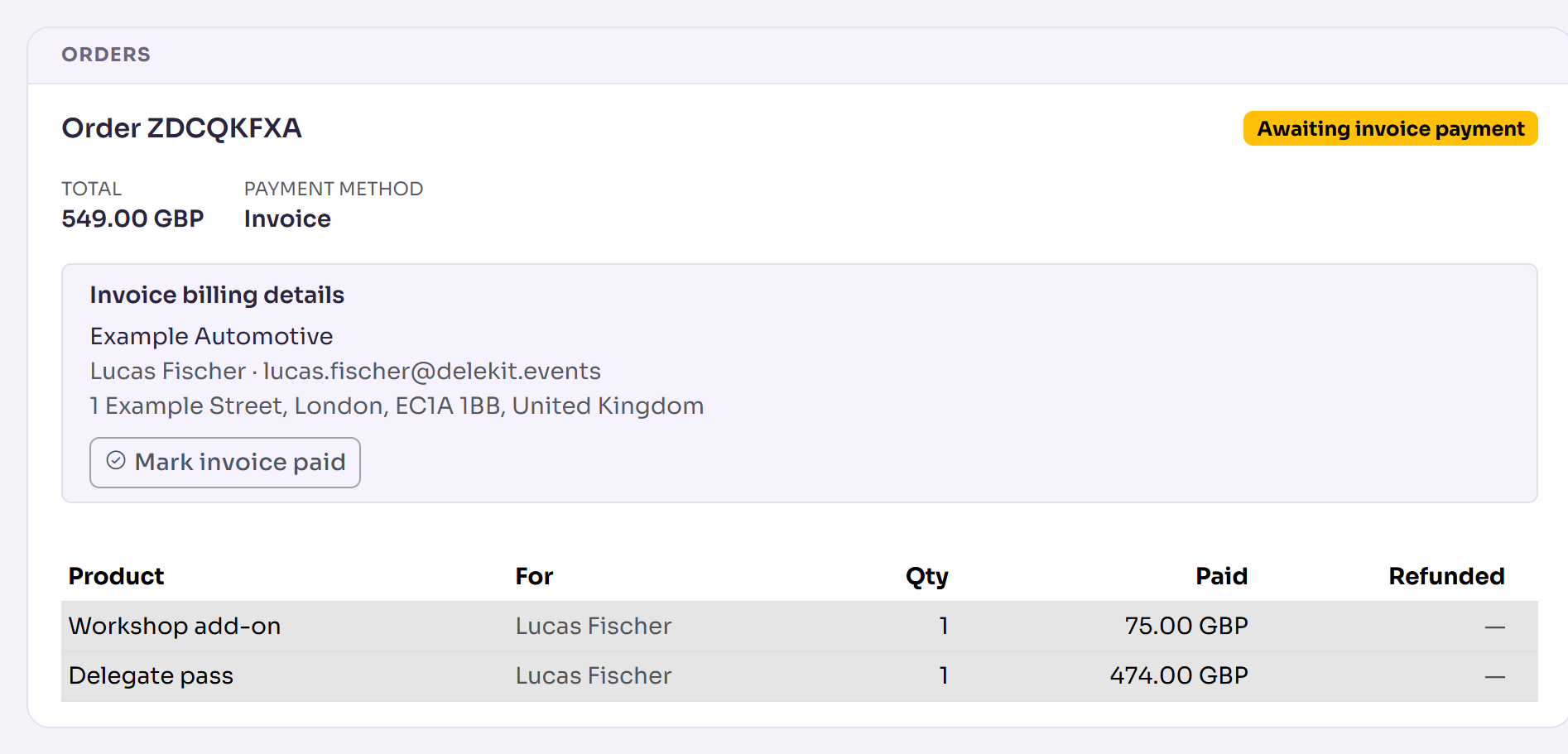
- Paid by invoice? Select Mark invoice paid once the money arrives.
- Refunds are made from the page of the person who bought the order, with Refund on a line. A guest's page says who that is.
- A free booking shows its booking reference, with nothing to pay or refund.
Emails sent: what they were sent
Each email shows its subject, when it went (or is scheduled), which email it was, and who it was sent to, with any CC and the reply-to. Its delivery shows as Pending, Sent, Delivered, Hard bounce or Soft bounce, Spam complaint or Rejected, with Opened and Clicked once they've opened it or selected a link. Preview shows the email as it was sent, and Resend sends it again, to their email address now, after asking.

Times are in your own time zone; hover over one for the event's time. For every email the event sends, see Check your emails on the Email queue.
Change history: who changed what
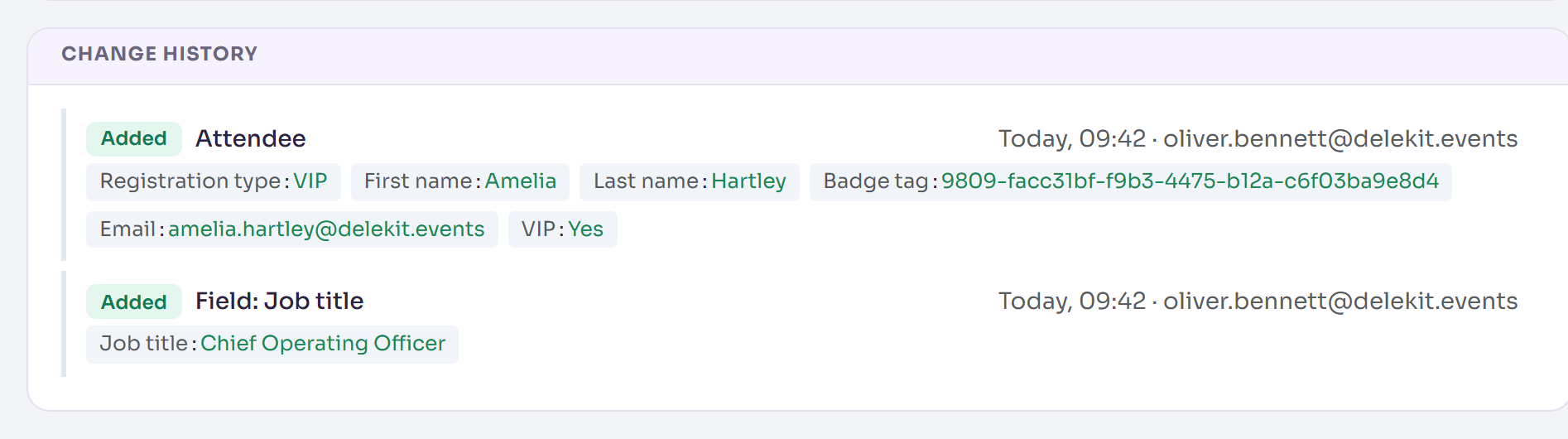
Each entry is tagged with what happened (Added, Modified, Deleted, Restored, Status, and email events such as Hard bounce or Unsubscribed), with each field's old and new value, when, and who made the change: their email address, or System when Delekit made it.
Related articles
- Add an attendee
- Find attendees: search, filter and columns
- Attendee statuses explained
- Delete and erase personal data
Still stuck? Contact Delekit support.
Was this article helpful?
That’s Great!
Thank you for your feedback
Sorry! We couldn't be helpful
Thank you for your feedback
Feedback sent
We appreciate your effort and will try to fix the article