Audience: event administrators and client administrators. Applies to: plans that include the registration form builder. If Communication shows a padlock in the menu, it isn't in your plan.
A communication sends one email to a group of your attendees: everyone with a registration type, everyone on an invite list, or particular people. You write the email (or choose a template), generate one email per person into a review queue, check them, and only then send. Nothing leaves until you do.
Before you start
- Who can get it: attendees with an email address. People who unsubscribed from the event's invites and communications, and addresses that have bounced for good, are skipped: the review queue says how many, with Opted out or Address bounced for each.
- Your email is saved as a template. An email written here is kept in the event's Email templates as a Custom notification email, so you can send it again.
- To send it later, see Schedule an email.
- You can stop at any step with Save draft, and carry on later from Communications with Edit.
Write the communication
In the menu, select Registration, then Communication, then select New communication.
On Recipients, enter a Name. It's for your team only; attendees never see it.
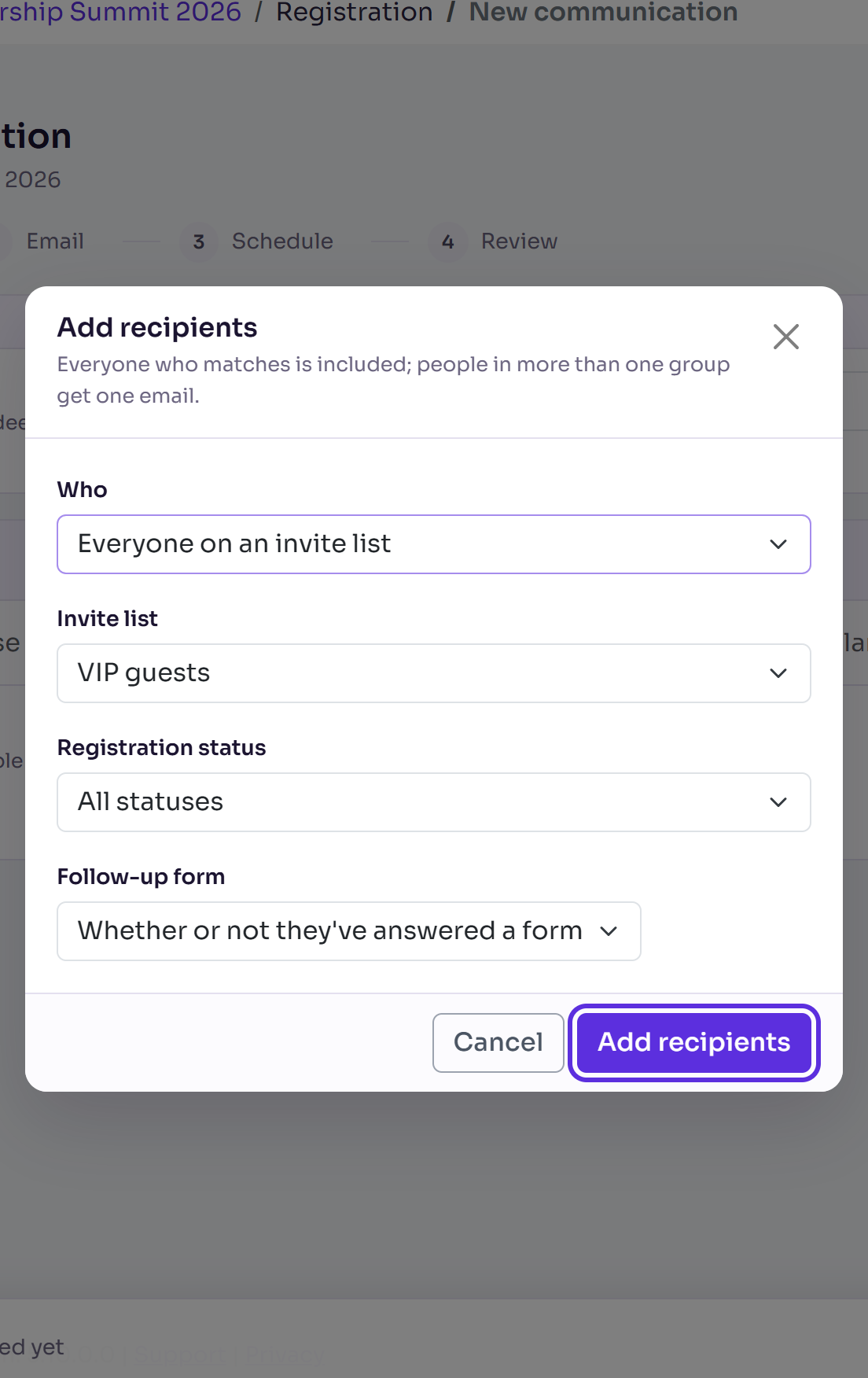
Select Add recipients. In Who, choose Everyone with a registration type, Everyone on an invite list or Particular people, choose the type or list, and a Registration status if you like. Select Add recipients.
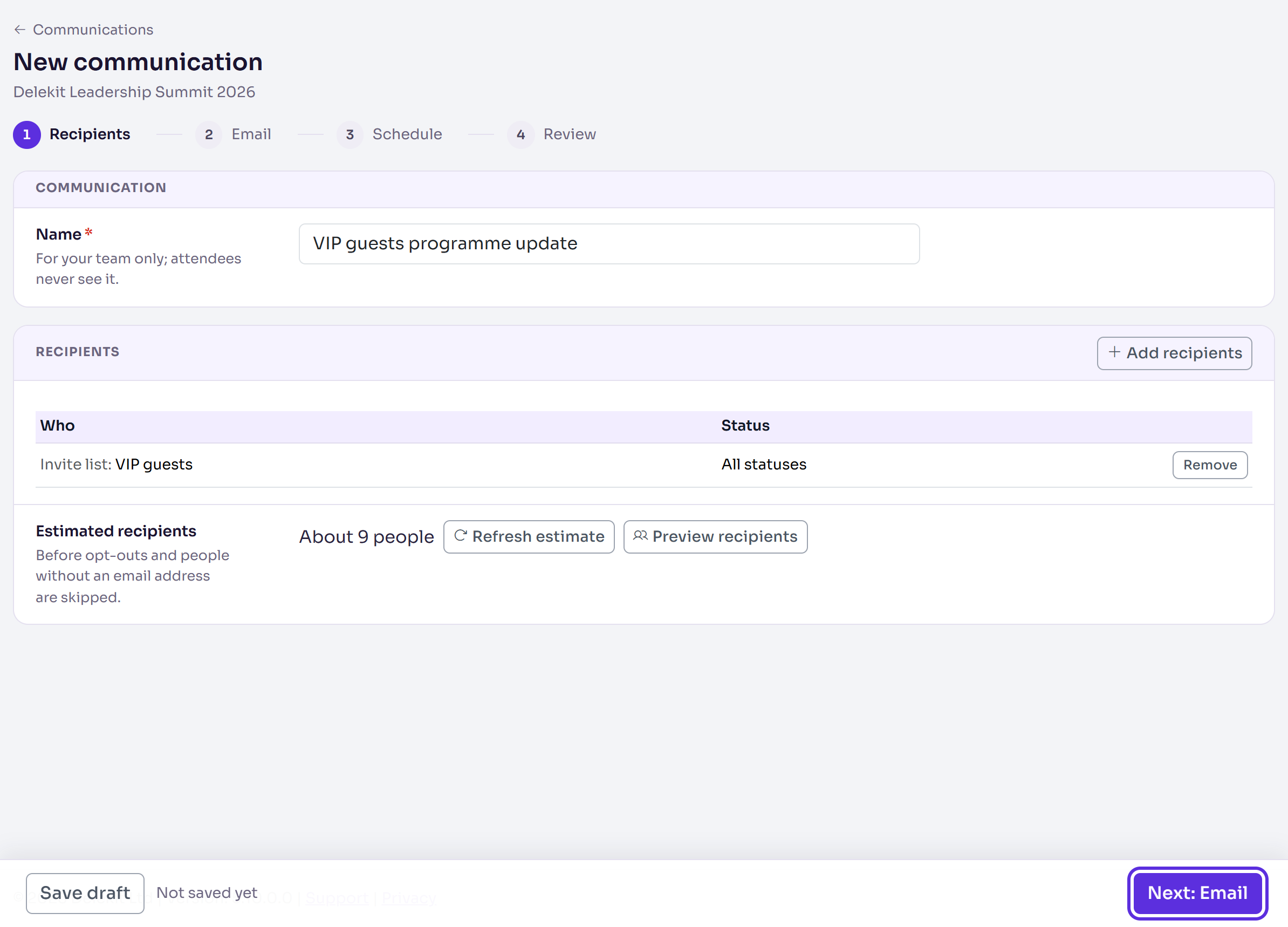
Check Estimated recipients, and select Preview recipients to see who they add up to. Add more groups if you need to: people in more than one get one email. Then select Next: Email.
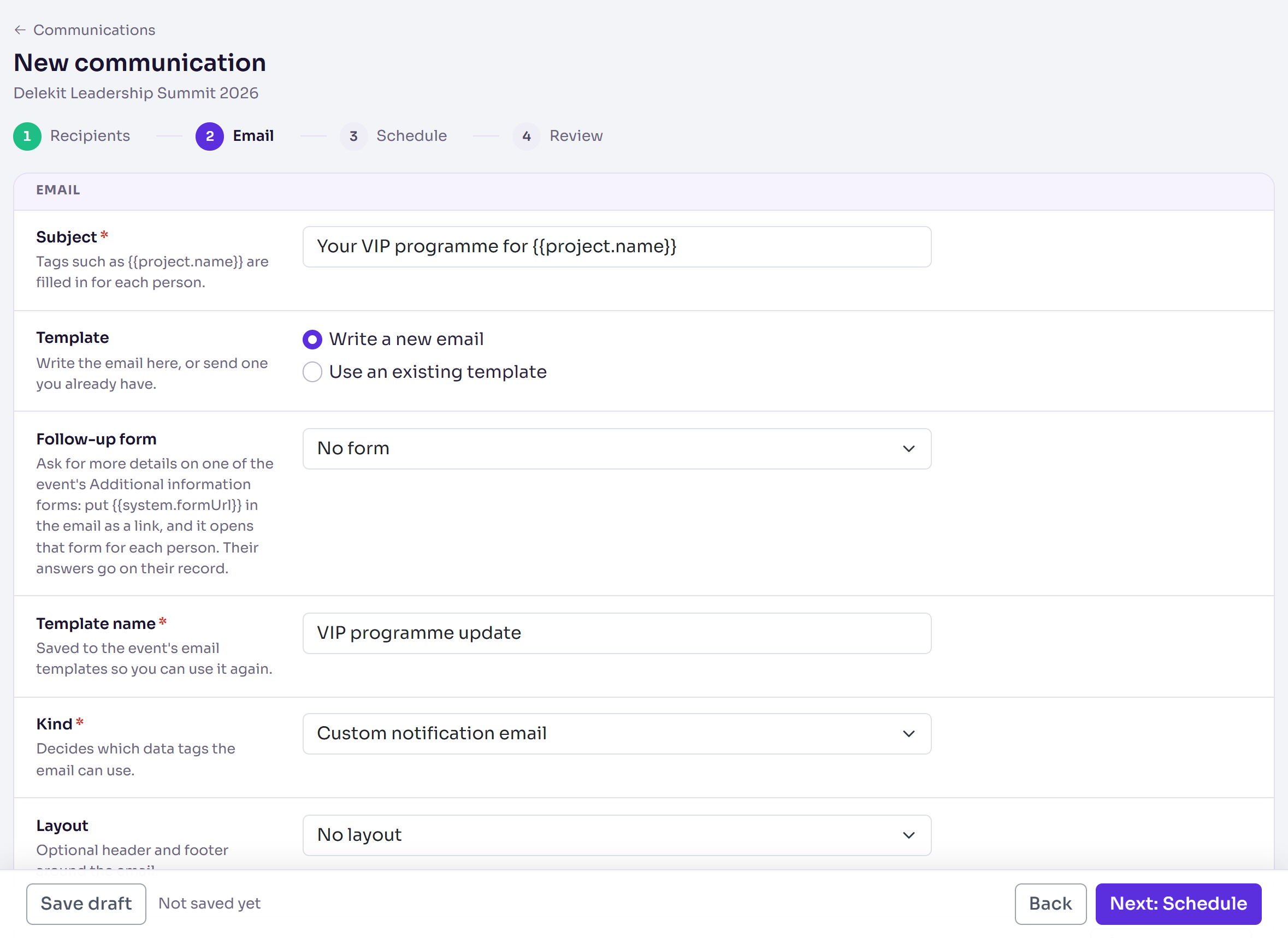
On Email, enter the Subject. Choose Write a new email and enter a Template name and the Kind, or Use an existing template and choose it.
For a new email, write it in Content. Select Insert tag to add a data tag such as the attendee's first name, and check the Preview. It lists only the tags that work in the Kind you chose. Select Next: Schedule.
On Schedule, leave Send on As soon as I confirm, then select Next: Review.
Generate, check and send
On Review, check each choice. Select Change next to one to go back to it.
Select Generate followed by the number of emails, for example Generate 120 emails, then select it again in the pop-up.
In the review queue, check the Recipients and Skipped tiles. Skipped counts people who opted out, or whose address bounced. Select Skipped to see who was left out and why.
Select Preview on a row to see that person's email exactly as generated.
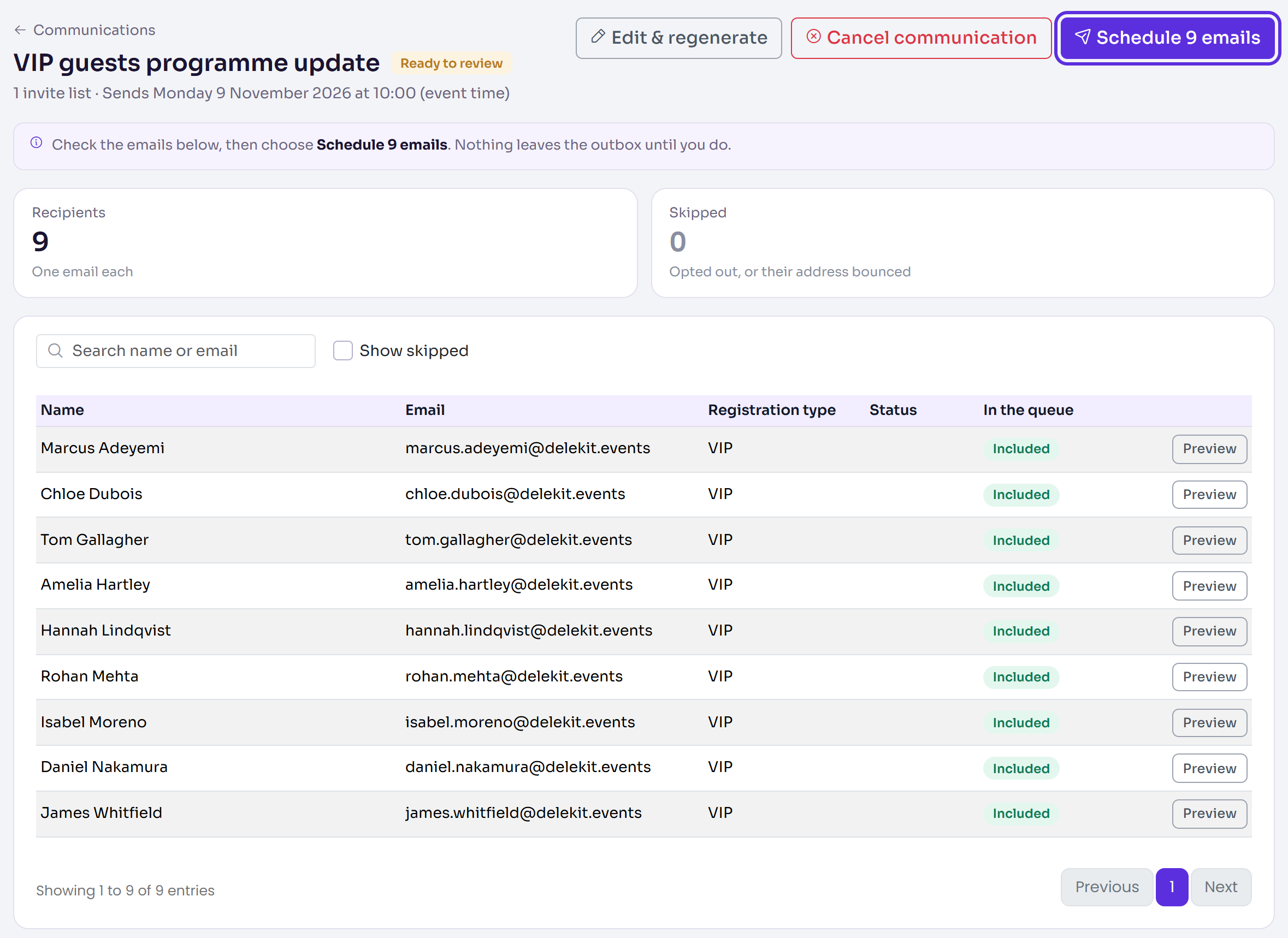
Select Send followed by the number, for example Send 120 emails, then select it again in the pop-up. (For a scheduled communication, the button says Schedule.)
What happens next
- You'll see, for example, Communication confirmed. 120 email(s) queued to send., and the communication's report opens.
- The emails go out from the Email queue, within your organisation's hourly limit for invites and communications. Once the outbox has sent them, this can't be undone.
- Anyone who unsubscribes from a communication is skipped by the next one.
Check it works
- In Content, select Send test email and add the addresses to send a test to. It uses sample values and isn't recorded as a real send.
- Follow delivery, opens and clicks on the report. See Email reports: delivered, opened, clicked.
If something isn't right
- "Add at least one group of recipients." Select Add recipients on the first step.
- A template is listed with "no published version": publish it in Email templates first, or write a new email here.
- "Generating failed." Nothing was sent. Select Try again to go back into the wizard.
- Something's wrong in the queue: select Edit & regenerate to change it, or Cancel communication to discard the generated emails.
- You want to ask for more details: if the event has a follow-up form, choose it in
Follow-up form and put
{{system.formUrl}}in the email as a link.
Related articles
- Schedule an email
- Personalise emails with data tags
- Check your emails on the Email queue
- Send or resend an email to one attendee
Still stuck? Contact Delekit support.
Was this article helpful?
That’s Great!
Thank you for your feedback
Sorry! We couldn't be helpful
Thank you for your feedback
Feedback sent
We appreciate your effort and will try to fix the article