Audience: event administrators and client administrators. Applies to: all plans.
From an attendee's page you can resend the email for their status (their confirmation, say), send them one of your templates, or resend an email they were sent before. Each one goes to that person only, and shows in their Emails sent.
Before you start
- The email must be published. Only published templates are sent. See Set up your event's email templates.
- The status email comes from their invite list. Resending their confirmation sends the template chosen on the invite list that holds their registration type.
- People with no status have no status email. The resend button only shows for a status that has one.
Resend the email for their status
In the menu, select Attendees, then View all, and select the attendee's name.
Select the resend button next to Change status. It's named after their status: Resend invite, Resend confirmation, Resend waitlist email, Resend cancellation, Resend decline or Resend register interest email. A guest who still has to fill in their own details gets Resend guest details invite.
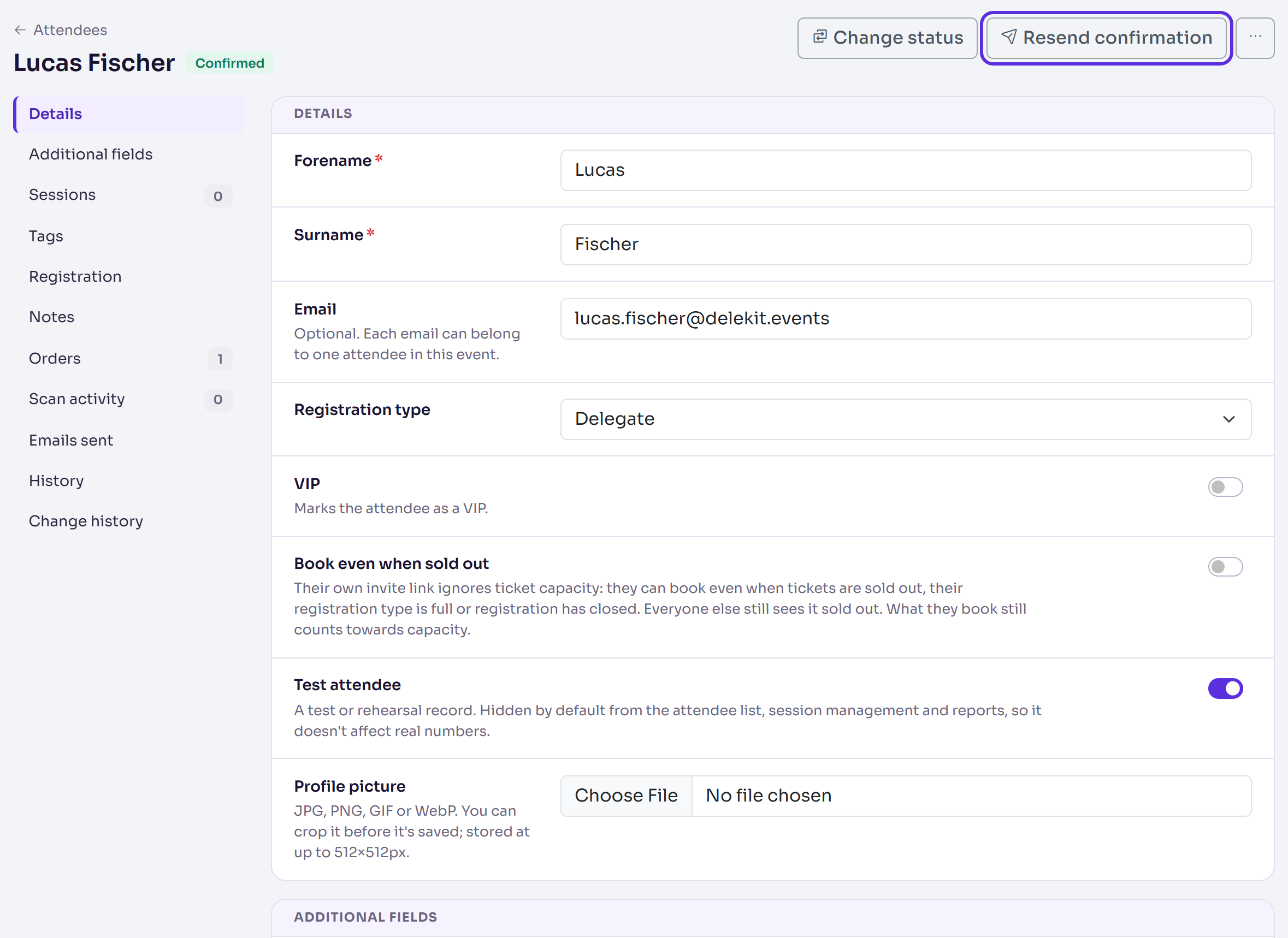
In the panel, check the Template, Language, To, From and Subject, and the email itself.
Select the panel's resend button, for example Resend confirmation. To leave without sending, select Cancel.
If the email can't be sent, the panel says why instead, for example This attendee has no email address.
Send them one of your templates
On the attendee's page, select More actions (⋯), then Send email.
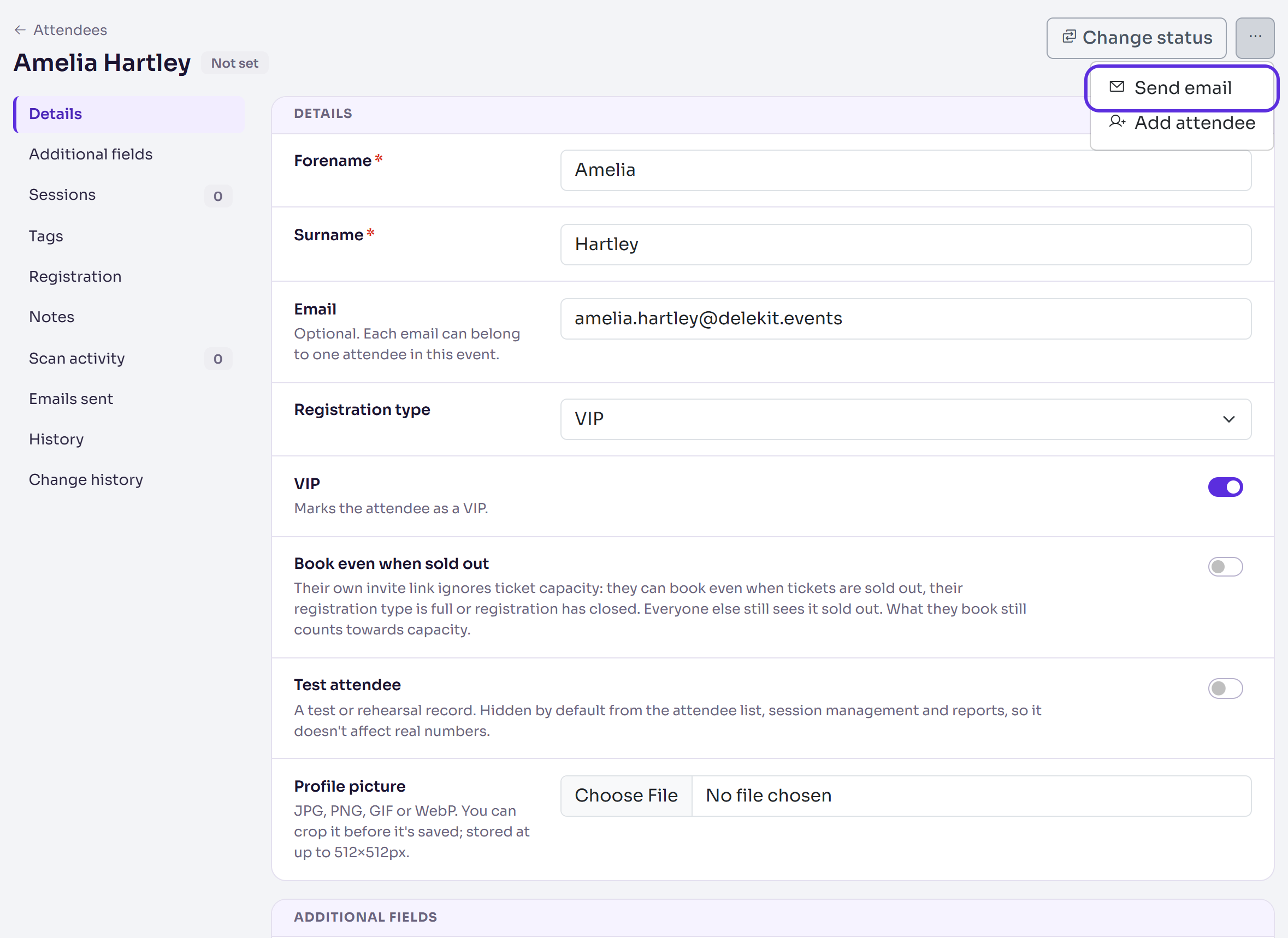
In Template, choose the email. As the pop-up says, it shows the event's and your client's published templates: the Custom notification email templates, and the email for the attendee's current status. Each one shows its language.
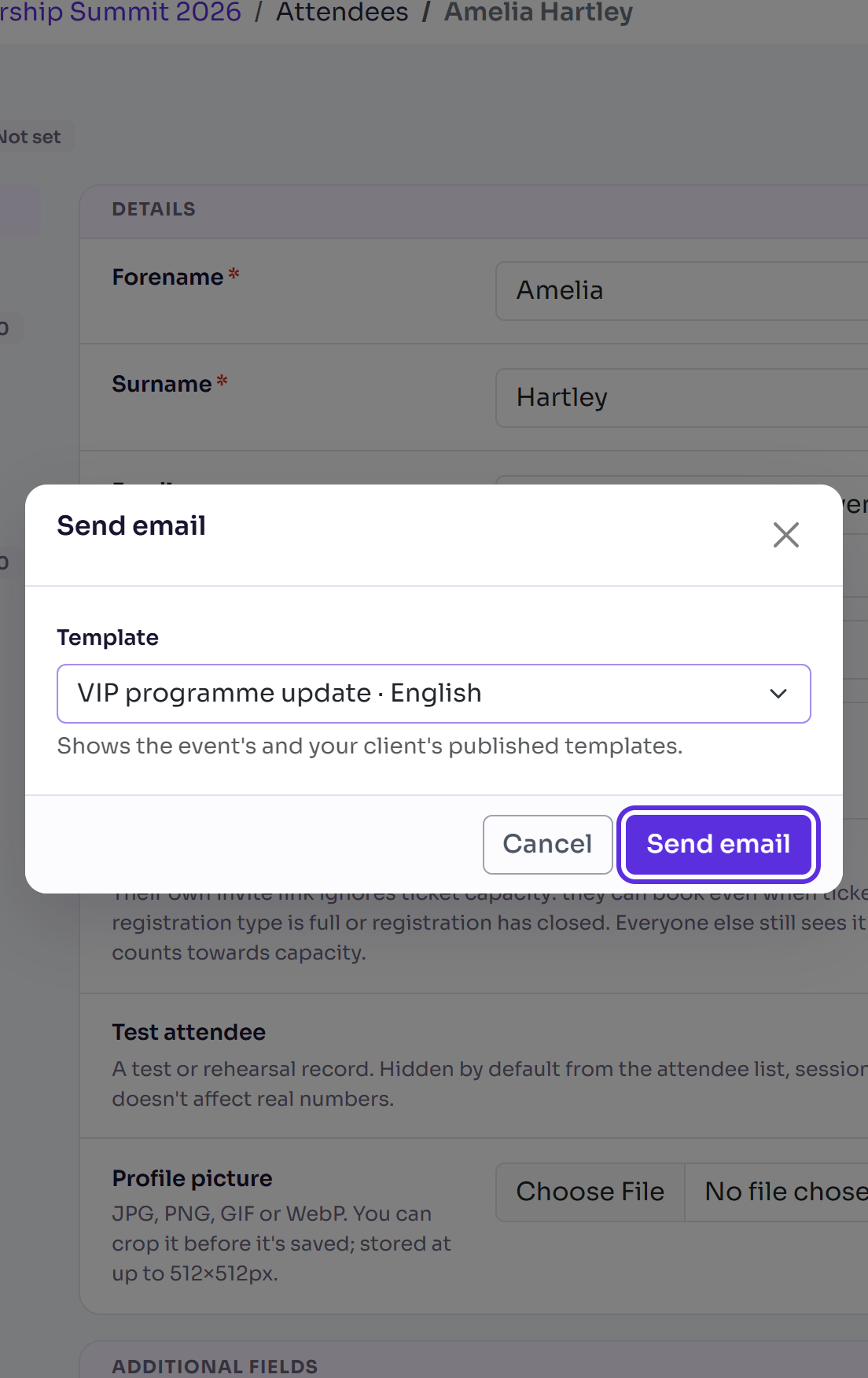
Select Send email.
To write a new template for this, write it in a communication: an email written there is saved to the event's Email templates. See Send an email to attendees (Communication).
Resend an email they were sent
- On the attendee's page, go to Emails sent.
- Select Resend on the email, then Resend email in Resend this email?.
A fresh copy, with the wording it had then, goes to the attendee's email address now, which the pop-up names. It's listed as a new email with its own send date, and you'll see Email queued for delivery to and the address.
What happens next
- You'll see that the email is queued for delivery. It goes from the Email queue straight away.
- It shows in Emails sent, where you can see when it's delivered and opened.
If something isn't right
- The resend button isn't there: the attendee has no status, or their status has no email of its own. Use Send email instead.
- "This person has unsubscribed from this event's invites and emails (see Unsubscribes)." An invite or communication isn't resent to someone who has unsubscribed since.
- "No published templates found": publish a template first.
- You corrected their address: select Save changes first. Every way of sending, Resend in Emails sent included, goes to the address saved on their page.
- "This attendee has no email address to resend to." Add their Email, select Save changes, then resend.
Related articles
- Bounced emails and spam complaints
- Email reports: delivered, opened, clicked
- Which emails Delekit sends, and when
Still stuck? Contact Delekit support.
Was this article helpful?
That’s Great!
Thank you for your feedback
Sorry! We couldn't be helpful
Thank you for your feedback
Feedback sent
We appreciate your effort and will try to fix the article