Audience: event administrators and client administrators. Applies to: all plans. Communications need a plan that includes the registration form builder.
See whether your emails arrived and were read: how many were delivered, opened and clicked, and which bounced. A communication has its own report; the Email queue covers every email of the event; and an attendee's page shows each email sent to them.
Before you start
- Delivery takes a few minutes to show. It comes back from the recipients' mail servers.
- Delivered means their mail server accepted the email, not that it reached the inbox.
- Opens and clicks count each email once, however many times it's opened or clicked.
See a communication's report
In the menu, select Registration, then Communication.
Select View on the communication. Once it's been sent or scheduled, View opens its report.
Read the tiles:
- Recipients: who it was generated for, and how many were skipped.
- Sent: emails that have gone, with how many failed when some did. Delivered (with the percentage of sent) and Bounced (hard and soft).
- Queued, while some are still waiting: Not sent yet, or how many are held for an address check. It goes once they've all been sent.
- Opens and Clicks, each with the percentage of delivered emails.
- Complaints: people who marked it as spam.
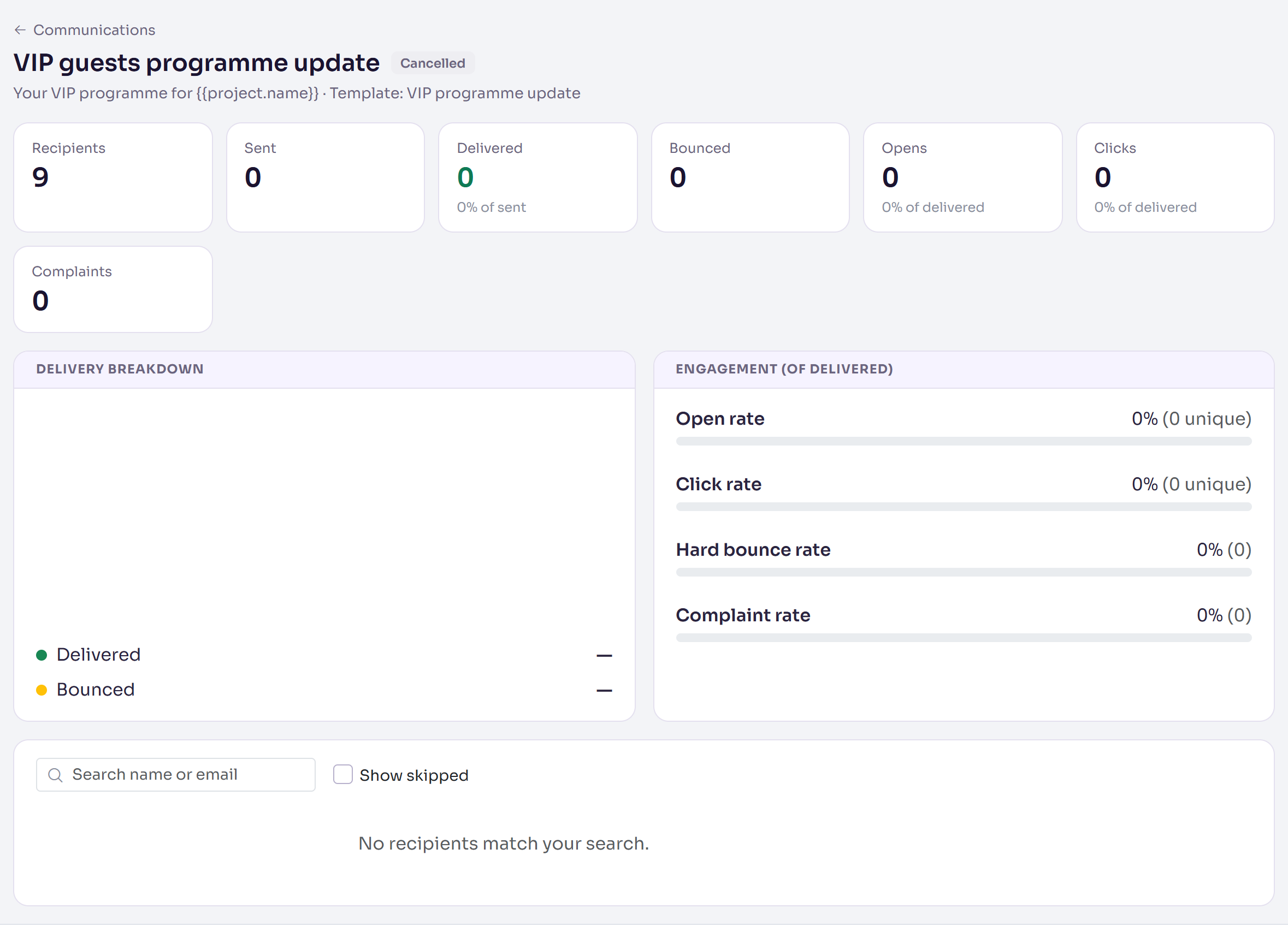
Check Delivery breakdown and Engagement (of delivered). Hard bounce rate shows Above the recommended threshold over 5%, and Complaint rate shows Above the SES 0.1% threshold over 0.1%.
In the list, search for a person, or tick Show skipped to see who was left out. Select Preview to see their email as it was generated.
See every email of the event
In the menu, select Registration, then Email queue.
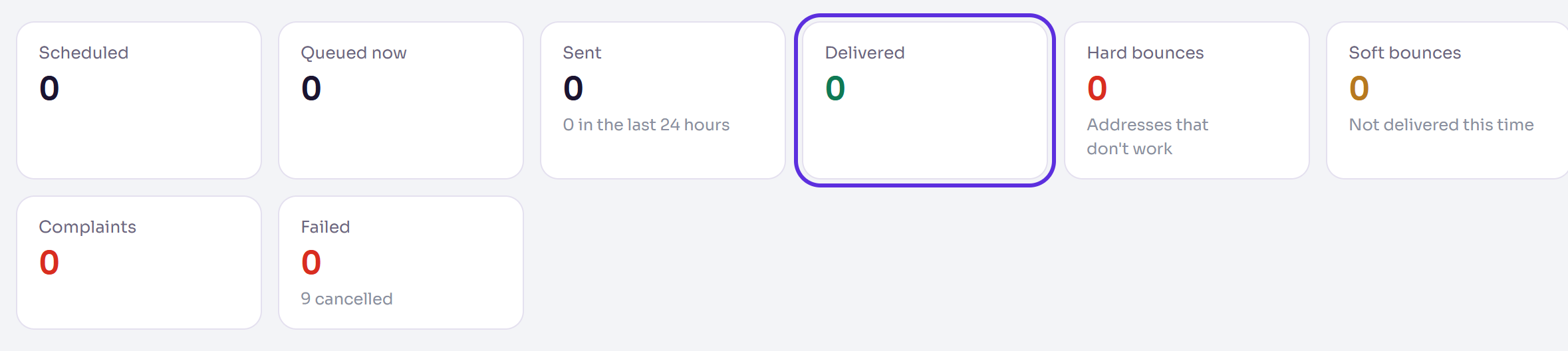
The tiles count the event's emails, including Delivered, Hard bounces, Soft bounces and Complaints. Select a tile to show only those emails.
In the list, each email's Status shows how it went, such as Delivered, Hard bounce or Soft bounce, with Opened and Clicked beside it. Hover over Opened or Clicked for when it was first opened or clicked.
Delivered shows when the recipient's mail server accepted it. Select Preview to see the email as it was built.
Invite list sends, confirmations and other registration emails are all here. See Check your emails on the Email queue.
See one attendee's emails
- Open the attendee's page and go to Emails sent.
- Each email shows its subject, when it was sent, who it went to, and Delivered, Sent or Pending, with Opened and Clicked when they happened.
- Under it you'll see, for example, "Delivered … · First opened … · First clicked …", in your own time zone.
If something isn't right
- No delivery yet: wait a few minutes, then select Refresh queue on the Email queue.
- Lots of bounces or complaints: see Bounced emails and spam complaints.
- A communication's View opens the review queue instead: it hasn't been sent yet. It gets a report once you send or schedule it.
Related articles
- Send an email to attendees (Communication)
- Check your emails on the Email queue
- Bounced emails and spam complaints
- Send or resend an email to one attendee
Still stuck? Contact Delekit support.
Was this article helpful?
That’s Great!
Thank you for your feedback
Sorry! We couldn't be helpful
Thank you for your feedback
Feedback sent
We appreciate your effort and will try to fix the article