Audience: event administrators and client administrators. Applies to: plans that include the registration form builder. If Communication shows a padlock in the menu, it isn't in your plan.
Schedule a communication to go at a date and time you choose, in the event's time zone. You write and check it now, and Delekit sends it then. This article covers communications; to schedule an invite list's invitations, see Send or schedule invitations.
Before you start
- Times are event time. Send at is in the event's time zone, and the page also says when that is for you if your own time zone differs.
- The time must be in the future. You can't schedule a time that has passed.
- Write the communication first: see Send an email to attendees (Communication). Scheduling is its Schedule step.
Schedule a communication
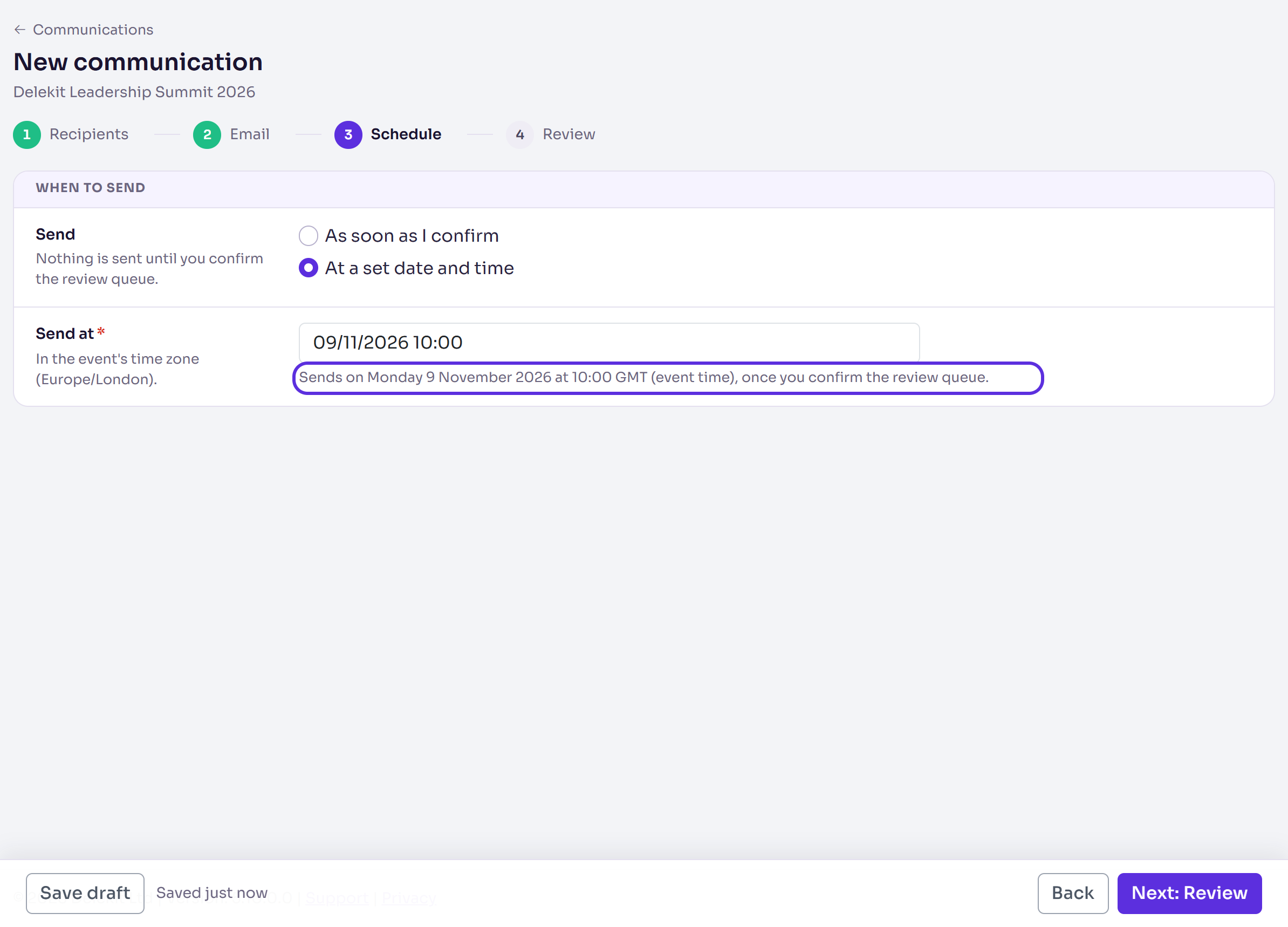
On the communication's Schedule step, in Send, choose At a set date and time.
Enter Send at, as dd/mm/yyyy hh:mm. The line under it says when that is, for example "Sends on Monday 19 October 2026 at 12:00 BST (event time), once you confirm the review queue."
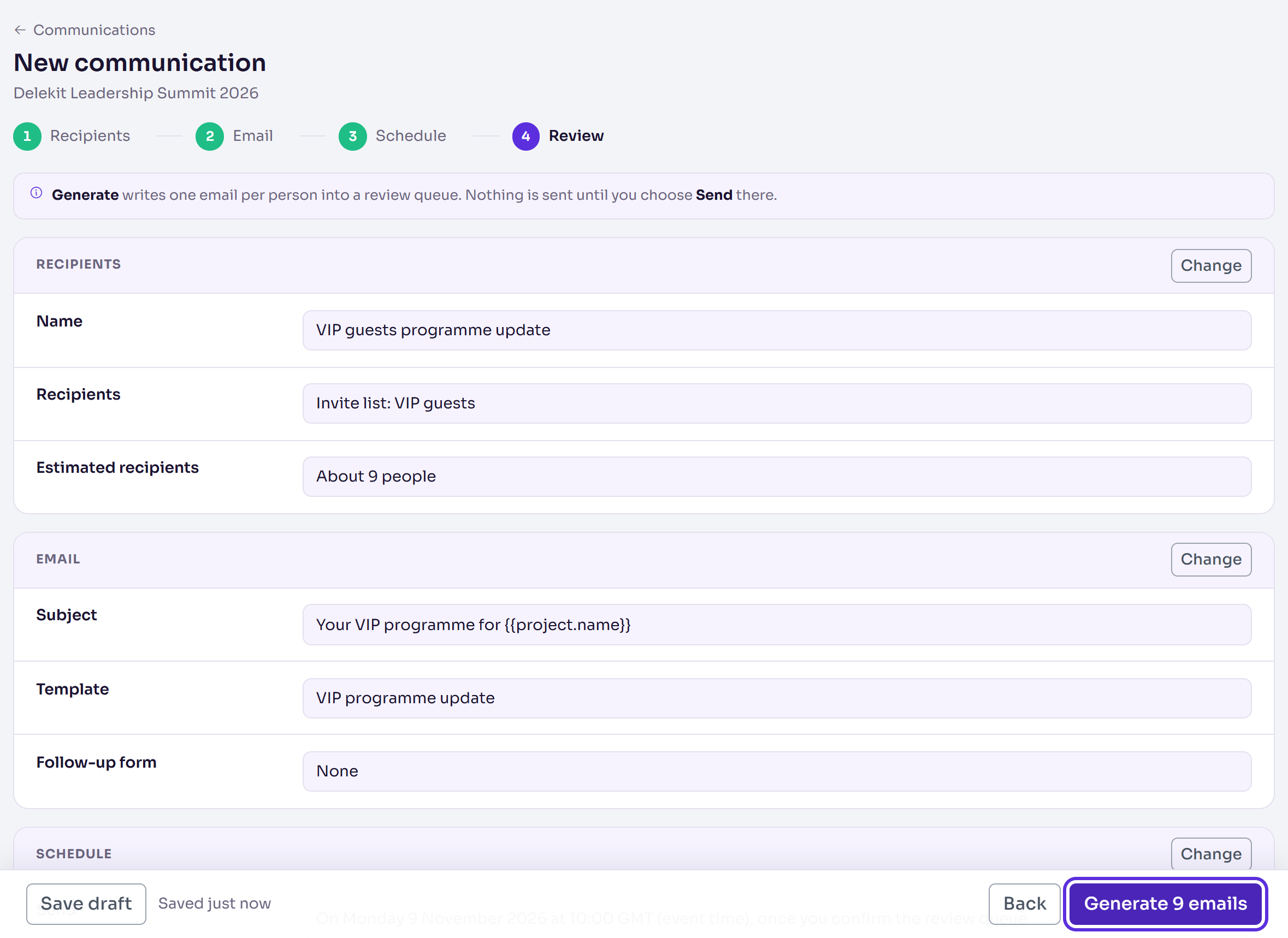
Select Next: Review, and check the Schedule row.
Select Generate followed by the number of emails, then select it again in the pop-up. Each person's email goes into the review queue; nothing is sent yet.
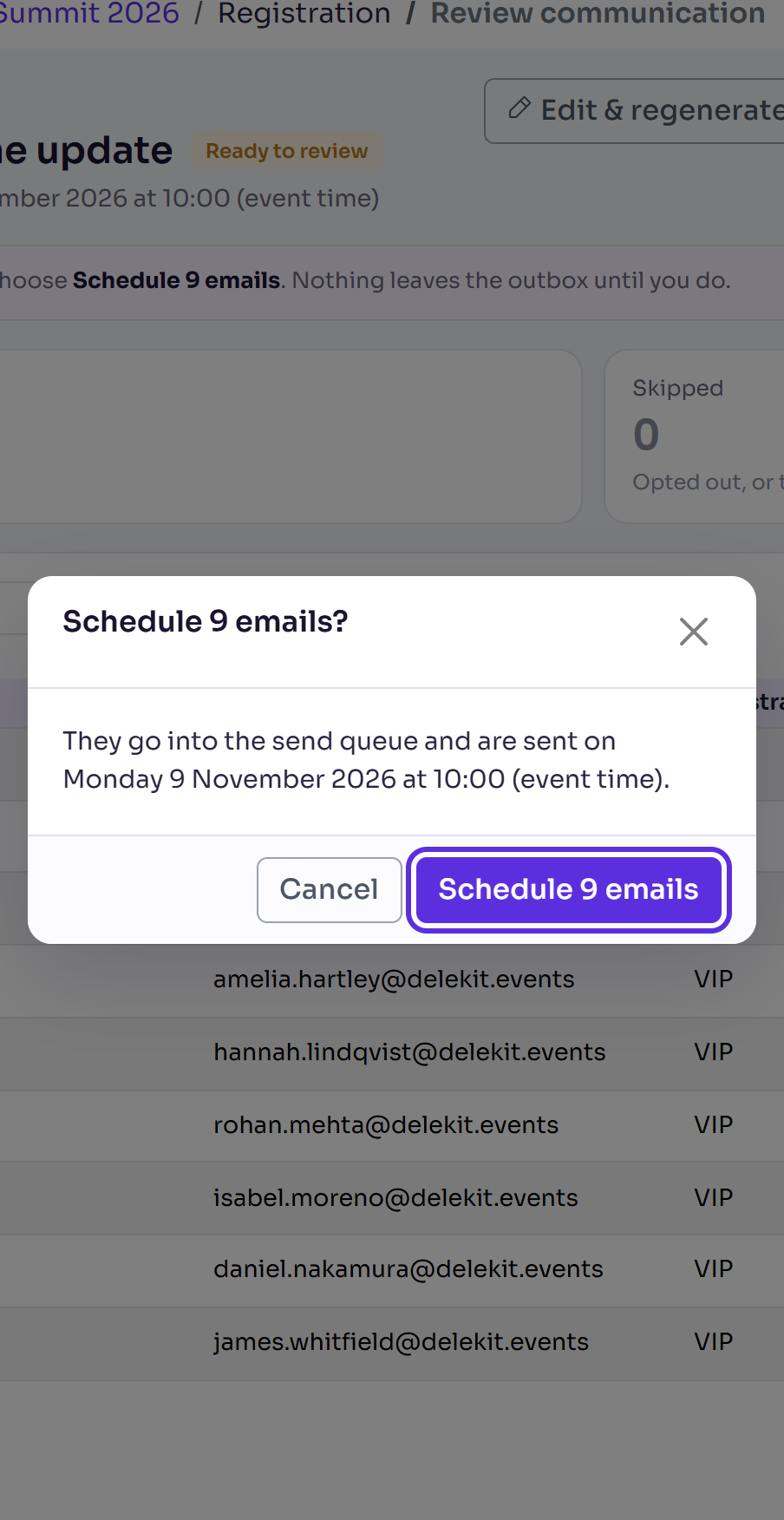
In the review queue, check the emails, then select Schedule followed by the number, for example Schedule 120 emails.
In the pop-up, check when they'll be sent, then select Schedule 120 emails (with your number) again.
What happens next
- You'll see, for example, Scheduled 120 email(s) for …, and the communication's report opens. Its emails wait in the Email queue until that time, then go within your organisation's hourly limit.
- The Communications list shows the time in Scheduled, and the Email queue's Scheduled tile counts the emails.
- If the time passed before you confirmed, you'll see that its scheduled time has passed, so the emails are sending now.
- Anyone who unsubscribes before it goes doesn't get it.
Change or cancel it before you schedule it
Until you select Schedule in the review queue, nothing is queued:
To change it, select Edit & regenerate. The generated emails are discarded and you're back in the wizard.
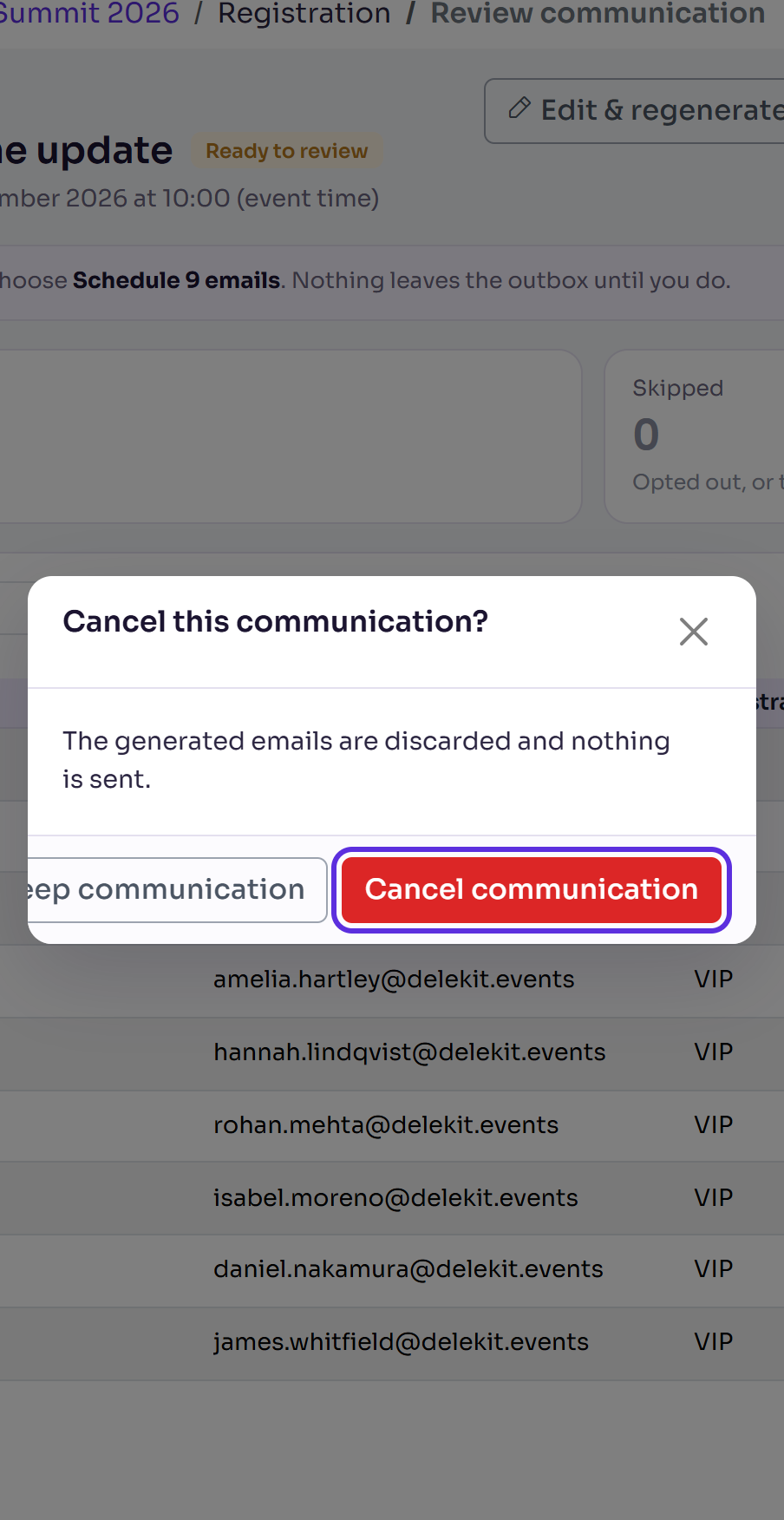
To drop it, select Cancel communication, then Cancel communication in the pop-up. Select Keep communication to leave it.
Cancel it after you schedule it
Once scheduled, the emails wait in the Email queue until their time. To stop them all:
- In the menu, select Registration, then Communications.
- Tick the communication, then select Actions, then Cancel.
- In the pop-up, select Cancel 1 communication. To leave it, select Keep communication.
Its emails that haven't gone are cancelled and it shows Cancelled. Emails already sent stay sent. To stop only some people's emails, cancel those on the Email queue instead (tick them, then Actions › Cancel sending): see Check your emails on the Email queue.
If something isn't right
- "That time has passed. Choose a time in the future." Choose a later date and time.
- "Choose the date and time to send." Enter Send at, or choose As soon as I confirm.
- The emails went at a different hour than you expected: Send at is the event's time, not yours. The page shows both when they differ.
Related articles
- Send an email to attendees (Communication)
- Send or schedule invitations
- Remind people who haven't registered
- Check your emails on the Email queue
Still stuck? Contact Delekit support.
Was this article helpful?
That’s Great!
Thank you for your feedback
Sorry! We couldn't be helpful
Thank you for your feedback
Feedback sent
We appreciate your effort and will try to fix the article