Audience: client administrators and event administrators. Applies to: plans that include the registration form builder. If the Website items show a padlock in the menu, they aren't in your plan.
The asset library holds the images, videos and other files your event website uses. Upload a file here, then choose it in the page builder. You can also replace a file, download it, and delete files you no longer need.
Before you start
- Each event website has its own library. Files in one event's library aren't offered on another event's pages.
- Images and videos you upload in the page builder (with Upload new image or Upload new video) are added to the library too, so you don't need to upload them here first.
- The files you can upload: images (PNG, JPG, WEBP, GIF, SVG and ICO), CSS, PDF, TXT, JSON and ZIP files, and MP4 or WebM videos up to 500 MB.
Upload a file
In the menu, select Website, then Assets. The list shows each file's Asset key, Content type, Size, when it was Created and what it's Used as.
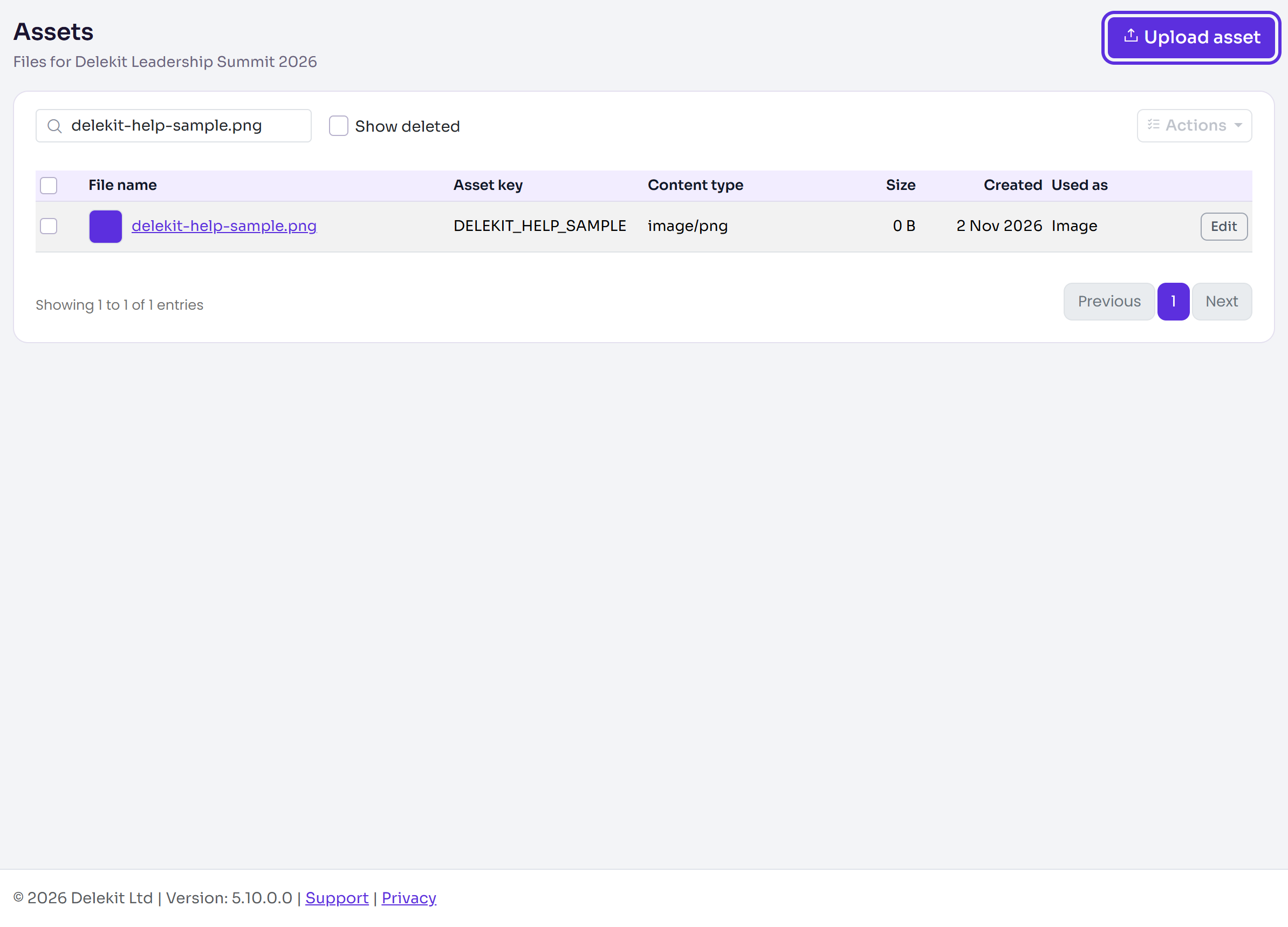
Select Upload asset.
Under File, choose the file. Its name and type show under the box, with a preview for an image.
Leave Asset key blank to make one from the file name, or enter your own. It must be unique for this website.
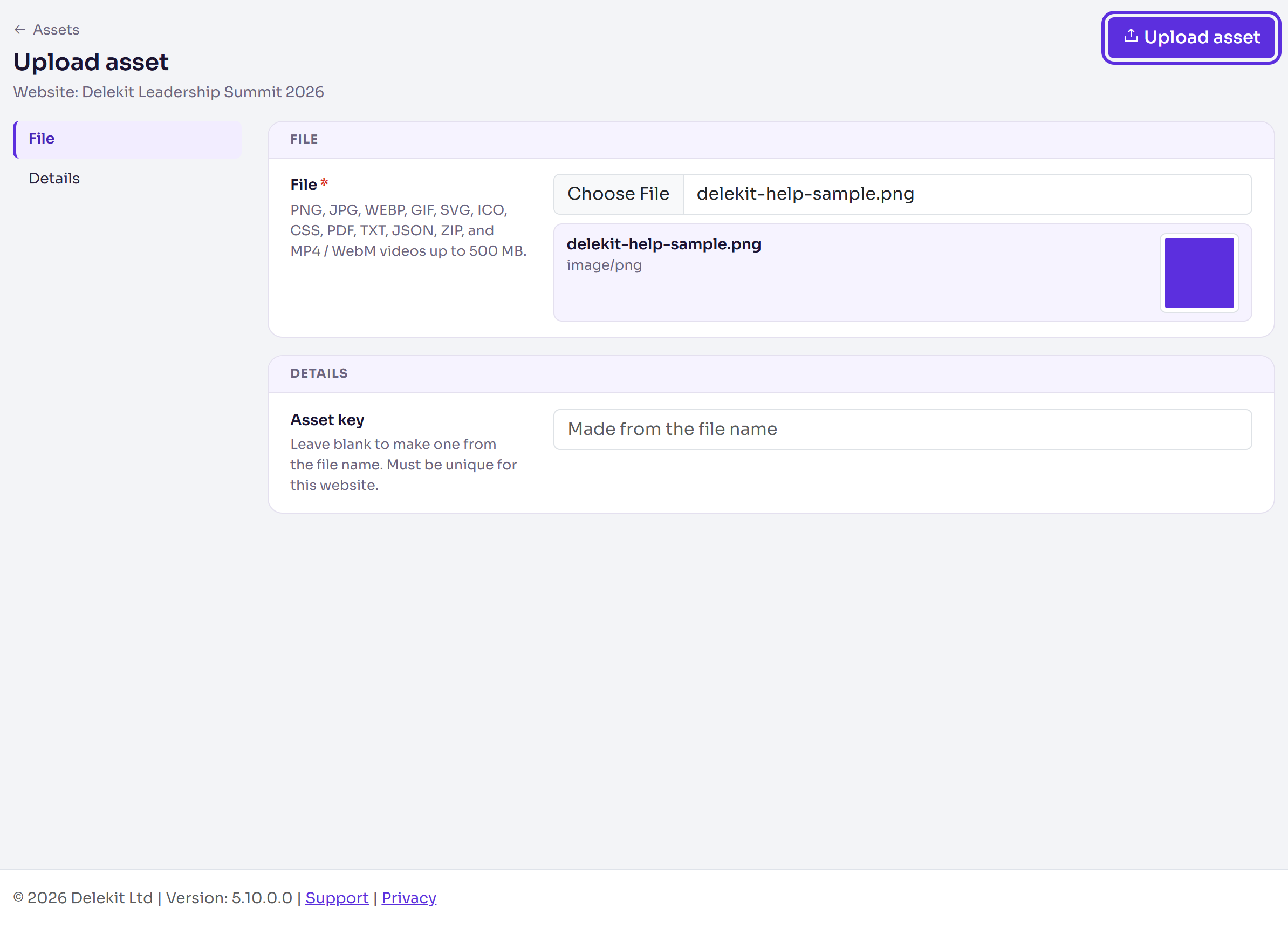
Select Upload asset.
You're back in the list, with Changes saved. A large video shows its progress as it uploads.
Change or replace a file
In Website › Assets, select Edit on the file.
To replace it, choose a new file under Replace file. Pages that use the asset show the new file.
To change the Asset key, enter a new one.
Select Save changes. You'll see Asset saved.
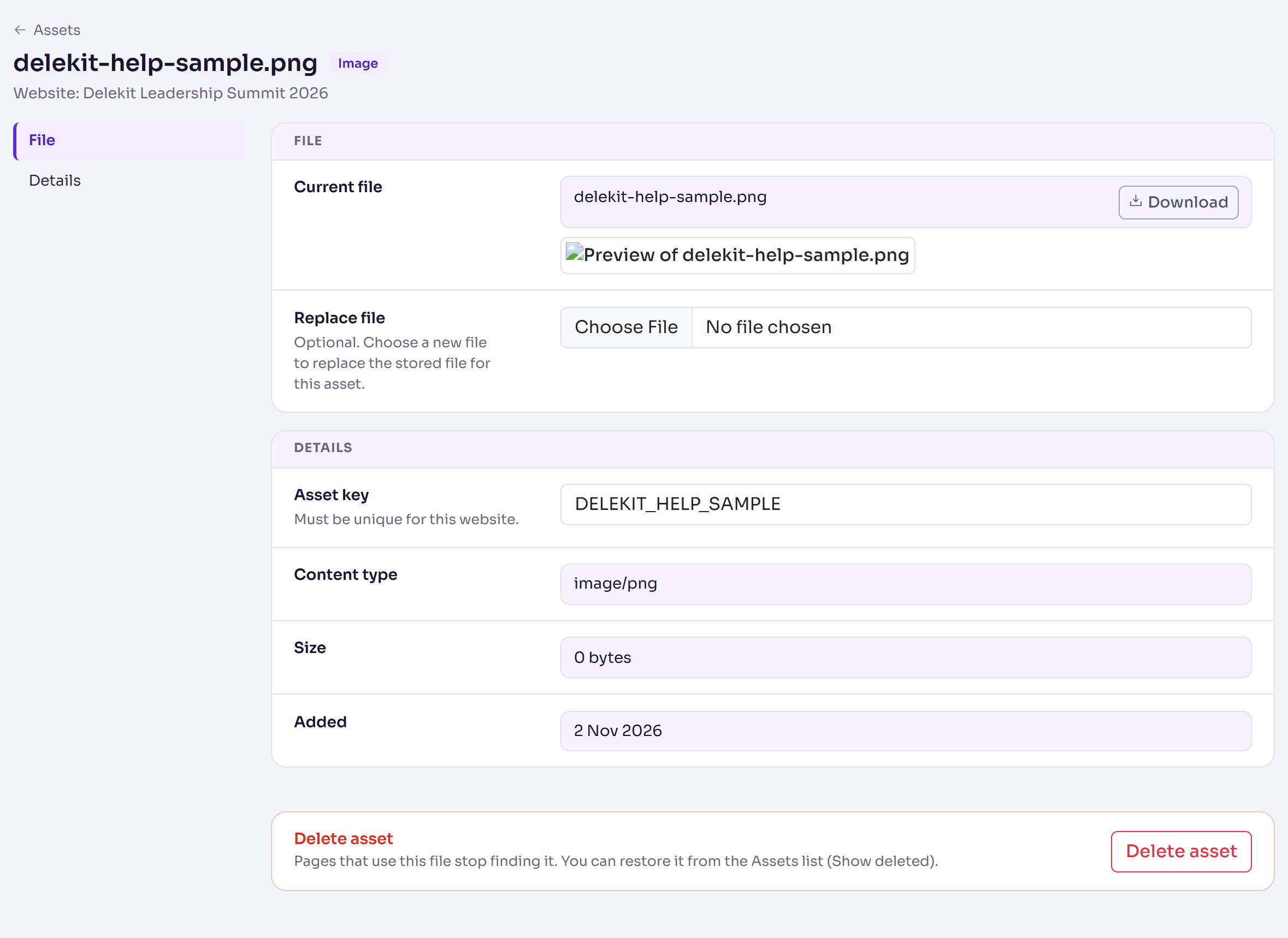
Download gets the stored file. For a text file (CSS, TXT, JSON or SVG), you can also change its contents under Content and select Save content.
Delete or restore a file
- In Website › Assets, tick the files.
- Select Actions, then Delete.
- Select Delete 1 asset to confirm (the number is how many you ticked).
To bring a file back, tick Show deleted, tick the file, then select Actions, then Restore.
What happens next
- Your file is ready to use in the page builder. For example, select Choose image in an Image block, then select the file. See Page blocks reference.
- Pages that use a deleted file stop finding it until you restore it. Check your pages before you delete an image or video.
- Search for a file by name with Search assets.
Check it works
Select Edit on the file: its Size and Content type show under Details, with a preview for an image. In the page builder, the file is offered when you choose an image or video.
If something isn't right
- "File type .xyz is not allowed." The library doesn't take that kind of file. Save it as one of the types listed under File.
- "Videos can be up to 500 MB. Please compress it and try again." Make the video smaller, for example at a lower resolution, then upload it again.
- "A replacement video can be up to 100 MB. To use a larger video, add it as a new asset." Select Upload asset to add the larger video as a new file instead.
- "This Asset Key is reserved, please choose a different key." Enter another Asset key, or leave it blank.
Related articles
- Upload videos
- Page blocks reference
- Build a page with the page builder
- Brand your website with a theme
Still stuck? Contact Delekit support.
Was this article helpful?
That’s Great!
Thank you for your feedback
Sorry! We couldn't be helpful
Thank you for your feedback
Feedback sent
We appreciate your effort and will try to fix the article