Audience: client administrators and event administrators. Applies to: plans that include the registration form builder. If the Website items show a padlock in the menu, they aren't in your plan.
Add a video to a page of your event website, such as last year's highlights. Upload your own MP4 or WebM file in the page builder, or show a YouTube or Vimeo video from its link. You can also play a short video silently behind a hero or a section.
Before you start
- Videos you upload are MP4 or WebM files, up to 500 MB. Smaller files load faster for visitors, especially on phones.
- A YouTube or Vimeo video needs no upload: you paste its link.
- A background video (behind a Hero or a Section) must be uploaded: links can't be used. Keep it short, 10 to 20 seconds, and ideally under 25 MB.
- You can upload videos in advance in Website › Assets with Upload asset. See The asset library: images and files.
Add a video to a page
In the menu, select Website, then Pages, and select Build on the page.
On the Blocks tab, select Video. It's added to the page in a Section of its own.
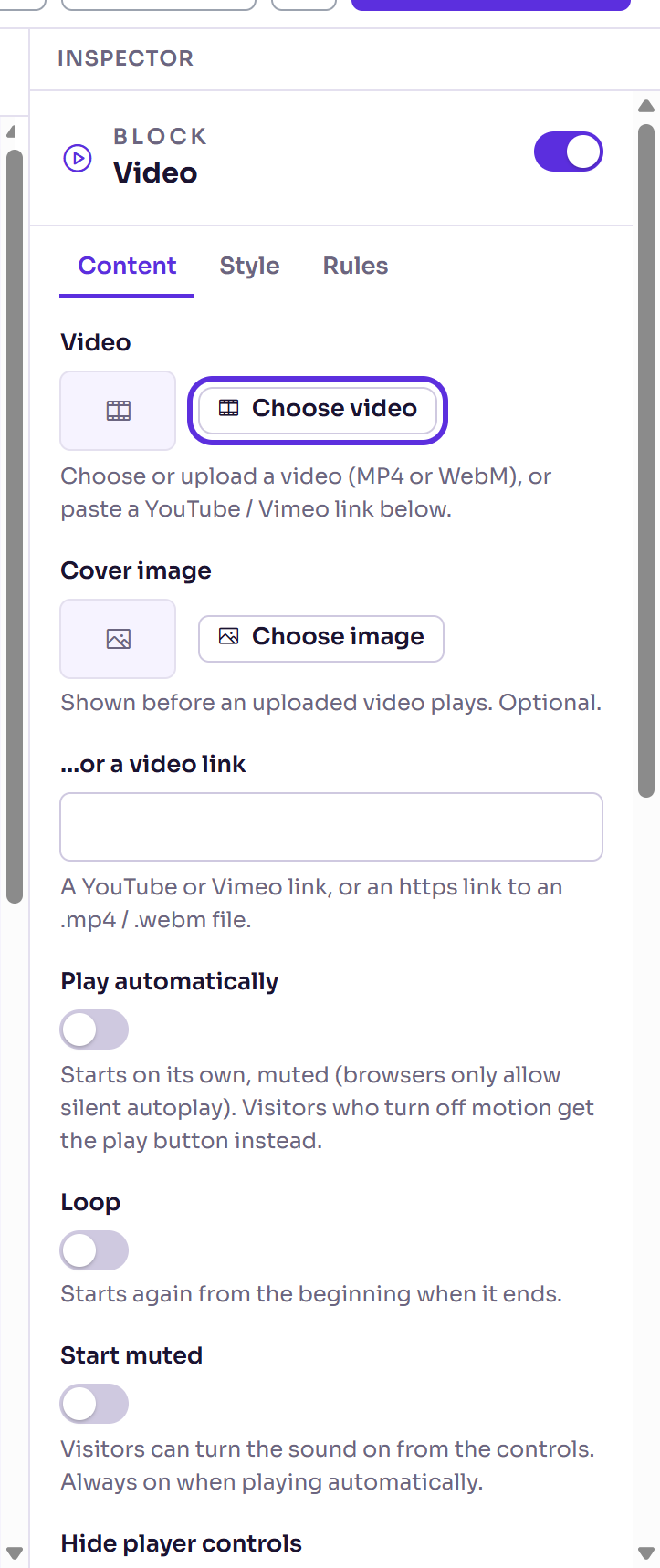
In the Inspector, under Video, select Choose video.
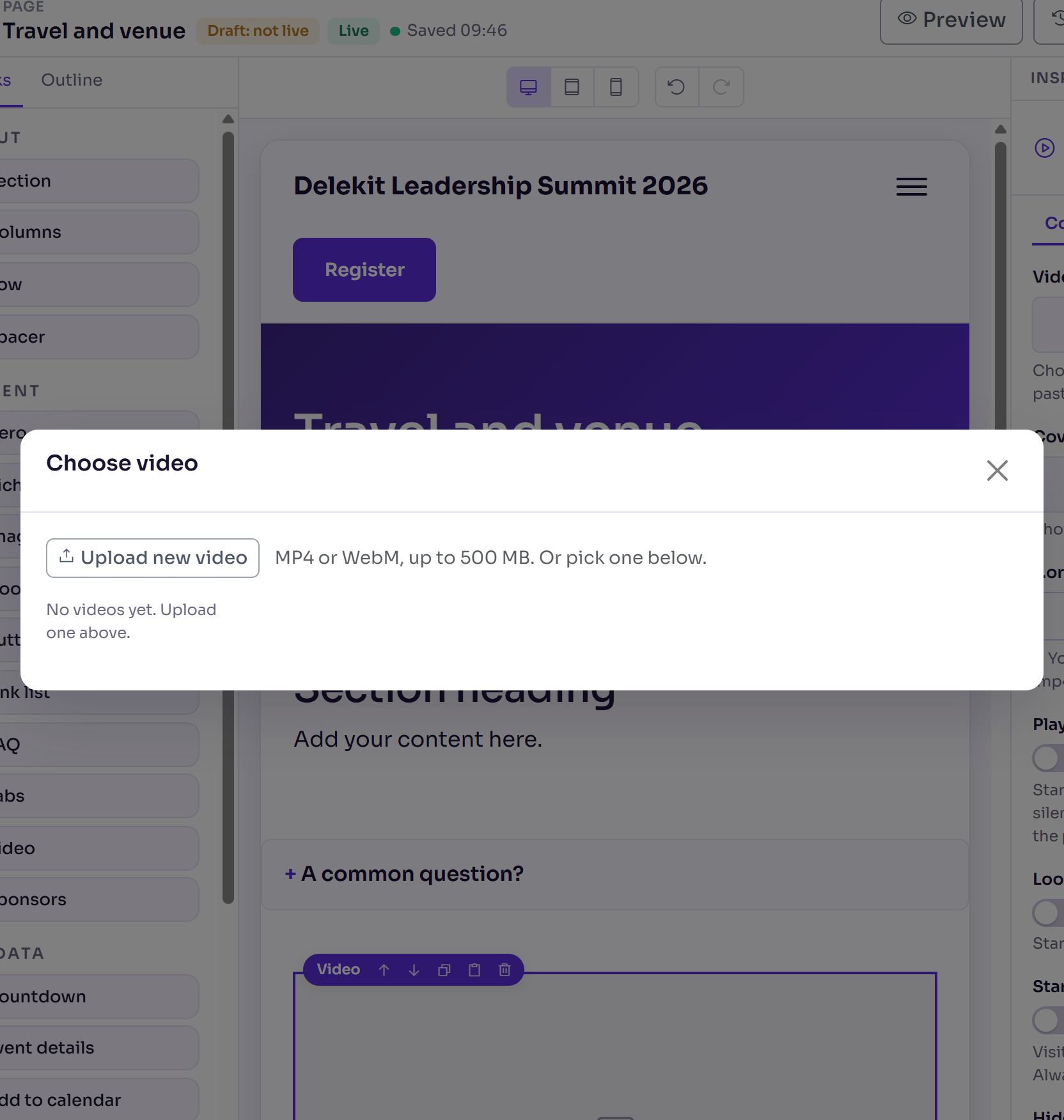
Select Upload new video and choose the file, or select a video the site already has.
Wait while it shows Uploading… with the percentage. When it's done you'll see Video uploaded. and the video is chosen.
Optionally, choose a Cover image, shown before an uploaded video plays, and turn on Play automatically, Loop or Start muted.
Select Publish page, then Publish page again to confirm.
To show a YouTube or Vimeo video instead, skip steps 3 to 5 and enter its link under …or a video link. An https link to an .mp4 or .webm file works there too.
Add a background video
- In the page builder, select the Hero or Section.
- In the Inspector, select the Style tab.
- Under Background video, select Choose video, then upload or select the video.
- Under Background image, choose a picture. It shows while the video loads, and for visitors who turn off motion on their device.
- Select Publish page, then Publish page again to confirm.
What happens next
- The video is saved in the site's asset library, so you can use it again on other pages.
- A background video plays silently on a loop behind the content. To change that, turn on Don't play the video automatically, Play the video once (don't loop), Allow the video's sound or Show a play / pause button.
- Playing automatically always starts muted, because browsers only allow silent autoplay. Visitors can turn the sound on from the player's controls.
- Your changes are a draft until you publish the page. See Build a page with the page builder.
Check it works
Select Preview in the page builder. The page opens in a new tab with the video, as visitors will see it. Check it on a phone too: on the page's toolbar, select Phone.
If something isn't right
- "Videos can be up to 500 MB. Please compress it and try again." Make the file smaller, for example by exporting it at 1080p, then upload it again.
- "Upload cancelled." You selected Cancel upload while it uploaded. Closing the pop-up stops the upload too. Upload it again.
- "That file is too big to upload this way." Make the file smaller, then upload it again.
- "Upload failed. Please try again." Check your connection, then try again.
- The video doesn't show on the page: check that the link under …or a video link is a
YouTube or Vimeo link, or starts with
https://and ends in .mp4 or .webm.
Related articles
Still stuck? Contact Delekit support.
Was this article helpful?
That’s Great!
Thank you for your feedback
Sorry! We couldn't be helpful
Thank you for your feedback
Feedback sent
We appreciate your effort and will try to fix the article