Audience: event administrators and client administrators. Applies to: Bookable and Open to all sessions. Agenda items have no attendee list.
Each session has a session overview: who is expected, who has arrived and who has left, with tools to book people on, mark arrivals and exits by hand, and take people off. Booking people on here doesn't email them.
Before you start
- You need to be a client administrator, or an event administrator on the event.
- The people must already be attendees of the event. See Add an attendee.
- On a Bookable session, the people booked on it are its expected list. An Open to all session has no list: its overview shows who has been scanned. See Session types: bookable, open to all and agenda items.
Open the session overview
- In the menu, select Sessions, then View all.
- Select the session's name, or View in its row.
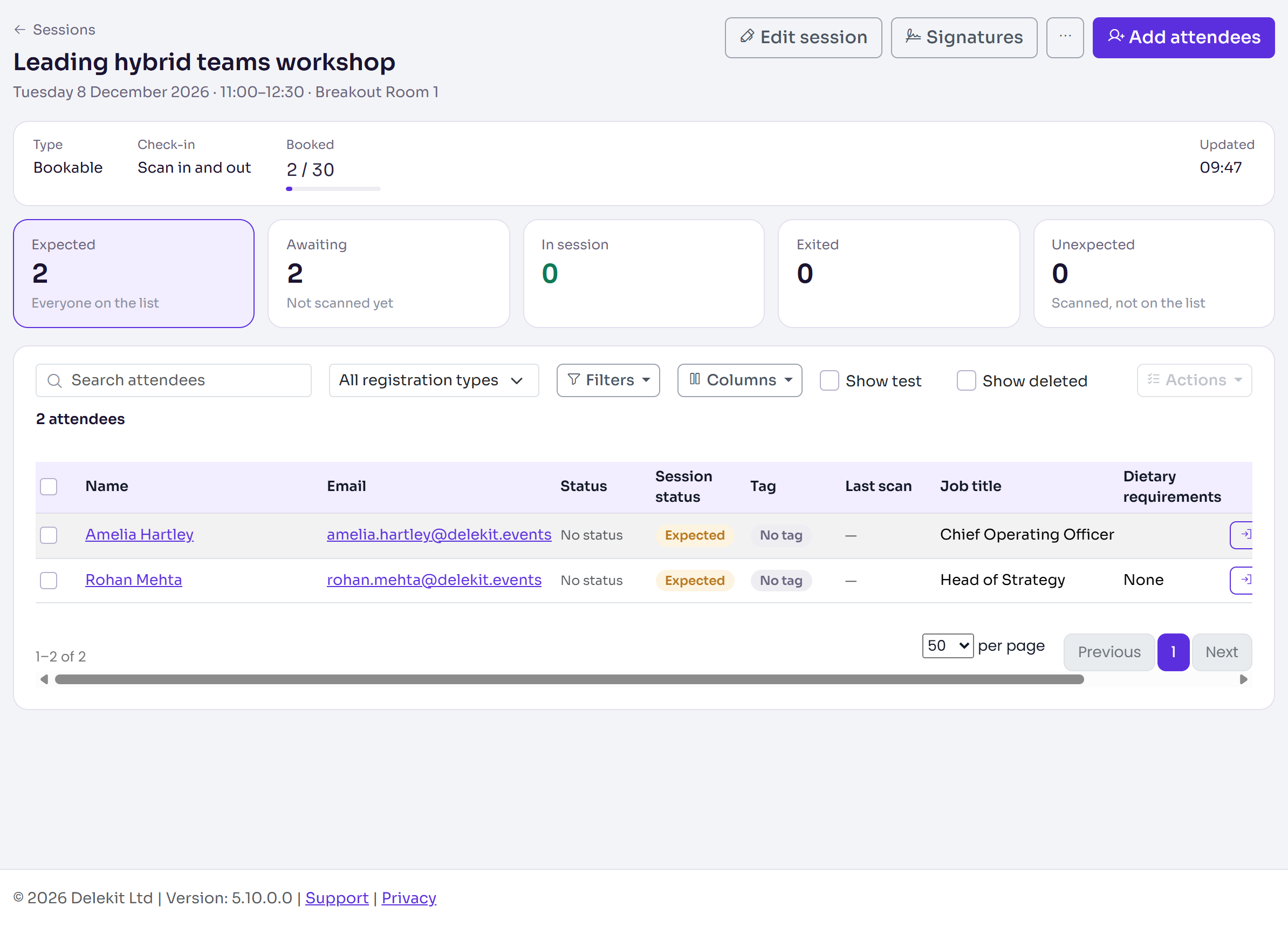
The overview shows the session's Type, its Check-in behaviour and, for a Bookable session, the places Booked. A Bookable session's tiles count who is Expected, Awaiting (not scanned yet), In session, Exited and Unexpected (scanned but not on the list). An Open to all session's count who was Scanned, is In session or has Exited. Select a tile to show only those people, and select it again to show everyone.
Book people on the session
On the session overview, select Add attendees. The pop-up lists the event's attendees who aren't on the session yet.
Search by name or email, then select each person to tick them. People you've ticked stay ticked while you search for the next.
Select Add followed by the number of people, for example Add 2 attendees.
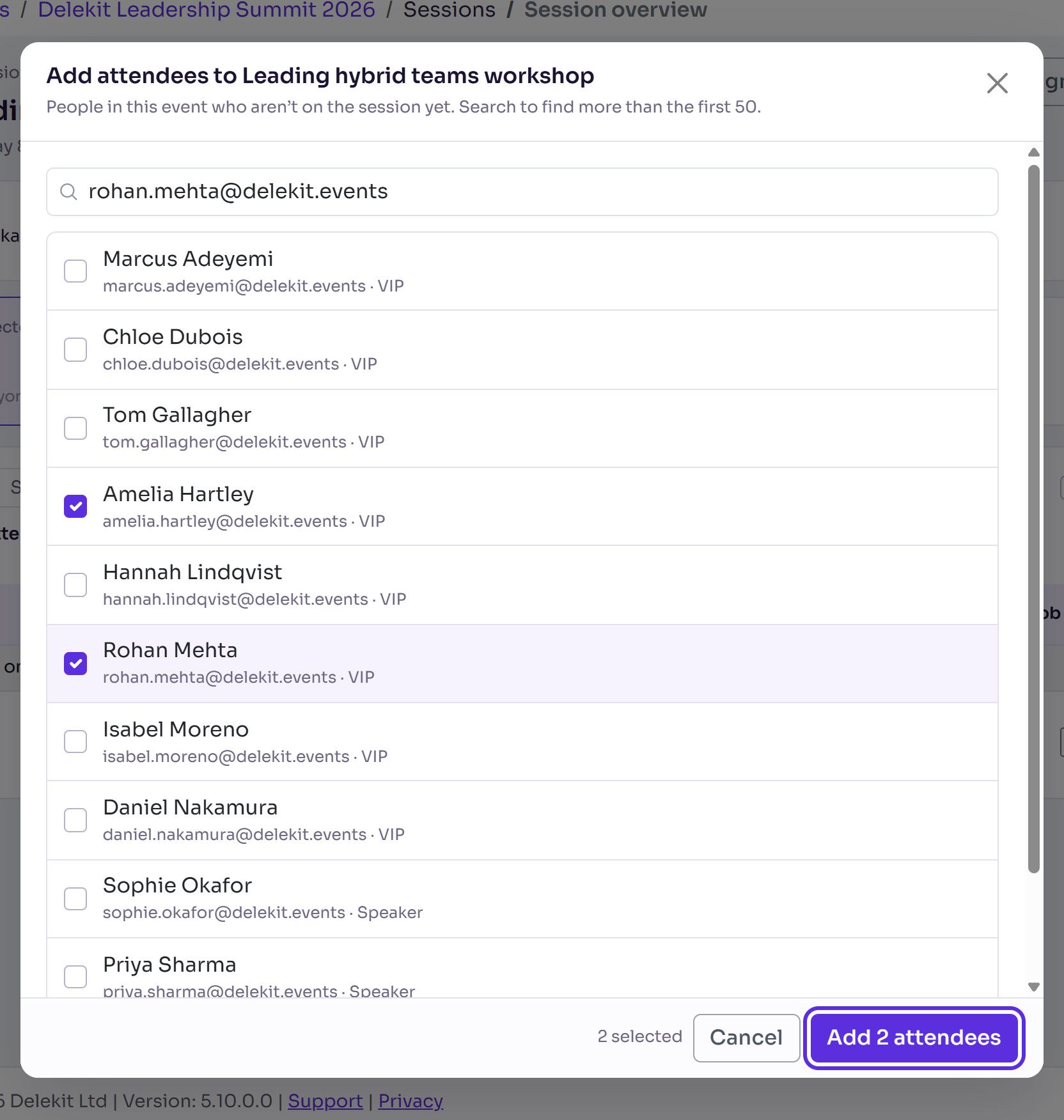
If this goes over the session's places, or Who can book doesn't allow someone's registration type, the pop-up asks "This goes over: … Add them anyway?". Select Add 2 attendees anyway (with your number), or Change the selection to tick fewer people.
You'll see, for example, "2 attendees added to the session". They're on the list with the session status Expected, and nobody is emailed. See Session capacity and waitlists.
Check one person in or out
Each person in the list has a button for their next step: Mark in session until they're in, then Mark exited. Select it, then select Mark in session (or Mark exited) in the pop-up. They get an entry or exit scan, timed now, as if scanned at the door, and you'll see, for example, "Alex Morgan marked in session." People without a check-in tag have no button: give them a tag first, or check them in with the app.
Mark arrivals and exits for several people, or take people off
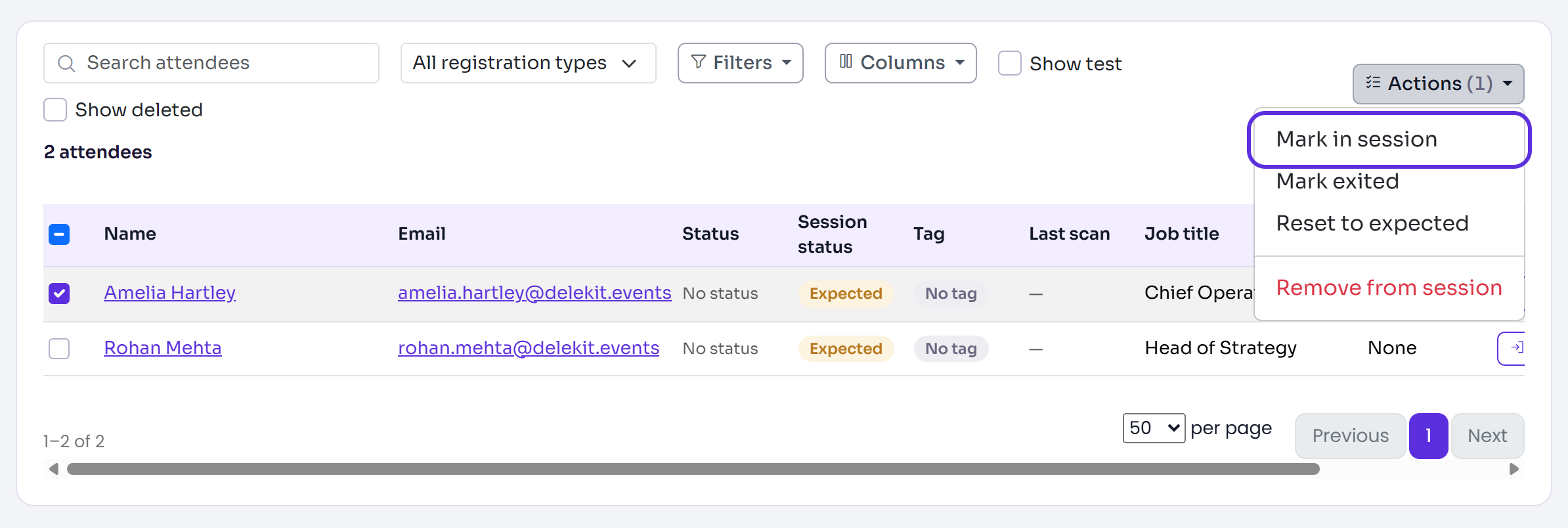
Tick the people in the list. To act on everyone your search and filters show, tick the box in the column heading, then select Select all … matching.
Select Actions, then one of these:
- Mark in session or Mark exited: each person gets an entry or exit scan, timed now. Anyone already in that state is skipped.
- Reset to expected (Bookable only): their scans in this session are removed, so they show as not yet arrived.
- Remove from session (Bookable only): they're no longer expected and lose their place, which goes to the next person on the waitlist. Scans already recorded are kept. This works only on the people you tick.
In the pop-up, select the button that repeats the action, such as Mark in session or Remove 1 attendee.
A message says what changed, such as "1 attendee marked in session". People without a check-in tag are skipped and counted, for example "1 skipped (no tag)".
Download the list
On the session overview, select More actions (⋯), then Export attendees. The list downloads as a spreadsheet. To download several sessions at once, tick them on the Sessions list and select Actions, then Export attendees.
Check it works
On the Sessions list, the session's Booked figure includes the people you added, and Attended counts the people scanned in.
If something isn't right
- Someone isn't in the Add attendees list: they're on the session already, or they aren't an attendee of this event. Search by their email to find people beyond the first 50.
- "Remove from session works on the rows you tick." Clear the "all matching" selection, then tick the people to remove.
- There's no Add attendees button: the session is an agenda item, or it's deleted.
- "Nobody was added. Change the selection, or add them anyway." You chose Change the selection. Untick some people, or select the add button again and then add them anyway.
- "… is deleted. Restore it first." Restore the session from the Sessions list, then add people.
- "None of those attendees can be added to this session." The people you ticked are deleted or belong to another event.
Related articles
- Session capacity and waitlists
- Create a session
- Let in someone who isn't booked on a session
- Find an attendee and check them in by hand
Still stuck? Contact Delekit support.
Was this article helpful?
That’s Great!
Thank you for your feedback
Sorry! We couldn't be helpful
Thank you for your feedback
Feedback sent
We appreciate your effort and will try to fix the article