Audience: event administrators and client administrators. Applies to: all plans.
The sponsor and speaker portal is a private website for your event's sponsors, exhibitors and speakers. They sign in with their email address, fill in their profile, work through the tasks you set them, and add colleagues to help. You review what they send, and choose who appears on the event website and app. Sponsors and speakers each have their own portal, set up separately.
What sponsors and speakers see
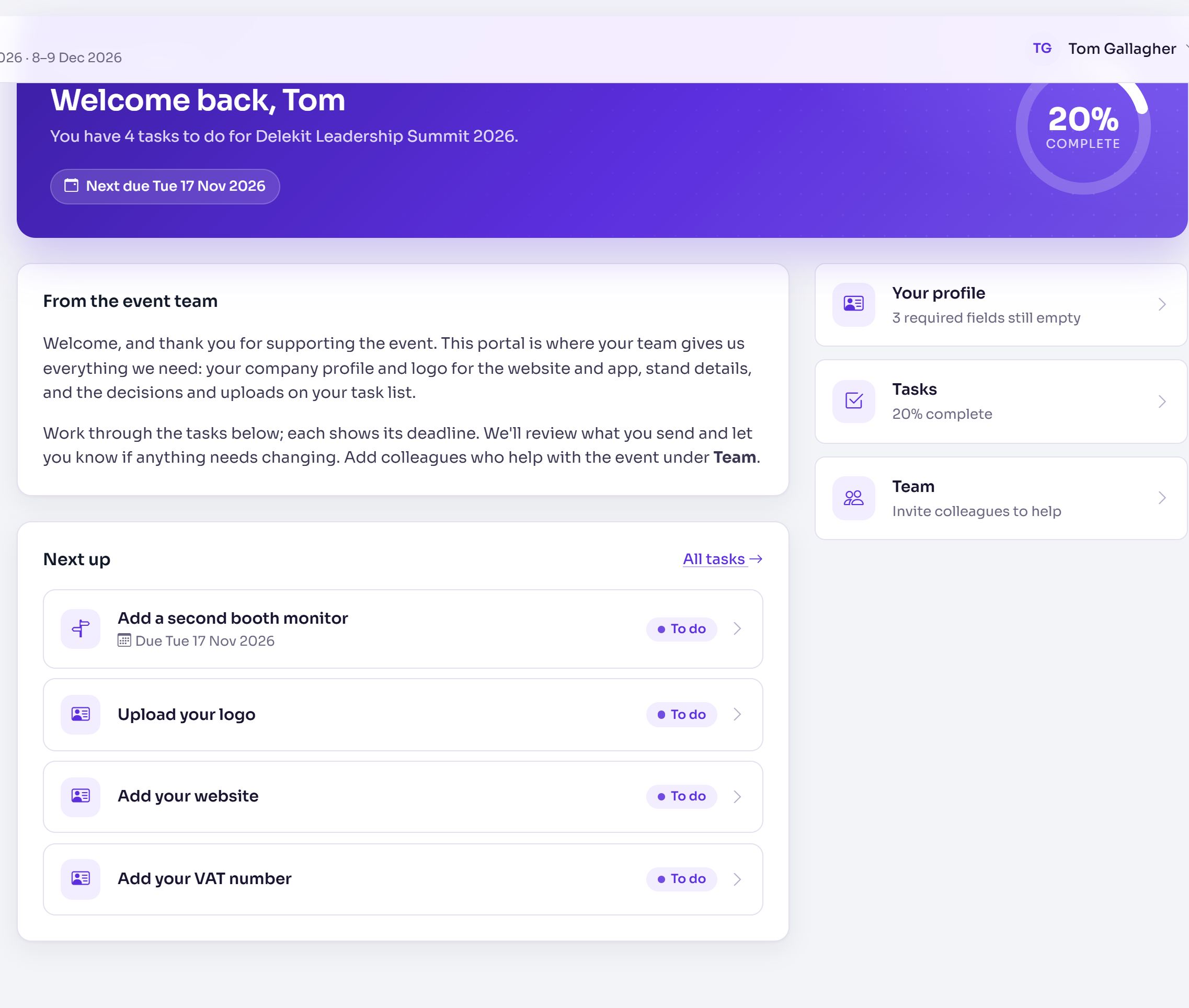
Each sponsor or speaker has a team: the people who can sign in for them. When someone on the team signs in, the portal shows your event's name, dates and logo, and these pages:
| Page | What it's for |
|---|---|
| Home | Your welcome message, how much is complete, and the next tasks due. |
| Tasks | Everything you need from them, with deadlines, split into To do and Done. |
| Profile | The details you ask for, such as a logo, a description or a biography, with a preview card. |
| Sessions | Speakers only: the sessions they're speaking at, read-only. |
| Team | For team admins: who else can sign in, and who gets the emails. |
What you set up
In the menu, Sponsors and Speakers each have the same five pages:
| Page | What you do there |
|---|---|
| Portal settings | Turn the portal on, name it, write the welcome, set when profile editing closes, and manage tiers. See Turn on the portal and choose its settings. |
| Profile fields | Choose what goes on a profile, what's public and what needs your approval. See Set up profile fields. |
| Tasks | Ask for decisions, uploads, agreements and other to-dos, with dates. See Set tasks for sponsors and speakers. |
| Sponsors or Speakers | Add them, invite them, open their records, publish and feature them. See Add sponsors and speakers. |
| Approvals | Approve their changes, or ask for something to be changed. See Approve profile changes and task submissions. |
Words the portal uses
- Tier: a group you sort sponsors or speakers into. For sponsors it's called Package to start with (Platinum, Gold, Exhibitor, Partner); for speakers, Speaker type (Internal, Customer, Partner, Analyst). Fields and tasks can be limited to some tiers.
- Team roles: a sponsor's team has an Admin, who manages the team, Booth staff, who only see tasks meant for booth staff and can't edit the profile, and Speaker. A speaker's team has the Speaker and an Assistant, who acts for them and manages the team.
- Profile tasks: fields marked Show as a task until done appear as tasks, such as Upload your logo. They complete themselves once the field is filled in and approved.
- Approval: a change to a field marked Changes need approval waits for you. Until you approve it, the previous version stays live. Your own edits go live straight away.
- Published and Hidden: everyone starts Hidden. Publishing a speaker puts them on the event website's speaker and agenda sections and in the attendee app. Publishing a sponsor only marks it in your list: sponsors go on the website with the Sponsors block. A task marked Must be done before the profile can be published, such as an agreement, holds publishing back until it's done.
- Log in as: see the portal as one team member sees it, without a code. See See the portal as a sponsor or speaker.
The emails
The portal sends emails from your event's Email templates, in the Sponsor & speaker portal emails group: Portal invite, Portal sign-in code and Portal approval outcome (sent when you ask for changes). Invites can't be sent until all three are set up, as the event's own templates or as your organisation's defaults. Portal task reminder and Portal announcement are marked coming soon: Delekit doesn't send task reminders yet. See Set up your event's email templates.
The usual order
- Turn on the portal and choose its settings
- Set up profile fields
- Set tasks for sponsors and speakers
- Add sponsors and speakers
- Invite sponsors and speakers to the portal
- Approve profile changes and task submissions
- Publish and feature sponsors and speakers
For sponsors and speakers themselves: Sign in to the event portal, Complete your tasks and profile and Add your team.
Still stuck? Contact Delekit support.
Was this article helpful?
That’s Great!
Thank you for your feedback
Sorry! We couldn't be helpful
Thank you for your feedback
Feedback sent
We appreciate your effort and will try to fix the article