Audience: people registered for an event. Applies to: every event. Whether you can change your registration, and until when, is up to the organiser.
See your registration's status, what you booked and the answers you gave, and change your answers while the event allows it. You open it from your personal link and confirm it's you with a code sent to your email.
Before you start
- Find your personal link. It's in the emails about your registration, for example View or change your registration in your confirmation email. Your invitation link opens the same page once you've registered.
- No link to hand? Start registering on the event's registration page with the email you registered with. On most events, when you select Continue, the page finds your registration and sends you a code. After it, select the button to view your registration, for example View or change my registration. If the event's registration is by invitation, its page has Already registered? View or change your registration.
- You need the email address you registered with, and access to its inbox. See Why am I asked for a verification code?
Open your registration
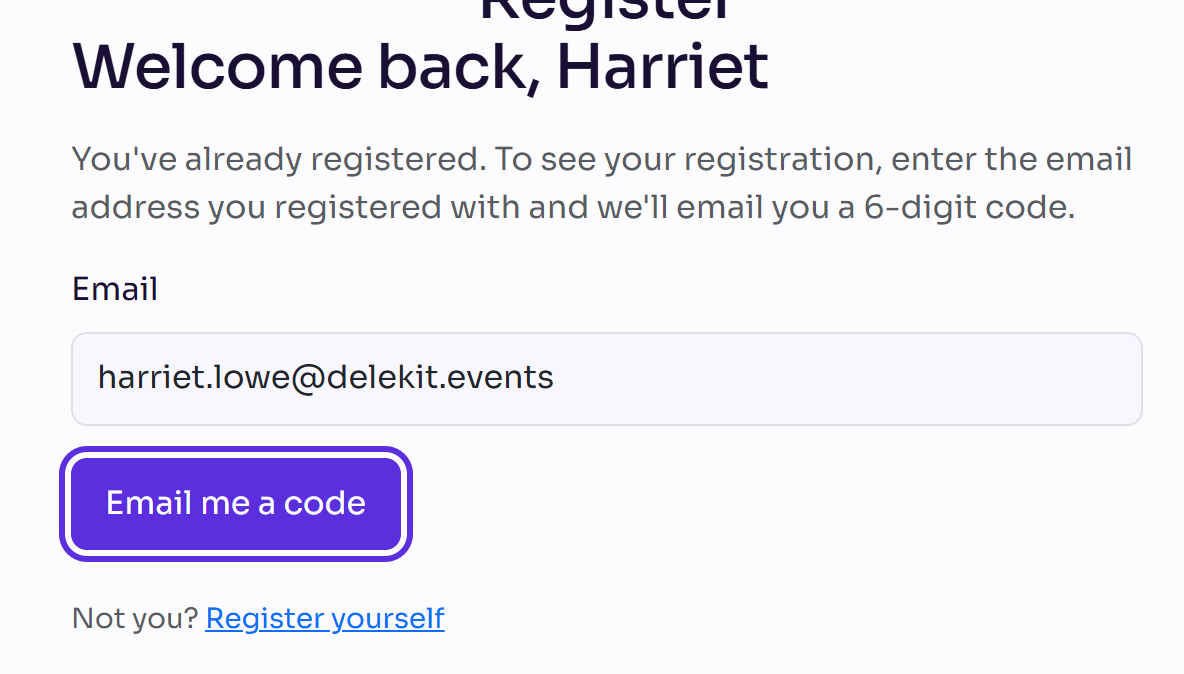
Open your personal link. The page says Welcome back and asks for the email you registered with.
Enter your Email and select Email me a code.
Enter the Code from the email and select Continue.
Your registration shows your name, email and status (Confirmed, On the waitlist, Cancelled or Declined). If you booked tickets, it shows the Booking reference, what you Booked and the Total. Your answers lists what you told the organiser.
Change your registration
- On Your registration, select Change my registration.
- Change your answers under Update your registration. Select Next to move through the pages.
- Select Save changes. You're back on your registration, which says "Your changes have been saved."
Change my registration changes your answers, not your email address or your tickets.
Other things you can do
- Resend my confirmation email sends the email for your status again. The button names that email, for example Resend my waitlist email.
- Cancel my registration, if the event lets you cancel online. See Cancel or decline your registration.
- Complete guest details, if guests on your booking still need their details. See Complete your guests' details.
- Register again, after cancelling or declining, while registration is still open.
- Book more tickets: go to the event's registration page and register with the same email. After the code, select Buy additional tickets, if the event allows it. The page says how many you're adding to your existing registration; select Confirm and continue.
Check it works
Open your personal link again in the same browser. You won't be asked for a code for 12 hours, and Your answers shows what you changed.
If something isn't right
- There's no Change my registration button. The page says why, for example "Editing is not available for your registration type. Please contact the event organiser if you need to make changes." or that the deadline to edit has passed.
- "This registration can't be changed online right now." Contact the event's organiser.
- "That email address doesn't match this registration." Enter the email address you registered with.
- You need to change your email address or your tickets: contact the event's organiser.
Related articles
- Why am I asked for a verification code?
- Cancel or decline your registration
- I haven't received my confirmation email
Still stuck? Contact Delekit support.
Was this article helpful?
That’s Great!
Thank you for your feedback
Sorry! We couldn't be helpful
Thank you for your feedback
Feedback sent
We appreciate your effort and will try to fix the article