Audience: people who booked places for others at an event. Applies to: events that ask for guests' details. What the organiser asks for can differ from ticket to ticket.
Add the name, email or answers the organiser needs for each guest on your booking, on the Guest details step. You can do it straight after booking or come back later, and for some tickets you can email a guest a link to fill in their own details.
Before you start
- The Guest details step is yours, as the person who booked. It comes after payment, or after your own details if the tickets are free.
- Have each guest's first name, last name and, where asked, their email address. Some events only accept work email addresses.
- Coming back later? Open your registration and select Complete guest details (see View or change your registration), or use the link in the organiser's email about your guests. In another browser, the page first asks for a code sent to your email: see Why am I asked for a verification code?
Complete a guest's details
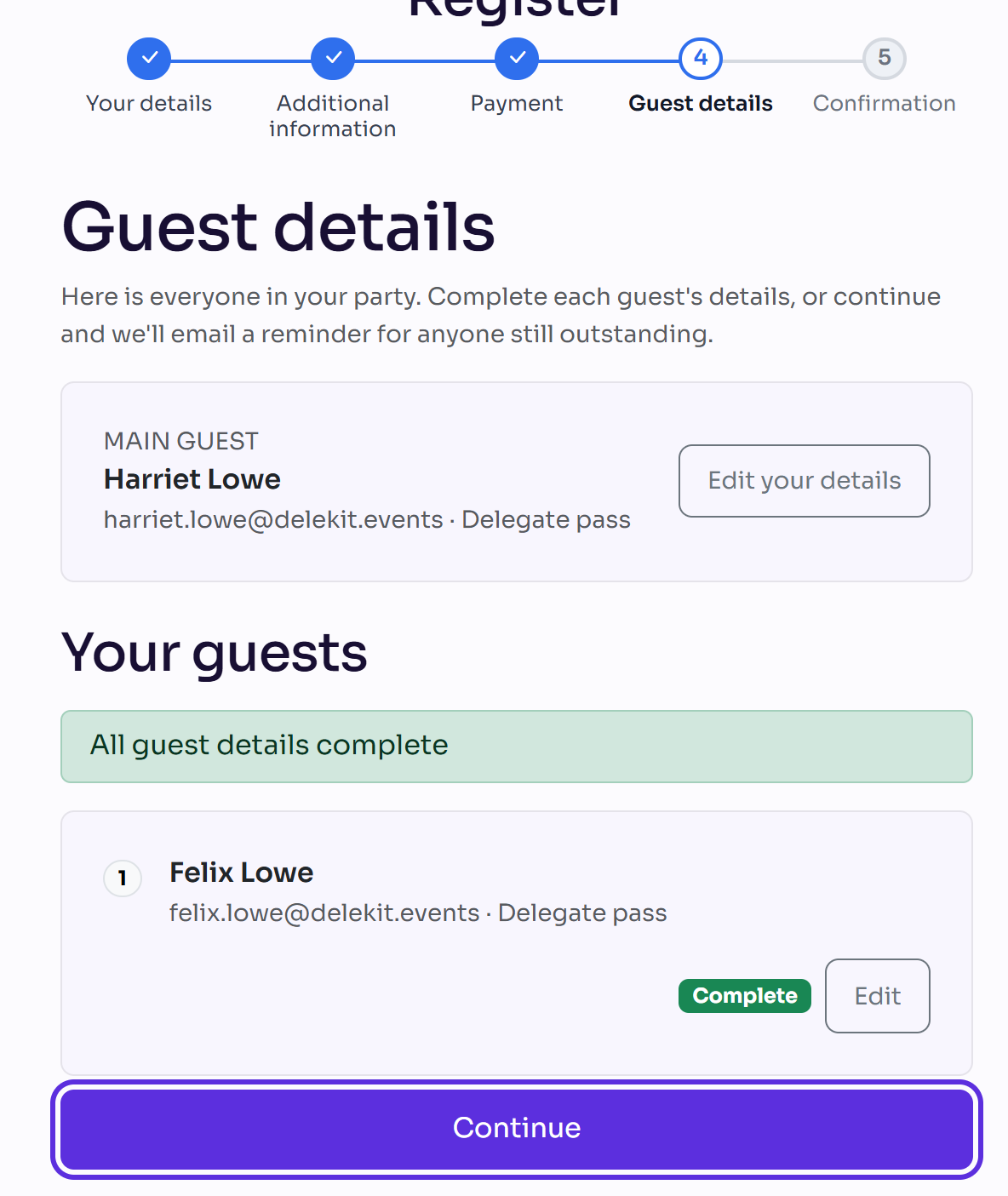
On Guest details, find the guest under Your guests and select Complete details. Guests without a name yet show as Guest 1, Guest 2 and so on.
Enter their First name and Last name.
Enter their Email. It says (optional) when the organiser doesn't need one.
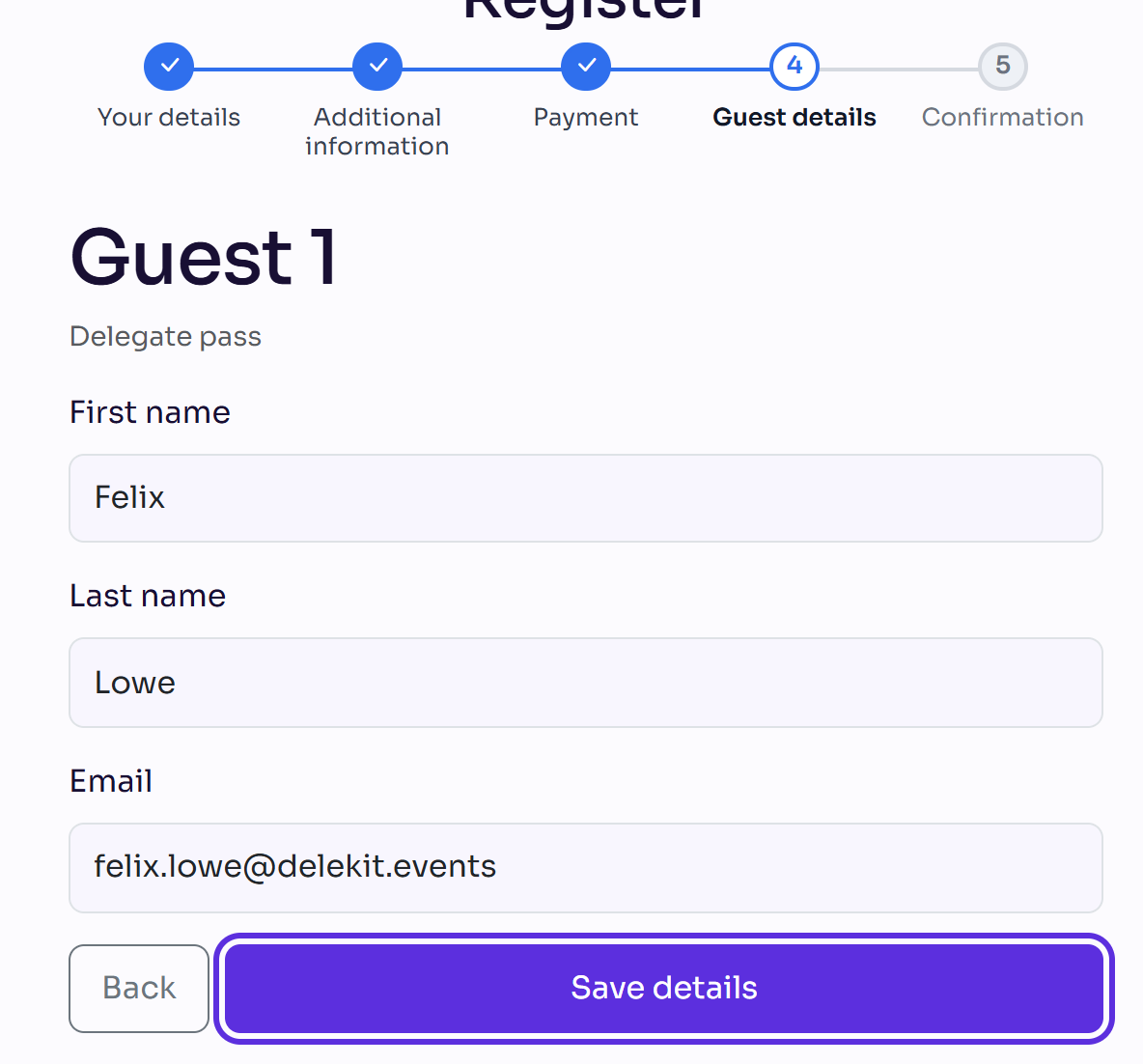
Select Save details. You're back on Guest details, and the guest shows Complete.
Do the same for each guest. When you've finished, the page says All guest details complete.
Select Continue.
Guests with a registration form of their own
Some tickets ask each guest to fill in a registration form as well. The guest's page then says "This guest also has a registration form to complete." Choose one:
- Save and continue to fill in their form yourself now.
- Email guest to complete their details to send them a link to do it themselves. The guest then shows Invited until they've done it.
What happens next
- Your booking is complete and you see your confirmation page.
- Each guest's place is confirmed once their details are complete. A guest with an email address can get their own confirmation email, if the organiser sends one.
- You can continue before every guest is done. The page says how many are outstanding, for example "You have 1 outstanding guest to complete details for." Your registration then shows Complete guest details, so you can finish later.
Check it works
Open Guest details again: each guest shows Complete and an Edit button to change what you entered.
If something isn't right
- "Please enter a first and last name." Enter both.
- "Please enter an email address." This ticket needs the guest's email.
- "This event only accepts business email addresses. Please use their work email." Enter the guest's work email address.
- "We couldn't email this guest just now — their details are saved, so you can complete them here instead." Complete their details yourself, or try again later.
- "This booking's guest details are managed by the person who booked." You're in a different browser from the one you booked in. Select Email me a code and enter the code sent to the booker's email.
- You're a guest and got a link to add your own details: open it, enter your details and select Save details. If something has already been saved for you, the page first asks for a code sent to your email, to confirm it's you.
Related articles
Still stuck? Contact Delekit support.
Was this article helpful?
That’s Great!
Thank you for your feedback
Sorry! We couldn't be helpful
Thank you for your feedback
Feedback sent
We appreciate your effort and will try to fix the article