Audience: event administrators and client administrators. Applies to: plans that include the registration form builder. If Registration form shows a padlock in the menu, it isn't in your plan.
Besides the registration form, an event can have forms for three other moments: when someone cancels, when someone declines, and when you need more details from people already registered (a gala dinner menu, travel plans). You build each one in the form builder, like the registration form, and choose its job with its Purpose.
Which form does what
| Purpose | Who sees it | What publishing it does |
|---|---|---|
| Cancel | People cancelling their registration with the cancel link in their emails | Lets attendees cancel online, and asks its questions first |
| Decline | People declining an invitation or their place, with the decline link | Asks its questions before they decline |
| Additional information | Registered people you send its link to | Opens the form at its link |
- An event has one Cancel form and one Decline form. You can add as many Additional information forms as you need.
- Without a published Cancel form, attendees can't cancel online. They see "This registration can't be cancelled online." Your cancellation policy also applies: see Set a cancellation policy and fees.
- Declining works without a form: people just confirm. A Decline form adds questions.
- Answers go on the person's record, in the custom fields the form asks.
Before you start
- The questions are custom fields. Add them first, such as Reason for not attending: see Add custom fields to your event.
- Cancel and Decline forms need at least one registration type. Choose the types whose attendees use the form.
Create the form
In the menu, select Registration, then Registration form, then select Add registration form.
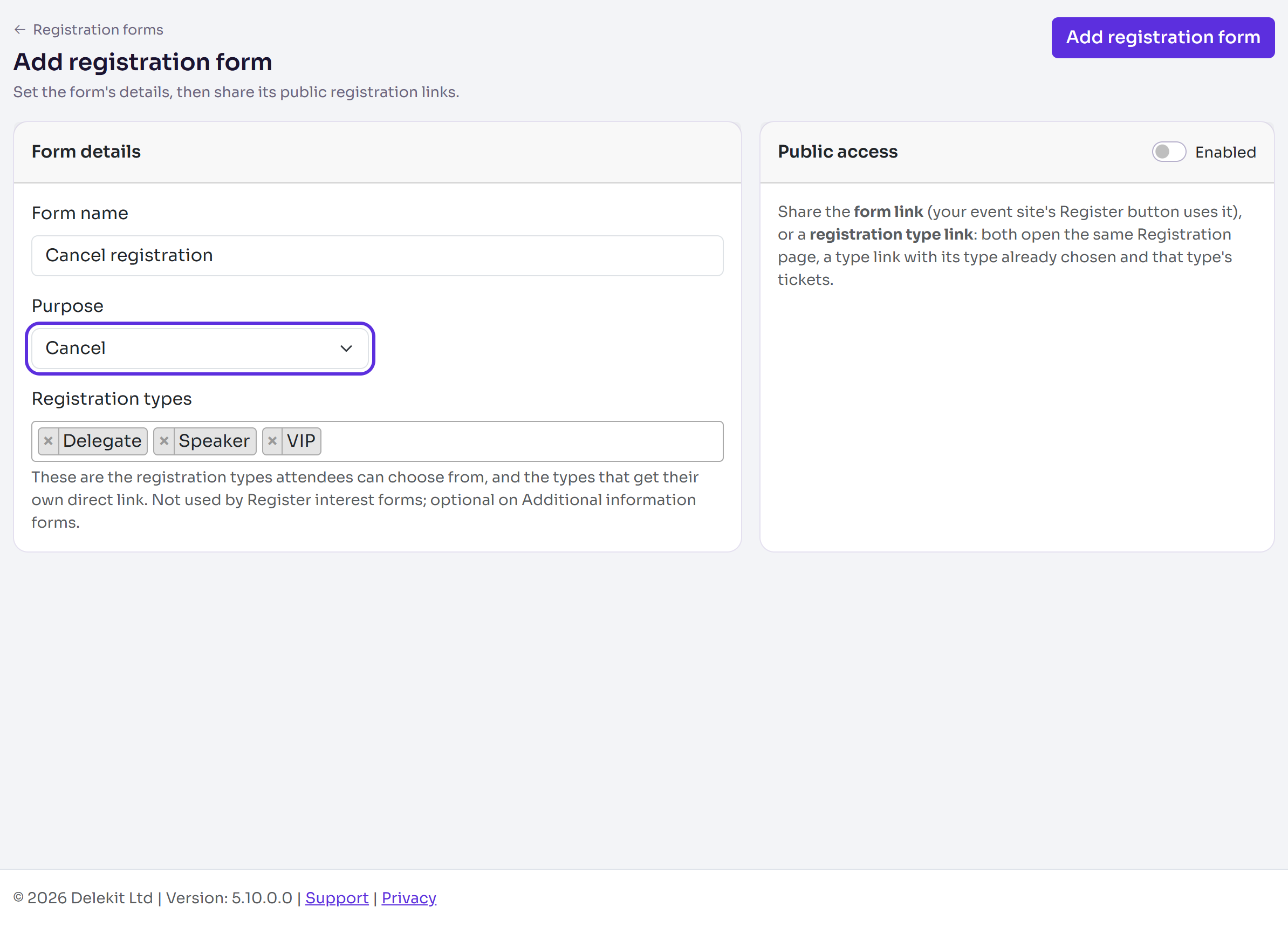
Enter a Form name, such as Cancel registration.
Choose the Purpose: Cancel, Decline or Additional information.
In Registration types, choose the types the form is for. They're optional on an Additional information form. The page shows only the settings for the purpose you chose.
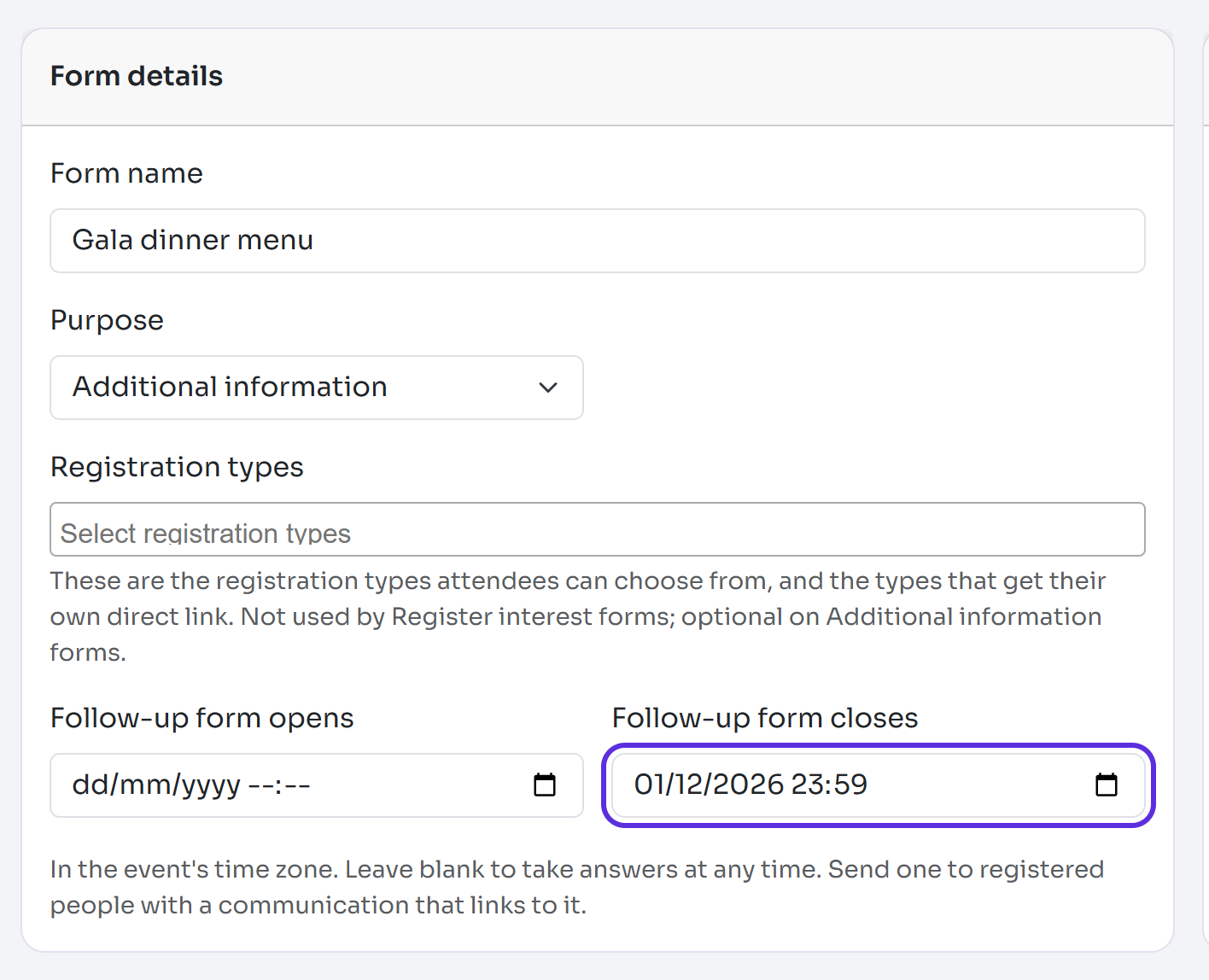
For an Additional information form, enter Follow-up form opens and Follow-up form closes if it should only take answers for a while. They're in the event's time zone.
Select Add registration form. You're back on Registration forms with Changes saved.
Select Build on the form, and add its questions with Existing field. Select Publish form when it's ready.
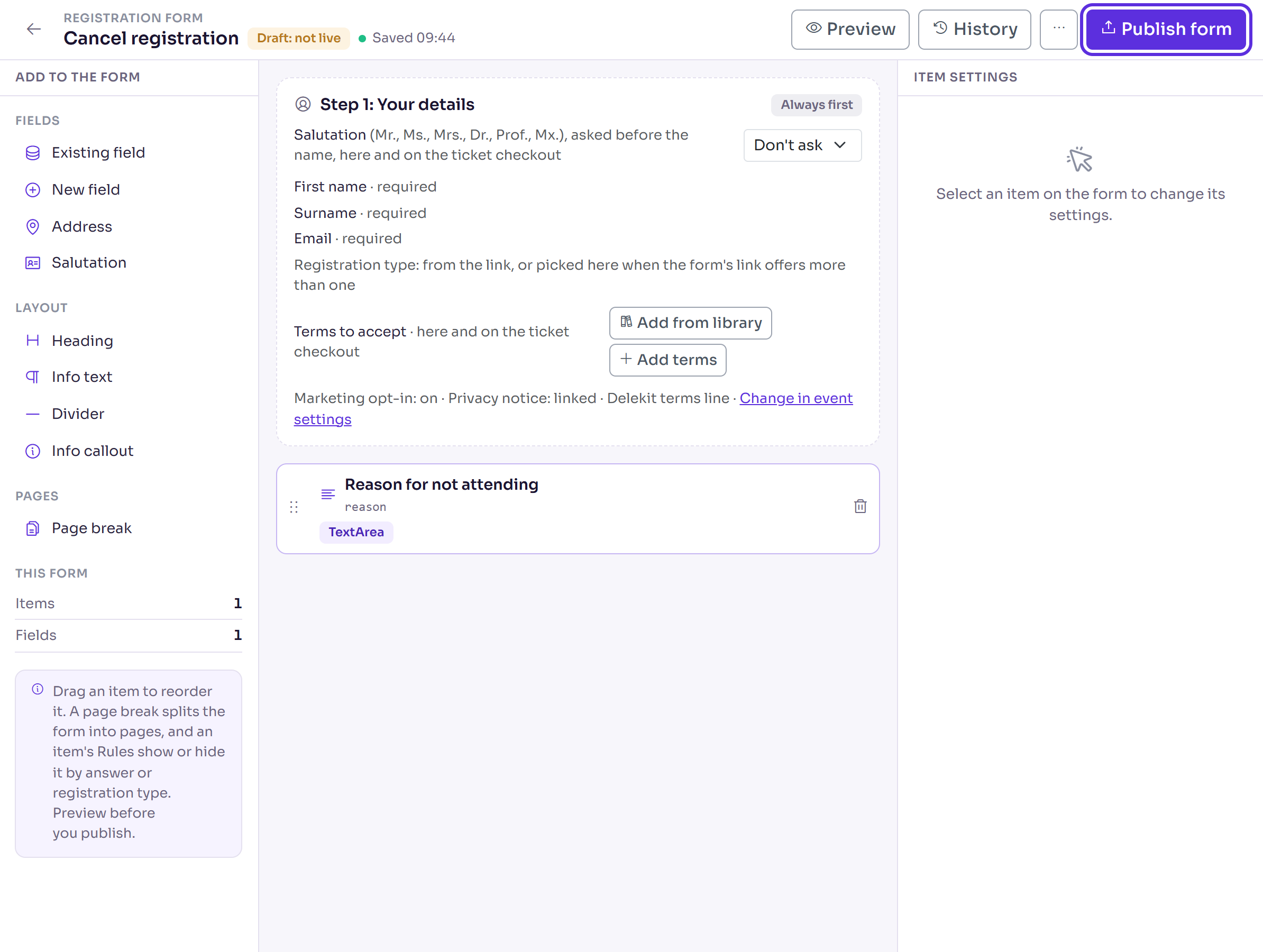
The builder works as it does for registration: see Build your registration form and Publish your form and share registration links.
Send an additional-information form
- In the menu, select Registration, then Communication, then select New communication.
- In Follow-up form, choose the form.
- Put the
{{system.formUrl}}tag in the email as a link: Insert data tag, then Follow-up form link. It opens the form for each person. - To remind people later, add recipients with Follow-up form set to Only people who haven't completed.
What happens next
Registration forms shows each form's Purpose and status. An Additional information form also shows how many people have completed it.
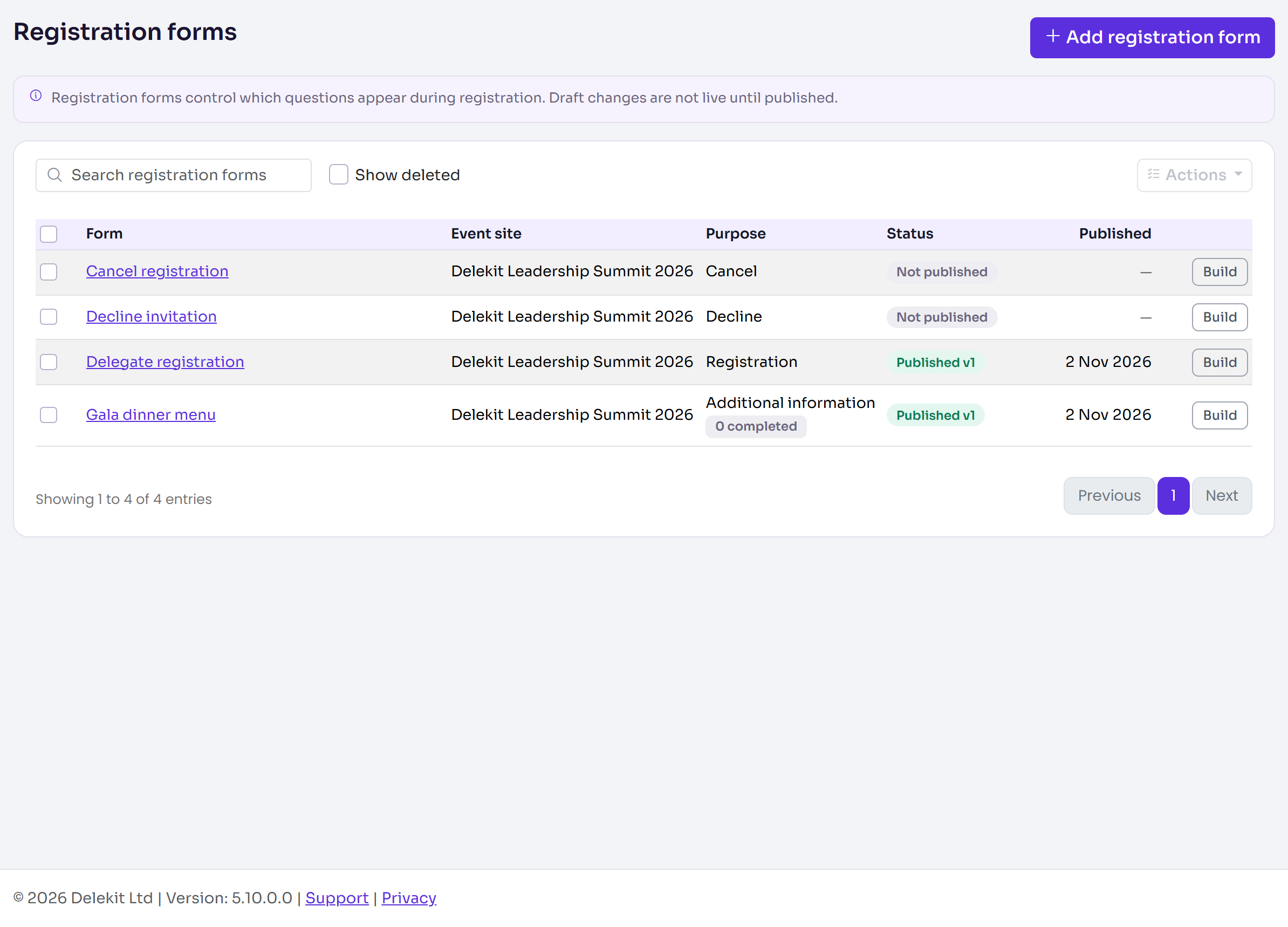
Changes stay in a draft until you select Publish form again.
Someone who answered an additional-information form can change their answers from the same link. They're asked for a code sent to their email first.
Delete a form you don't need
- In Registration forms, tick the form, then select Actions, then Delete.
- Select Delete 1 registration form (with your number). You'll see, for example, "1 deleted".
A deleted form's purpose is free for another form, so you can make a new Cancel or Decline form in its place. To bring one back, tick Show deleted, tick the form, then select Actions, then Restore. You can't delete the live registration form, a form people have answered, or a form a communication or ticket uses.
Check it works
Use the cancel or decline link in a test attendee's confirmation or invitation email, or open an additional-information form's link from a test communication. See Test a registration before you go live.
If something isn't right
- "A registration form for this purpose already exists for the selected event site." The event already has a Cancel or Decline form: build that one instead, or delete it first.
- "... people have answered this form, so it can't be deleted." Keep it: its answers are on those people's records.
- "A communication links to this form. Remove the form from the communication first." In the communication, clear Follow-up form, then delete the form.
- "A ticket uses this form for its guests. Choose another guest form on the ticket first." Change the ticket's guest form, then delete this one.
- "Another form on this event site has the same purpose. Delete it or change its purpose first." You're restoring a Cancel or Decline form while another one exists. Delete the other one, or change its Purpose.
- "At least one registration type is required." Choose a type in Registration types.
- "The closing time must be after the opening time." Correct Follow-up form closes.
- People see "This form isn't open yet." or "This form has closed." Check the opening and closing times, and that the form is published.
- "You've paid for your place. To stop coming, cancel your registration instead" shows when someone who paid tries to decline: they cancel instead, where any refund runs.
Related articles
- Set a cancellation policy and fees
- Let attendees cancel online
- Build your registration form
- Collect interest before registration opens
Still stuck? Contact Delekit support.
Was this article helpful?
That’s Great!
Thank you for your feedback
Sorry! We couldn't be helpful
Thank you for your feedback
Feedback sent
We appreciate your effort and will try to fix the article