Audience: people registering for an event. Applies to: every event. Each event's pages look different, and some steps only appear if the organiser uses them.
Register on the event's registration page: choose your tickets, enter your details, answer the organiser's questions, and pay if the tickets have a price. You finish on a confirmation page, and you can come back to your registration later.
Before you start
- Open the right link. If you were invited, use the link in your invitation email: your name and email are filled in for you. Otherwise, use the event's website or the link the organiser shared.
- Use your own email address. It's where your confirmation goes, and it's how you get back to your registration. Some events only accept work email addresses.
- Already registered with this email? The page usually asks for a code before it carries on. See Why am I asked for a verification code?
- Booking for other people too? See Register other people.
Register for the event
Open the event's registration page. If it asks you to choose a Registration type, choose the one that fits you.
Under Admission, select + next to the ticket you want. Choose any extras under Add-ons. The Total changes as you choose. If you have a discount code, enter it in Discount code and select Apply.
Under Your details, enter your First name, Last name and Email, and tick any terms you're asked to accept.
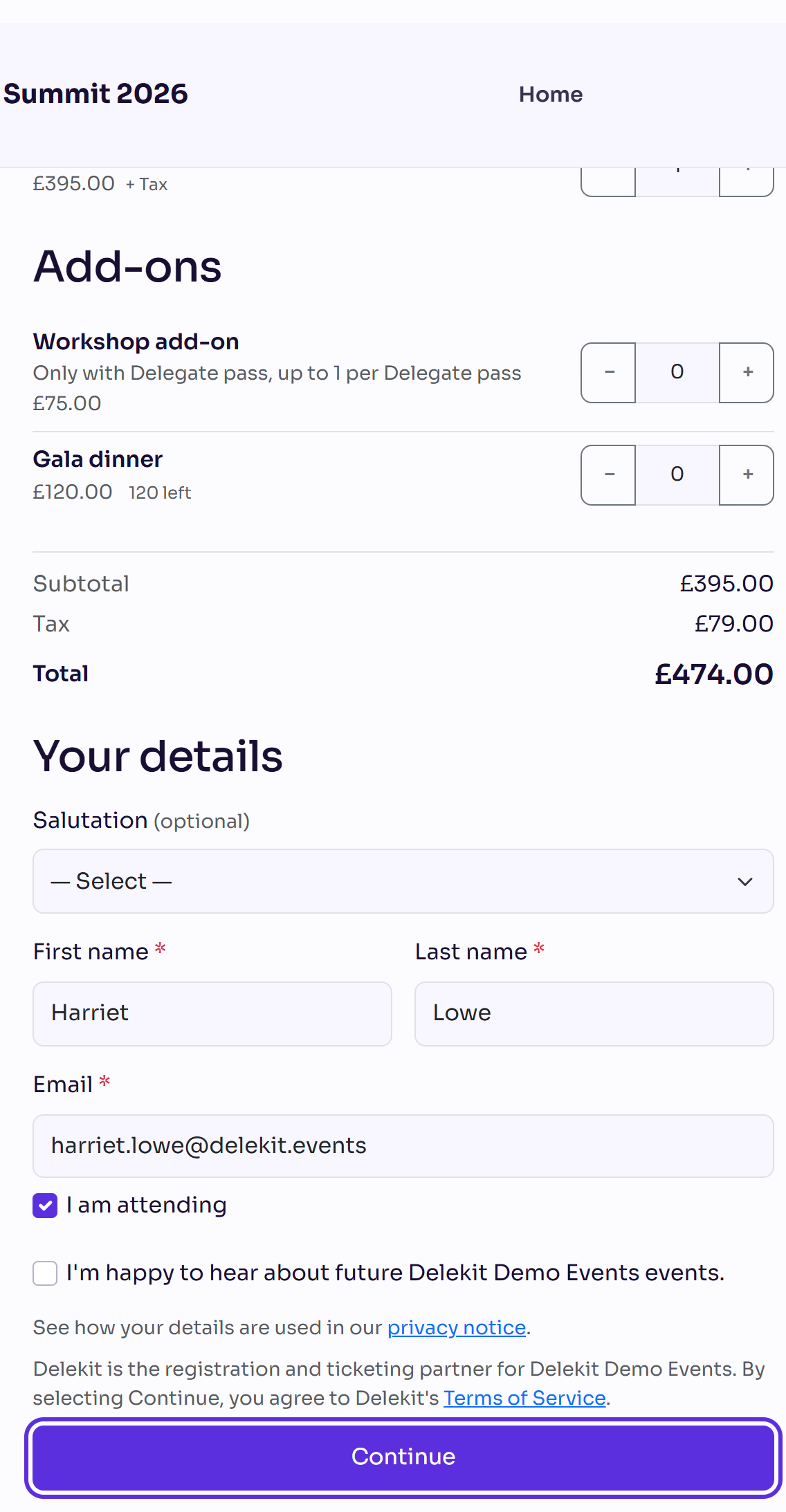
Select Continue.
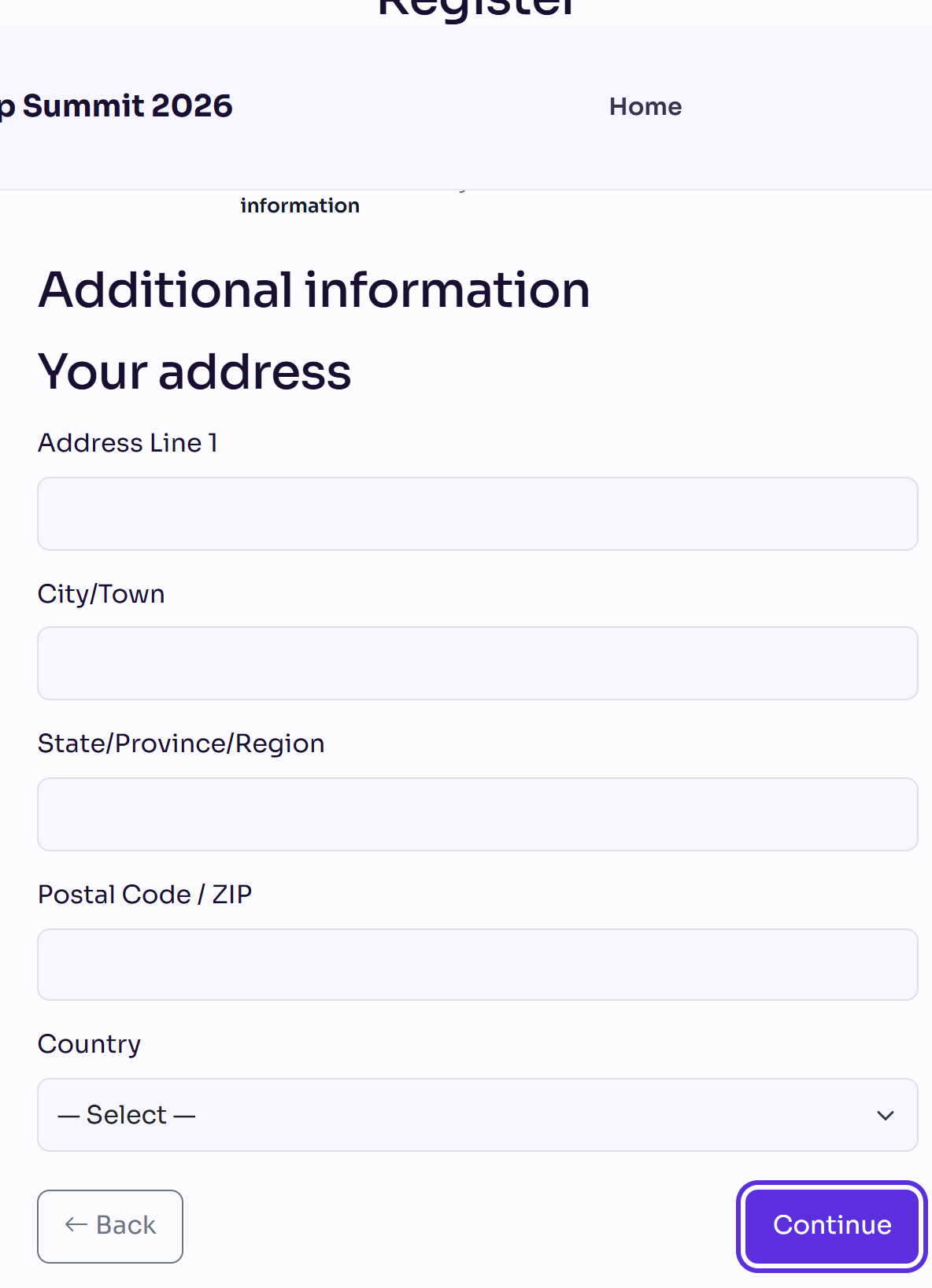
If the organiser has more questions, answer them on the Additional information step. Select Next to move through the pages, then Continue.
If your tickets have a price, pay on the Payment step. See Pay for your registration.
If you booked places for other people, add their details on the Guest details step. See Complete your guests' details.
The progress bar on each step shows where you are. Steps that don't apply to you are left out.
Events without tickets
Some events have a short form instead of tickets. Enter your First name, Last name and Email, select Continue, answer the questions under Complete your registration, then select Submit registration.
What happens next
You see a confirmation page. The organiser chooses its wording.
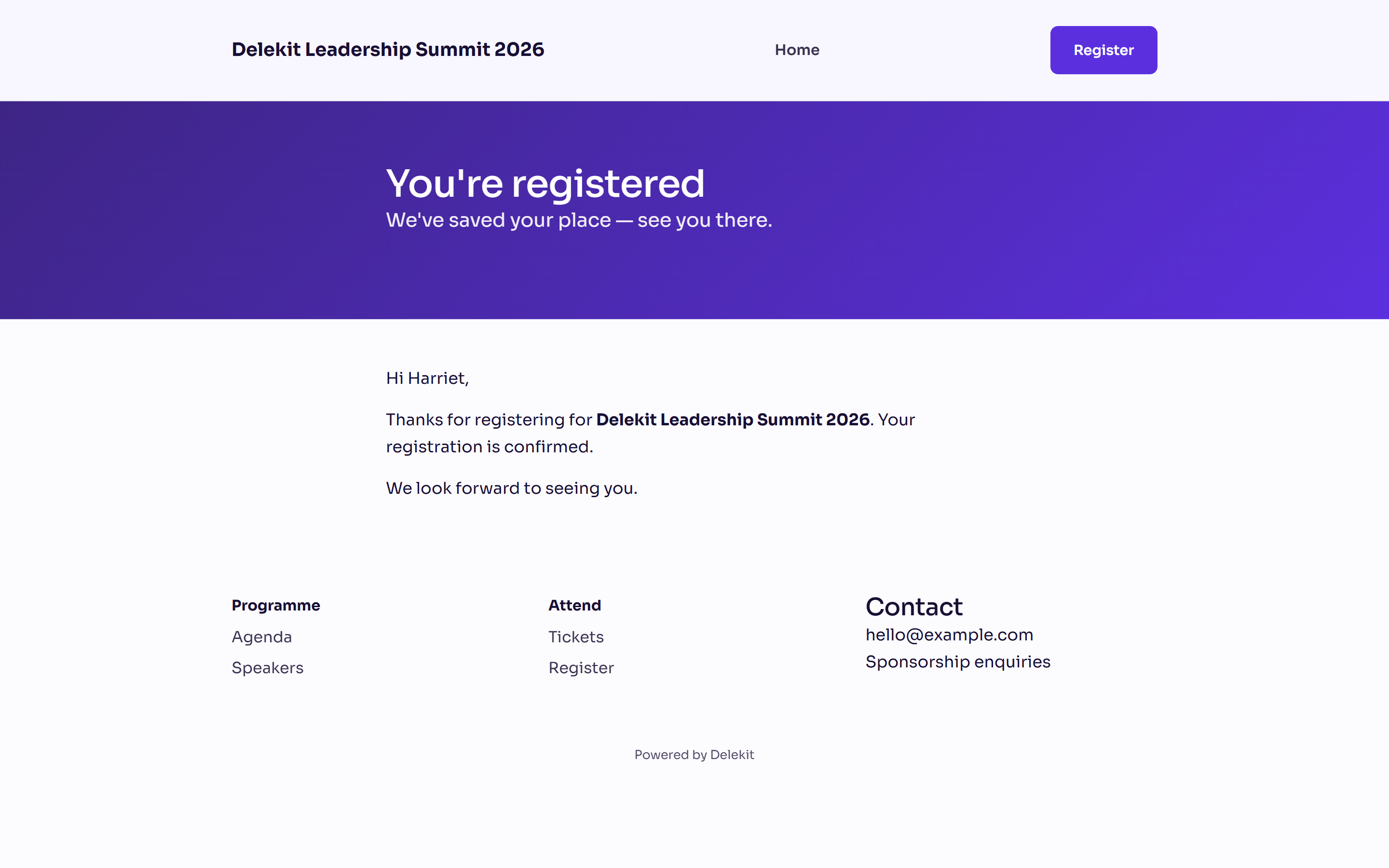
A confirmation email usually follows, if the organiser sends one. It often has a link to view or change your registration. See View or change your registration.
Your tickets may be held for a short time while you finish. The page shows Your tickets are held for and the time left. If the time runs out, the tickets are released and you go back to the start.
Check it works
Look for the confirmation email, including your spam or junk folder. If it doesn't come, see I haven't received my confirmation email.
If something isn't right
- "… is full." With a waitlist open, the page says "Join the waitlist and we'll let you know if a place becomes available." Enter your name and email and select Join waitlist. Without one, it says "There are no places left."
- A ticket shows Sold out. Choose another ticket, or contact the organiser.
- "Registration opens on …" or "Registration for this ticket type has closed." You're outside the registration dates. The organiser may show their own message instead.
- "Registration is by invitation": use the link in your invitation email.
- "This event only accepts business email addresses. Please use your work email." Enter your work email address.
- "Please select at least one admission." Choose at least one ticket under Admission.
- "You can order at most … of …": choose fewer of that ticket.
- A code is asked for: the email already has a registration for this event. See Why am I asked for a verification code?
Related articles
- Register other people
- Pay for your registration
- View or change your registration
- Cancel or decline your registration
Still stuck? Contact Delekit support.
Was this article helpful?
That’s Great!
Thank you for your feedback
Sorry! We couldn't be helpful
Thank you for your feedback
Feedback sent
We appreciate your effort and will try to fix the article