Audience: event organisers and on-site check-in staff. Applies to: events using the Delekit check-in app.
To keep a busy door moving, scan the same session on as many devices as you like. While the devices are online, each scan is checked with Delekit as it's made, so the app spots someone scanned on another device. Each device's list and counts catch up when it syncs.
Before you start
- Install the app on each device and sign in with an account that has access to the event. See Give staff access to the check-in app.
- Give the devices a good connection. Without one, a device can only check its own scans.
Set up each device
- On each device, open the event in My Events.
- Select the same session.
- On the toolbar, select QR Scan or Scan Tag, and start scanning.
- To record people leaving as well, set one device aside for exits: in its menu, select Exit Scan NFC. See Scan people out of a session.
What happens when two devices scan one person
When a person is scanned a second time, on any device that's online, Already Scanned shows the time of the first scan and where it was made.
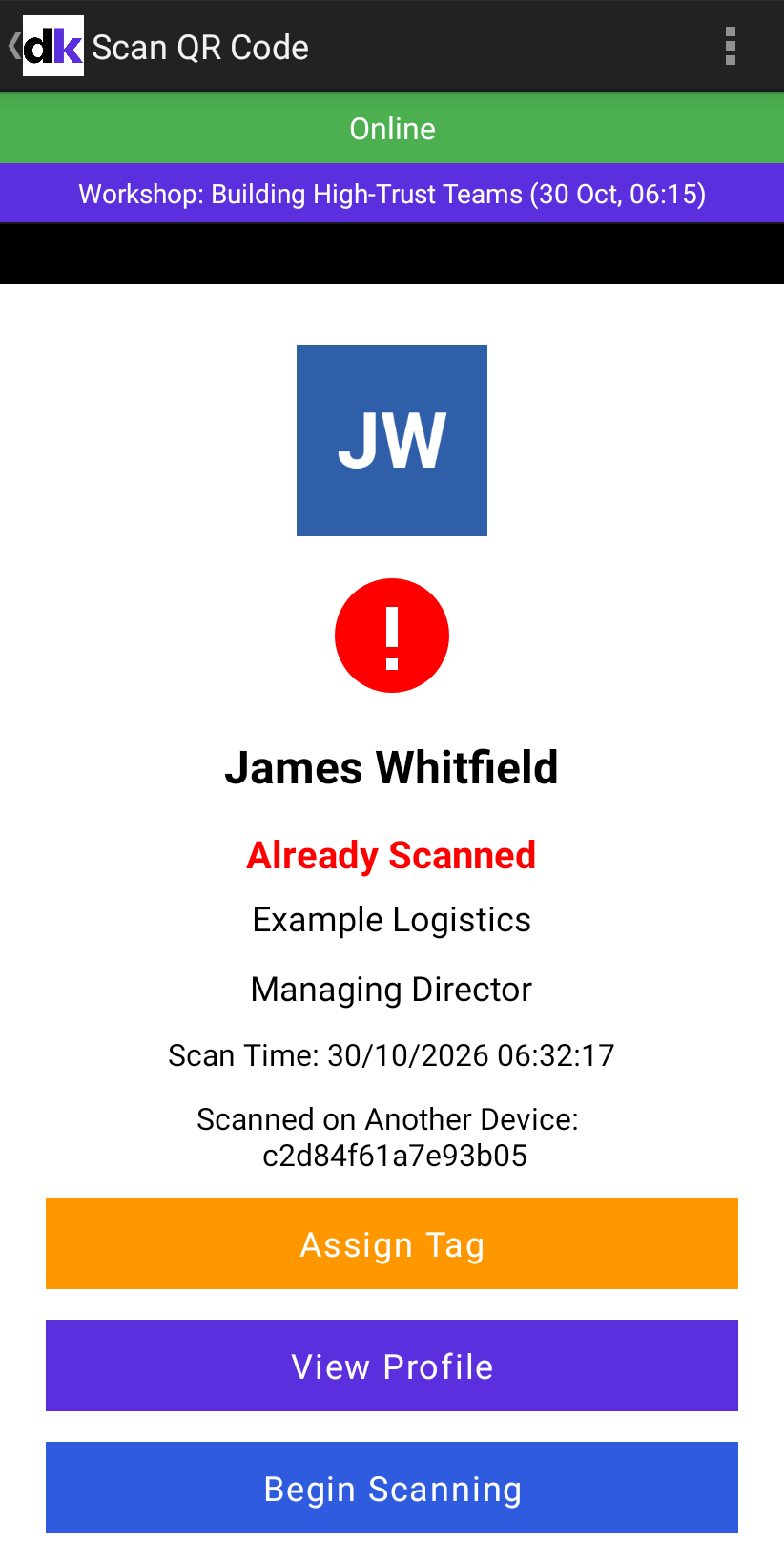
- Scanned On This Device means this device made the first scan.
- Scanned on Another Device means a different device did. QR results also show that device's ID.
A device that's offline only knows the scans it has, so it may show Valid Scan for someone already scanned elsewhere. Both scans are kept. The counts still count the person once.
How the devices stay in step
- While a device is online, each scan is sent to Delekit as it's made. A scan made offline is kept on the device and sent at its next sync.
- While a session's attendee list is open on a device that's online, the other devices' scans in that session (and any made on the web) appear on it within a few seconds.
- Otherwise each device fetches the other devices' scans when it syncs: when someone selects the refresh icon, when they come back from QR Scan, and every 15 minutes. In the attendee list's menu, an item shows when it last synced, such as Updated 2 minutes ago.
- Until then, the counts on two devices can differ. For one set of figures from every device, look at the session's overview on the web: select Sessions, then View all, and select View on the session.
If something isn't right
- A device shows Offline: keep scanning. See The check-in app shows Offline.
- The counts differ between devices: select the refresh icon on each, and wait for it to stop turning.
- You don't know which device made a scan: note each device's ID before the event. Scan a test ticket twice on it with QR Scan: the second result shows the ID after Scanned On This Device.
Related articles
- Scan attendees into a session
- Session counts in the check-in app
- Devices that can run the check-in app
Still stuck? Contact Delekit support.
Was this article helpful?
That’s Great!
Thank you for your feedback
Sorry! We couldn't be helpful
Thank you for your feedback
Feedback sent
We appreciate your effort and will try to fix the article